
1 Getting Started
Welcome!
The OpenClinica 4 (OC4) User Guide provides detailed information on how to build studies and forms, operate your study, manage your data, and support your study team and sites.
It also includes details about our add-on modules: Participate (for patient engagement and electronic patient reported outcomes, or ePRO), Insight (reporting, visualization, and data warehousing), and Randomize (for clinical trial randomization and supply management) to enhance your experience.
OpenClinica is trusted in thousands of studies around the world to capture and organize critical research data, and to enhance the productivity of your research.
We hope you'll find your OpenClinica experience to be friendly, intuitive, and of the highest quality. The team here at OpenClinica is committed to your success.
For Information on Logging In and Getting Started, See the Following Sections:
1.1 How to Get Help
Who Can Request Support?
We provide support on a named user basis to users who have completed the OpenClinica Super User Training. Your contract with us will specifiy how many supported users you are entitled to. Additional supported users can be added as needed. Note: The number of supported users has no bearing on the number of users you can have in your OpenClinica system.
To Access the OpenClinica Support Team (Contract-Based, Named Users Only):
- From the User menu, select Support. The Support Portal appears. You must log into the Support Portal separately from OpenClinica.
- Click the Create Request, View Request, or Email Support buttons, or click the Regulatory Resources button to go to OpenClinicas documentation site and view information on Regulatory Resources.
Updates
We provide release announcements and updates on downtime within OpenClinica through
HelpScout. Release Announcements are provided two weeks prior to the release. These include brief descriptions of the changes, screenshots, and occasionally short videos. After the release, the Release Announcement is updated with a link to the full release notes. You can also view our OC4 release notes here. Notifications from HelpScout appear automatically when you enter OpenClinica. If you want to see past announcments, you can click the ? icon in the lower right-hand corner of the screen. Note: If the ? icon is blocking something on the screen: Zoom in ( Ctrl + for Windows and Command + for Mac) with your browser until a scrollbar appears on the screen . Then scroll down until the ? (help) button is no longer blocking the content you want to view. Or Zoom out ( Ctrl - for Windows and Command - for Mac) with your browser until the screen size adjusts so that the ? (help) button is no longer blocking the content you want to view.
The Doc Site
Our goal is to provide information that is easy to find and understand on this website. To find information, you can:
Click OC4 User Manual on the sidebar, and select a heading related to the information you want to find.
Click Self-Service Training on the sidebar, and select the course related to the information you want to find. You will always have access to information, screenshots, videos, and quizzes, regardless of whether you have completed the training.
Enter search terms in the Search bar in the upper left-hand corner of the screen. This includes anything on the website, including information from the User Manual and from the SelfService Training. You can also filter search results by OC4 or OC3.
Resources on Our Website
Check us out on Youtube, LinkedIn, Twitter, or Facebook!
Register to receive access to our newsletter and free resources, such as The Ultimate eCRF Design Guide.
Tips for Submitting a Ticket
The more information we have, the more likely we will be able to quickly diagnose and resolve your issues. To keep things organized, please create one ticket per issue. If you want to submit multiple issues, please create a separate ticket for each. Here is some information that might be helpful to include in your description of the problem:
The date and time when you first encountered the issue
The username(s) of the user(s) who encountered and/or are affected by this issue
Whether the problem occurred in Test or Production, or both
The version of the software you are using
1.2 For OC3 Users
OpenClinica 4 has a modern, user-friendly interface that is easy to use and includes built-in, contextsensitive help. Customer accustomed to working in OpenClinica 3.x will see many familiar screens and concepts, but in many areas a brand new user interface--including new study and form building tools. This toolset can deliver dramatically shorter timelines for your study builds, and allow you to deploy case report forms that are highly dynamic, mobile-friendly, and autosave your data. Click here to see a more complete comparison between the different editions. Contact us for bridge training.
1.3 Logging In
Getting Invited
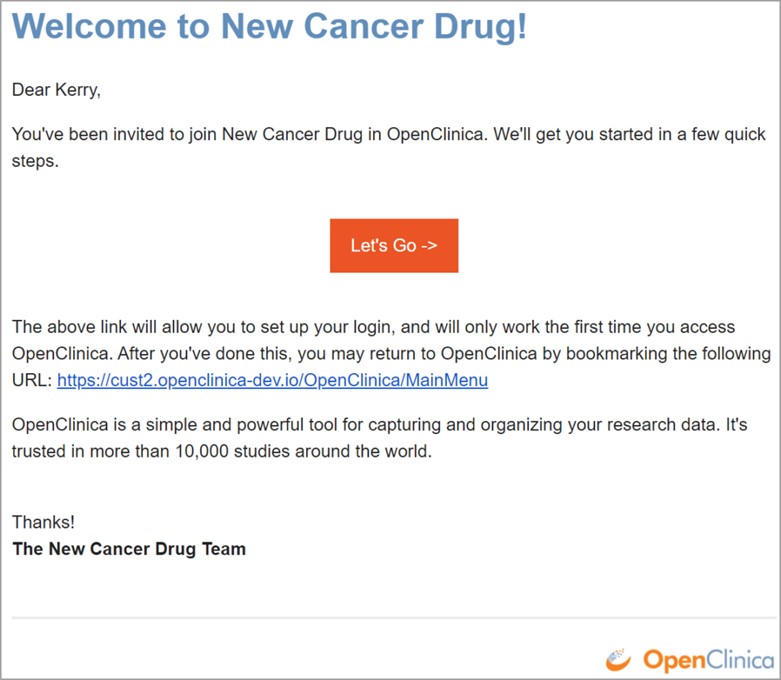
You will receive an email inviting you to participate in a study.
To Accept an Invitation:
- Open the email.
- Click Let's Go.
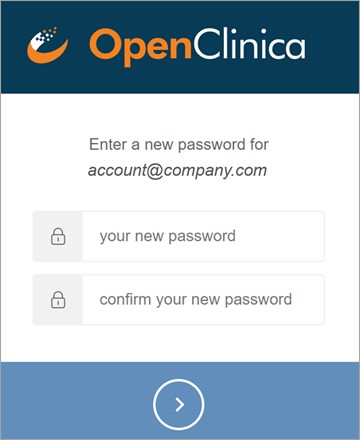
After clicking Let's Go, you will be redirected to a screen asking you to set your password.
Your Password Must:
Be at least 8 characters in length
Contain at least one of each of the following types of characters:
Lower case letters (a-z)
Upper case letters (A-Z)
Numbers (0-9)
Special characters (!@#$%^&*)
Note: Your environment may have different password requirements than shown above.
In Addition:
Passwords expire every 180 days, and users are automatically prompted to create a new password.
User accounts are locked after ten failed login attempts from the same IP address.
The lockout resets after 15 minutes. The login failure count resets every 24 hours. When a user tries to login after their account has been locked, it is included in the User Audit Log as a failed login attempt.
If a user resets a password, it cannot be the same as the previous password.
The password reset link is available for 24 hours, after which, if a user has not reset the password, they must request a password reset again.
All reset requests are logged in the User Audit Log.
Invitations to studies expire in 14 days if they have not been accessed.
Users are automatically logged out of OpenClinica after one hour of inactivity.
Note: Your environment may be configured for different behavior than shown above (except for the one hour inactivity timeout). Once you have entered a password that meets the requirements, you will be prompted to log into OpenClinica using a supported browser. If you want to create an OpenClinica bookmark, make sure to bookmark the Home screen after you login instead of bookmarking the Login screen. After you log in for the first time, you can no longer click the Let's Go button on the invitation.
To Log into OpenClinica After Your First Login:
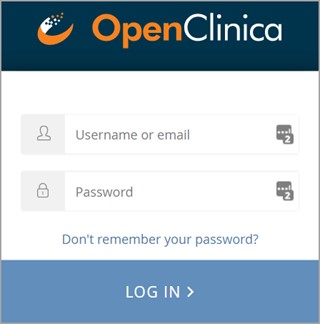
- Enter the URL for OpenClinica into the search bar at the top of your supported browser. You can find the URL on your invitation to the study. Or, if you have bookmarked the Home screen, click on the bookmark.
- Enter your username.
- Enter your password.
 OpenClinica supports using recent versions of the
following browsers:
- Google Chrome, Microsoft Edge, Firefox, and Safari for desktop devices
- Google Chrome for Android devices
- Safari for iOS and iPadOS (Apple) devices
OpenClinica does not support Internet Explorer (IE11) or Edge Legacy (the original version of Microsoft Edge). If the environment you're working with requires multi-factor authentication (MFA), the login process has an additional step.
Multi-factor Log In
In addition to entering your username and password, you must scan a barcode and enter an access code generated by the FreeOTP or Google Authenticator app on your smartphone.
To Log In with Multi-factor Authentication:
- Download either the FreeOTP (iOS or Android) app or the Google Authenticator (iOS or Android) app to your smartphone.
- Scan the barcode.
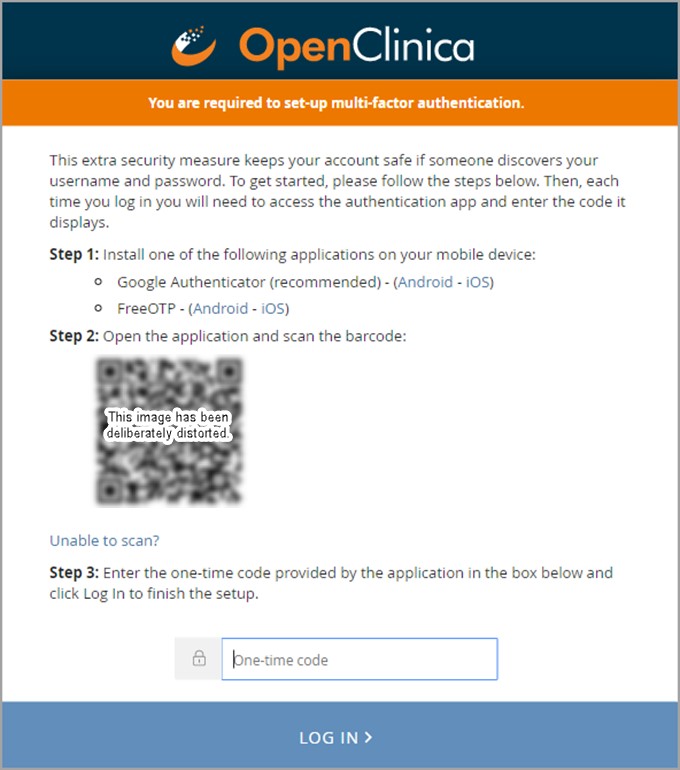
- Enter an access code.
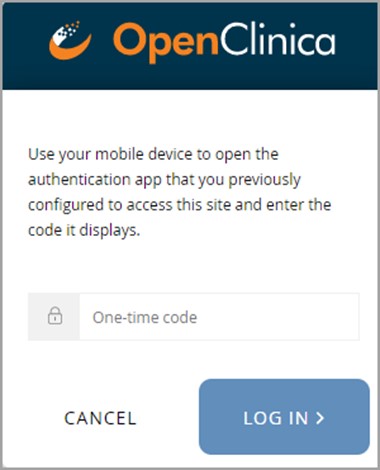 Whenever prompted in the future, use the
same mobile device you previously set up to receive the one-time passcode from either Google Authenticator or FreeOTP.
1.4 OpenClinica Basics
The following sections provide an introduction to basic information you'll need to use OpenClinica:
1.4.1 Viewing and Entering Data on Forms
Next, let's explore how to view and enter data.
Features
The features of OC4 data entry include the following:
Participant Matrix: Easily see the data entry status of participants.
Auto-save: Automatically save during data entry.
Conditional field display: Only see relevant fields during data entry.
Automatic calculations and edit checks: Automatically use calculations and checks. Queries: Easily create or view queries.
Forms
Forms are a collection of data entry fields for an Event or multiple Events. For example, the First Visit Event might contain the Eligibility, Consent, and Demographics Forms.
Types
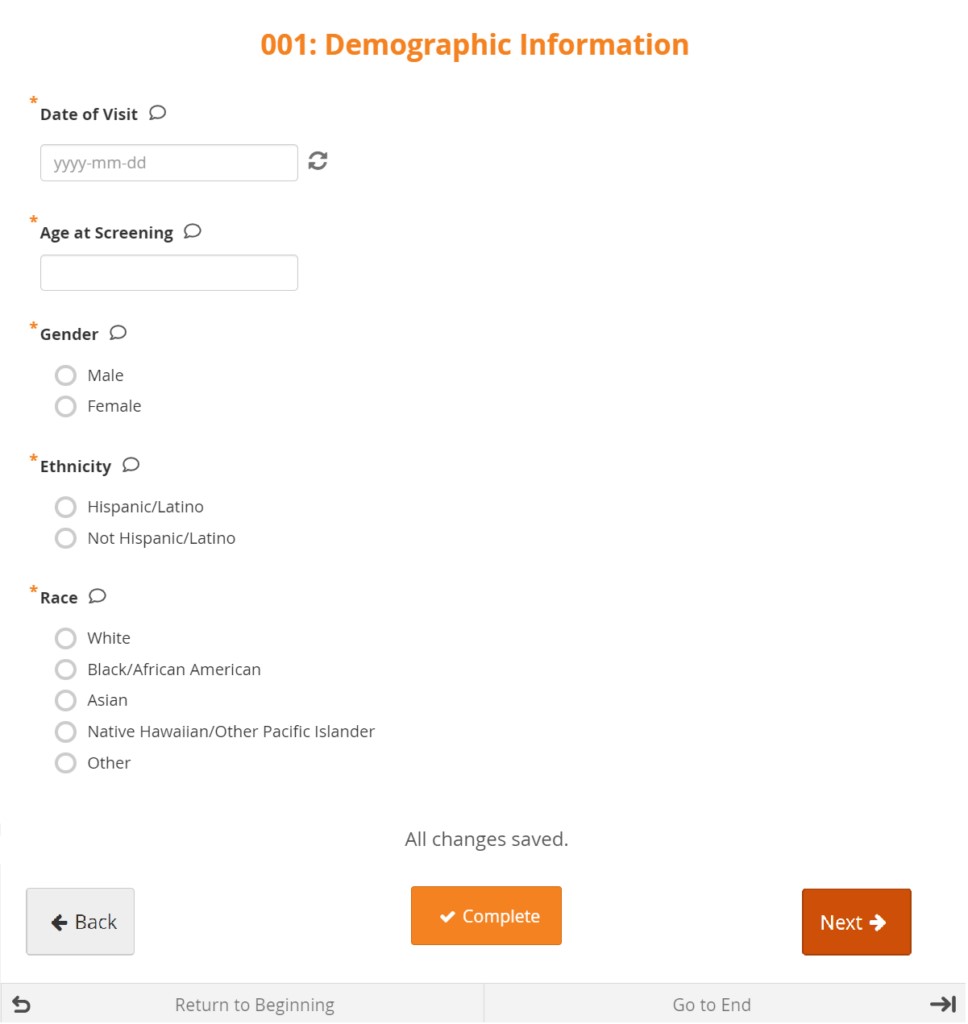
There are different types of fields, such as: select one, select multiple, integer, date, image, etc. Note that All changes saved appears at the bottom of the Form because all changes are saved automatically.
Layout
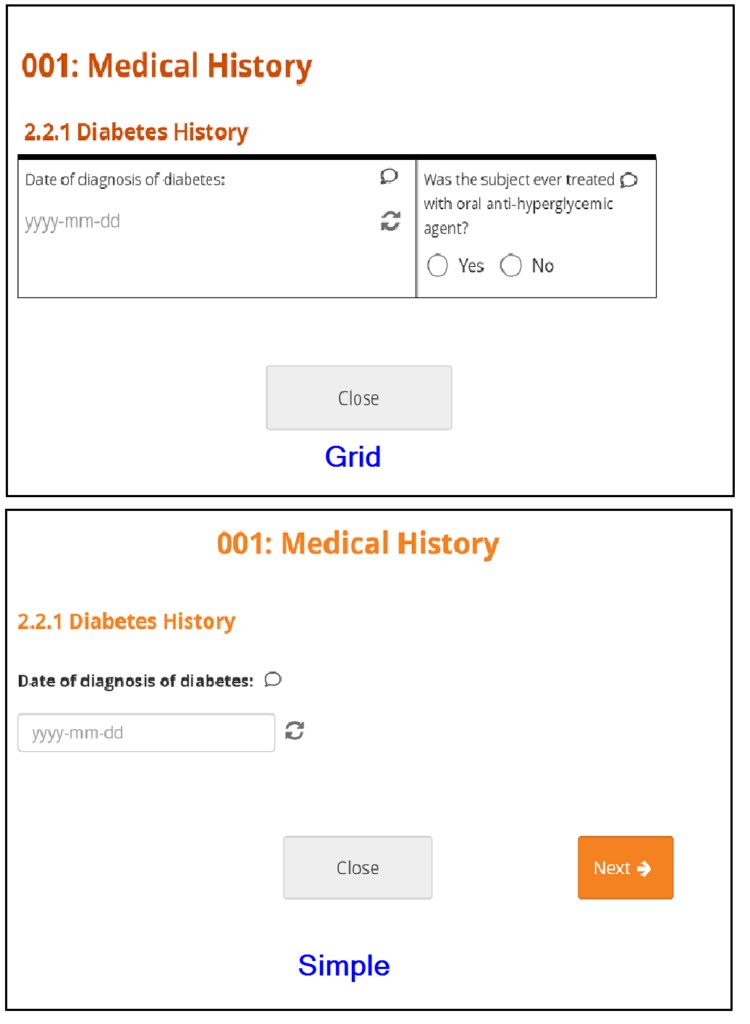
Forms can be simple (with one question per row) or grid (with one or multiple questions per box).
Conditional Fields
Some fields only appear if you enter a specific response in another field. For example, if the response to Do you smoke? is No, no related fields appear. If the response to Do you smoke? is Yes, other fields such as Packs per day might appear.
Edit Checks
If you enter a value that is invalid due to a constraint or do not respond to a required field, a message appears on the Form.

Closing or Marking a Form Complete
When you are finished entering data, you can close a Form and continue to enter data later or mark the Form Complete.
Before You Enter Data
- Add a Participant
- Schedule an Event
Entering Data
To Enter Data Directly into Visit Event Forms:
- On the Participant Details screen, click the Form Card to open the form in its default mode or click the Actions menu (three dot menu in the lower right corner of the Form Card) to select from the available actions on the form.
a. The default mode for the Form Card will be based on the highest access mode available.
- If the form is editable and you have edit permission for the form, the form will open in Edit mode. However, if the form is Completed, it will default to open in
Review-only mode, but can still be opened in Edit mode by using the Actions menu.
- If you do not have edit permission, it will open in Review-only mode if you have query editing access, or read-only mode if you do not.
- Enter information into each field and Submit when ready.
Enter Data Directly into Common Event Forms:
- On the Participant Details screen, click the Common Event header to expand it.
- Click the Add New button.
a. Or, to enter data in an existing Form, click the menu in the Actions column and select Edit.
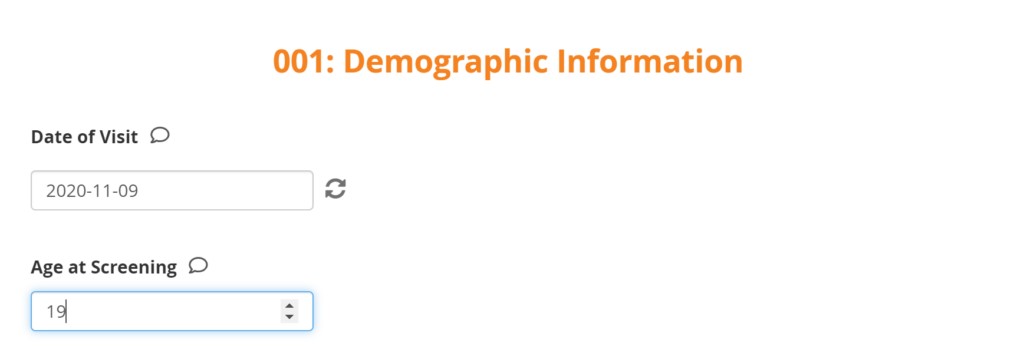
- Enter information into each field.
To Continue to the Next Page or Back to the Previous Page of the Form:
Click the Next button to proceed on the Form, and click the Back button to return to the previous page of the Form.
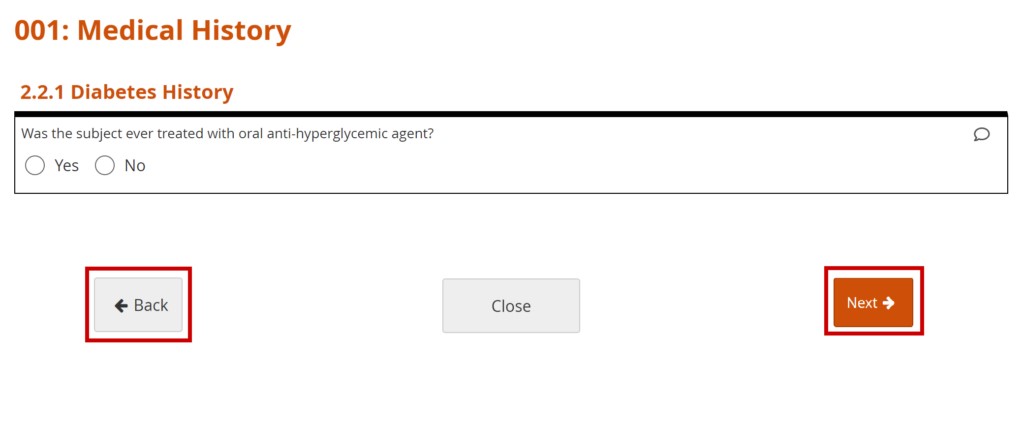
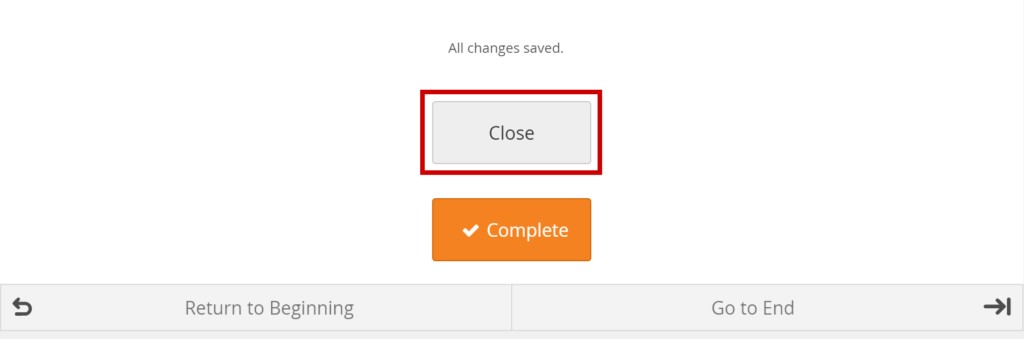
To Close the Form and Continue Data Entry Later:
Click the Close button.
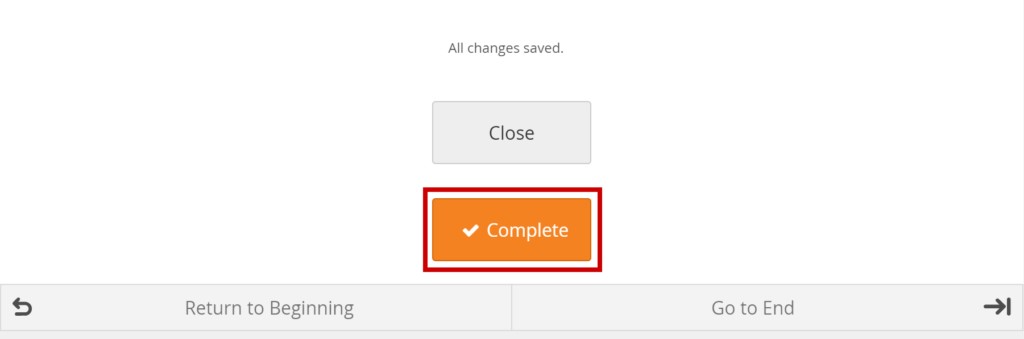
Mark Data Entry Complete:
Click the Complete button.
Queries
Queries are inquiries or alerts about data that needs to be reviewed.
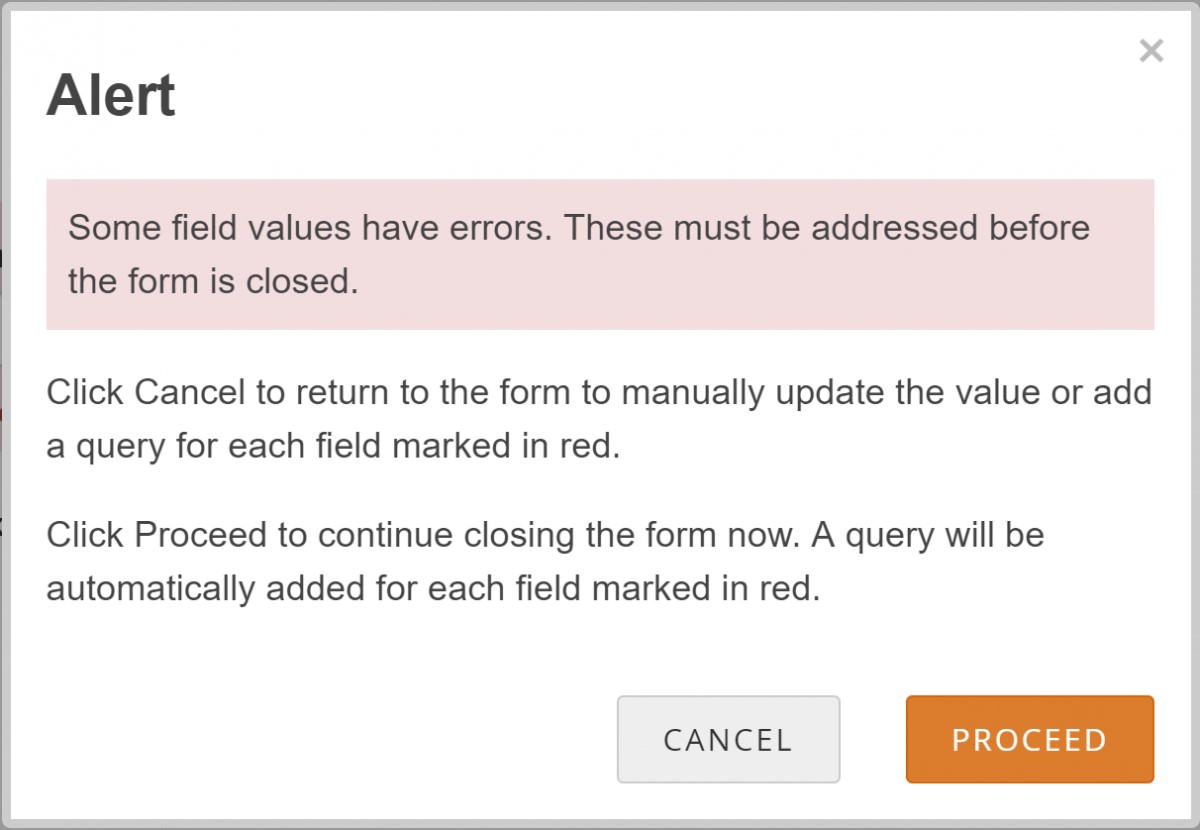
The system creates queries automatically if you close a Form that has unaddressed errors or you can manually create a query.
Another user can respond to it and/or change the response in the field. Only Data Managers and Monitors can close queries.
Add a Manual Query:
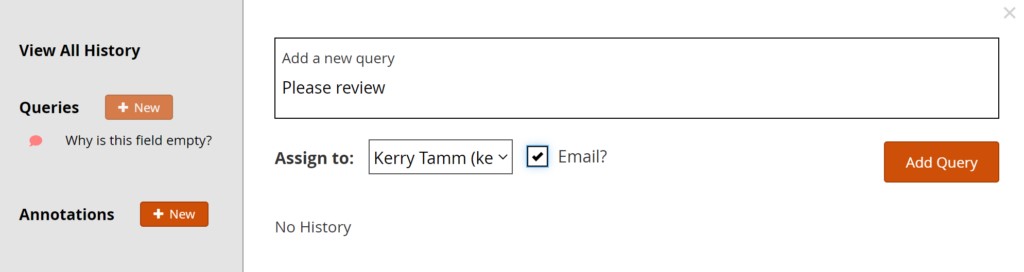
- Click on the Query Bubble next to the field you want to inquire about.
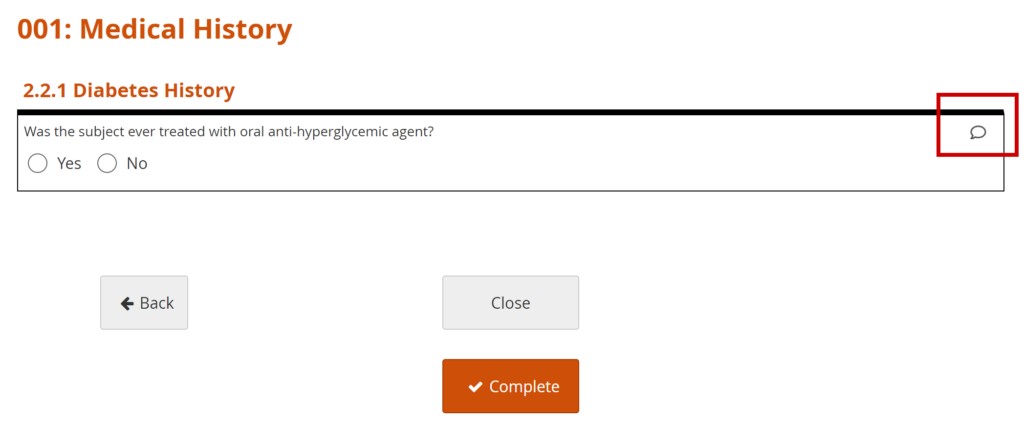
- Click +New.
- Enter text in the Add a New Query text box.
- (Optional) Select a user to assign the query to.
- (Optional) Check the Email? box to send an email notification.
Allow the System to Automatically Create a Query for the Value in Question:
- Click the Close button on a Form.
- Click the Proceed button.
- The system auto-generates a query based on the default message text defined in the Form.
1.4.2 Your Home Screen
Your home screen depends on your User Role, as shown in the table below: [table id=3 /] Note: If you have a custom User Role, the role is still based on one of the existing roles. For example, instead of the Monitor role, there might be Monitor Site A and Monitor Site B. These are based on the Monitor role and have the same home screen and permissions.
1.4.3 Managing Your Account
All users can update their user profile and password at any time.
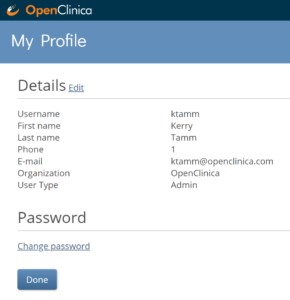
To Edit Profile Information:
- From the User menu, select My Profile.
- Click the Edit link, and update your information as needed:
Note: You cannot change the email address associated with your account. Please contact your administrator if you need to change your email address. To change your password, click the Change Password link, and update your password.
1.4.4 Frequently Used Screens
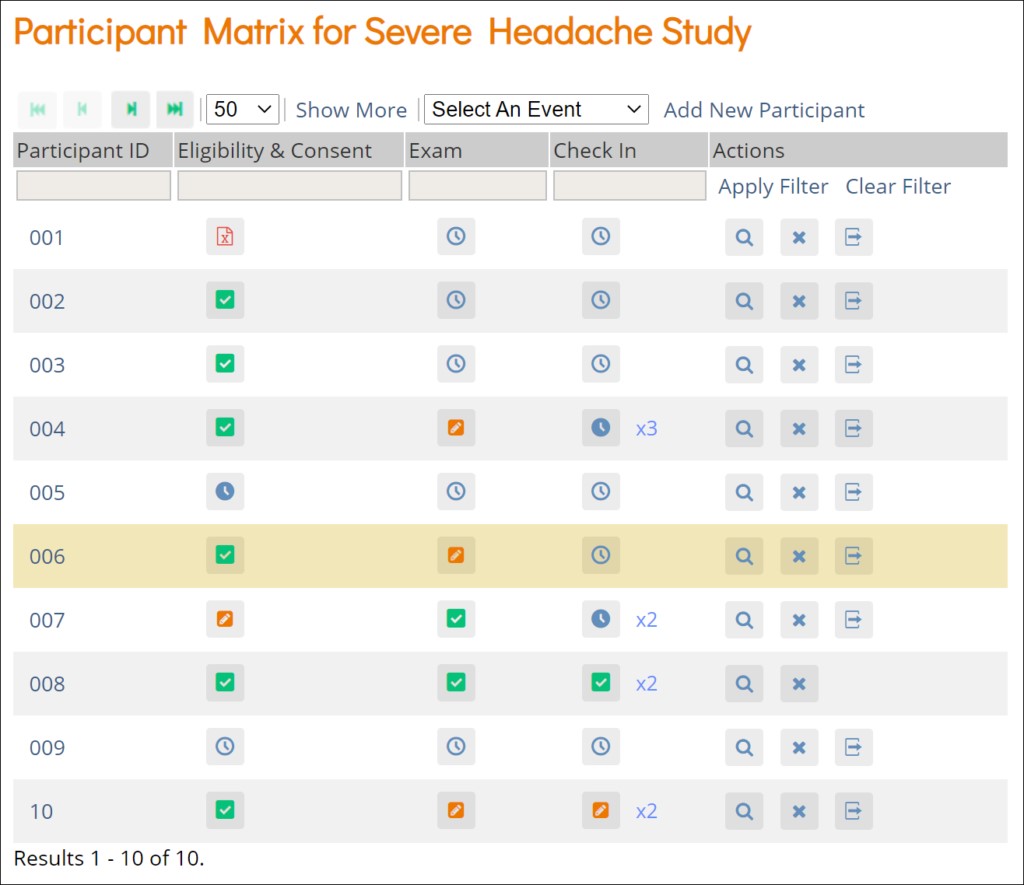
The screens you most frequently use depend on your User Role. Below are descriptions of the five main screens in OpenClinica: Participant Matrix, Participant Details, Form Data Entry, Queries, Source Data Verification. Participant Matrix: This screen displays a list of participant IDs, events, and event statuses. From this screen, you can view participant details, schedule events, remove/restore participants, and reassign participants to another site, depending on access.
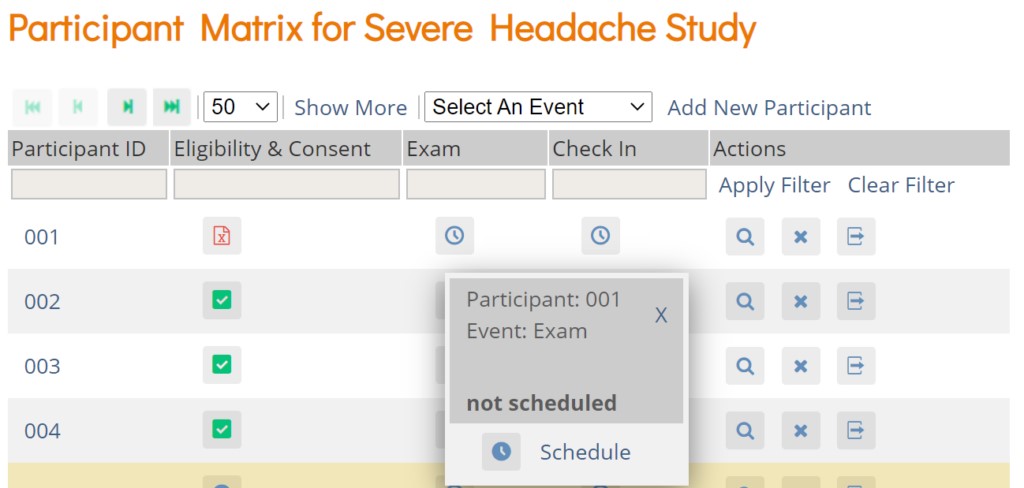
The Participant Matrix lists visit-based events across the top of the screen and participant IDs down the side.
Each icon represents the status of the participant/event combination.
A legend of the icons is listed on the left side of the screen.
Hover over the icons in the Participant Matrix to see more details about the participant event. Click an icon for options to view and/or edit data, depending on your access. You can filter events by status.
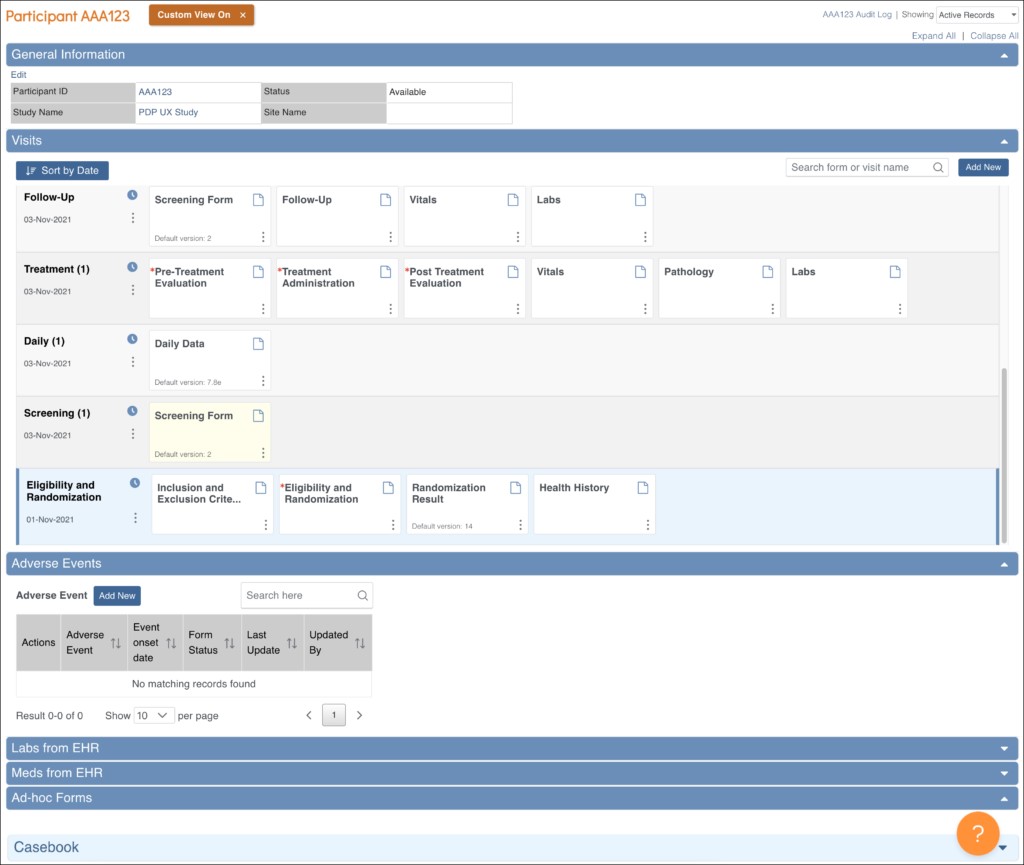
Participant Details: This screen displays the participant's general information, events, and forms. From here you can view Forms, enter data into forms, edit form data, lock events, remove/restore events, clear forms, and reassign a form to another version (depending on access). The Participant Details screen is divided into the following sections:
General Information
Visits
Common Events
Casebook
Form Data Entry: When you open a form, you can view, enter data, edit data, add queries or annotations, close, and complete forms. If a user makes a change to the data after the form has been completed, they must enter a Reason for Change. Some features include:
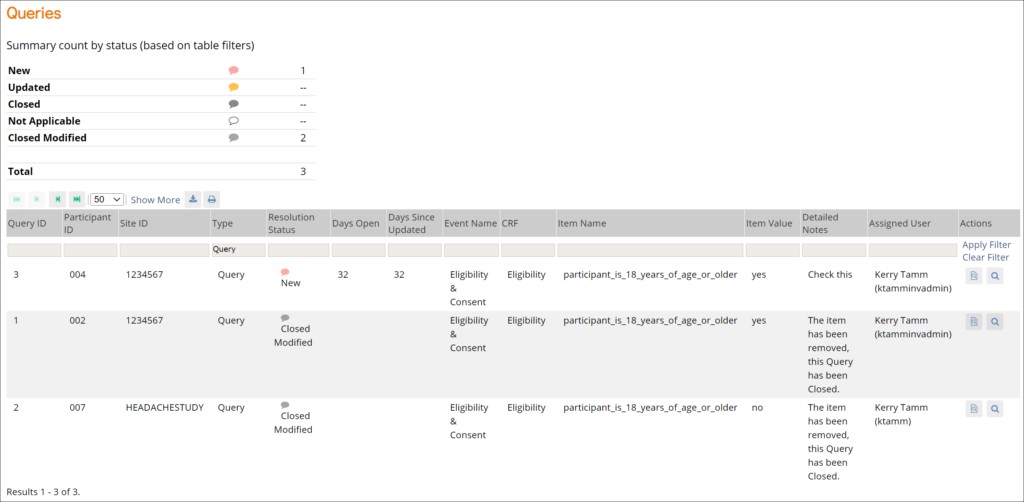
auto-save conditional fields calculations and edit checks concurrency locking 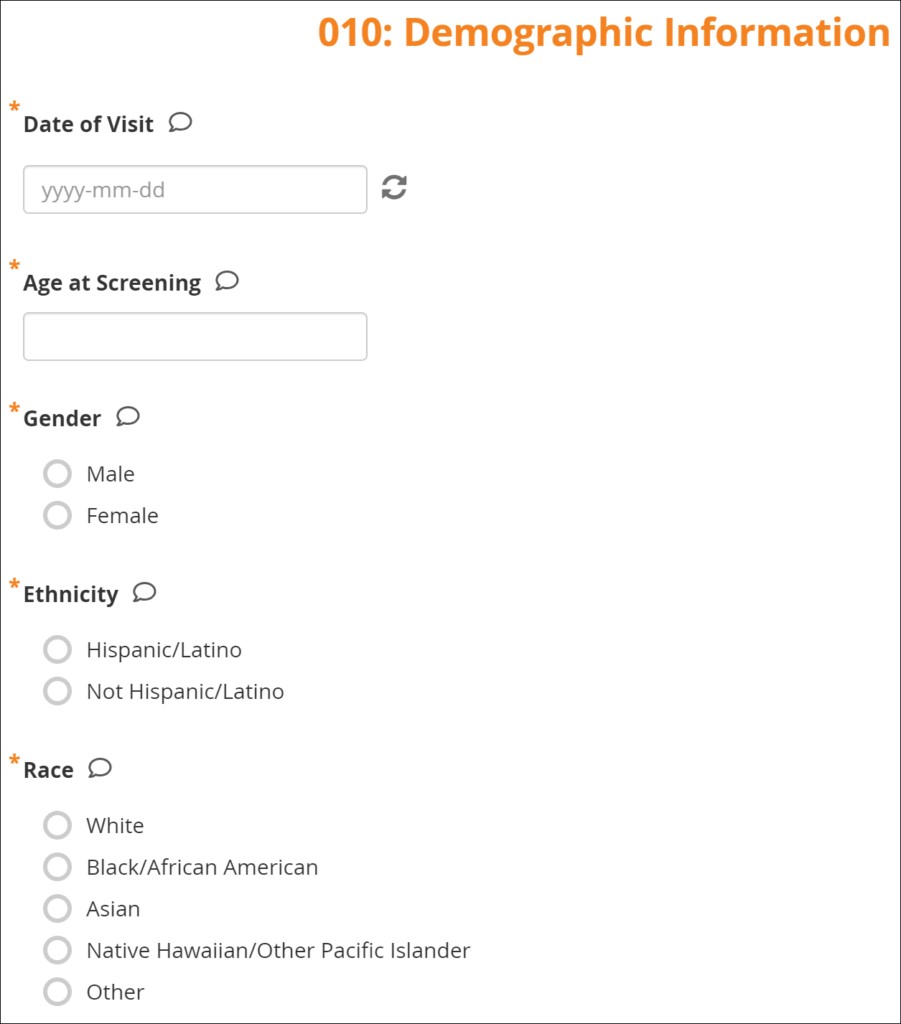 Queries: This screen displays all queries in the study environment. On this screen, you can view, add, update, and close queries, depending on access. Queries are usually added while reviewing forms from the Participant Details screen, but you can also add them when reviewing forms here.
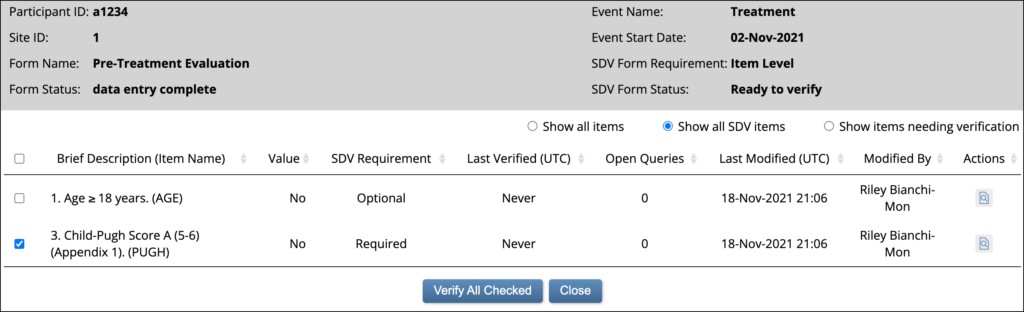
Source Data Verification: On this screen, you can view forms, view item data, and verify/unverify forms.
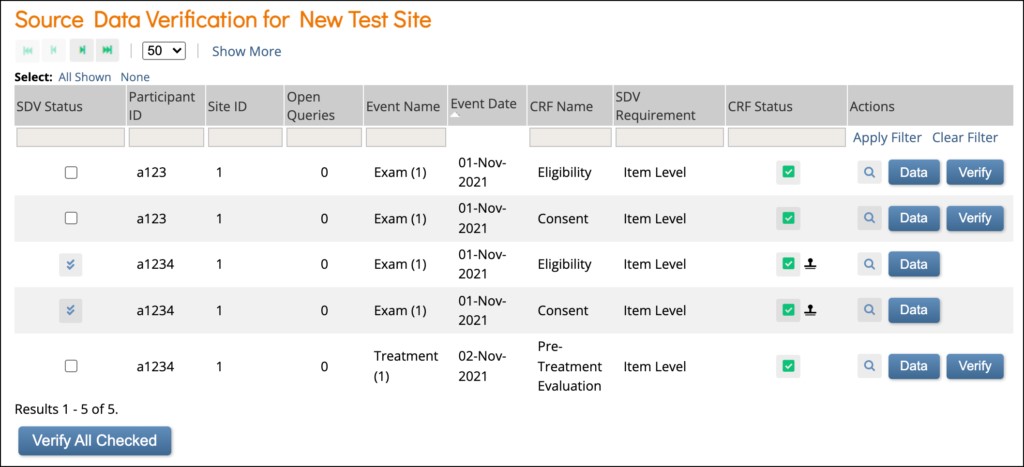
Item-Level SDV Screen:
1.4.5 Frequently Used Terms
The following table displays terms that are frequently used within OpenClinica. [table id=7 /]
1.4.6 How to Log Out
You can log out of OpenClinica from the User menu.
To Log Out of OpenClinica:
- Click the User menu.
- Click Sign Out.

1.4.7 OpenClinica Navigation
There are two main areas in OpenClinica:
Study Runner: the part of the system where your studies are carried out
Study Build System: where studies are configured, then published to Study Runner
Study Runner:
All users can access Study Runner, but the home screen you will see depends on your user role, as does access to certain features. Features in Study Runner include:
Top Row (from left to right):
- The Study Name and Study ID
- If you are in the test environment it will display a banner to the right of the study id. This space will be empty in the production environment.
- The Change, Share, and Settings buttons. (Only users who are Data Managers and Administrators see the Design button.)
- Your user id and the downward arrow that will open your user menu, the contents of which depend on your specific role.
Second Row (from left to right):
- Participant ID Search/Lookup
- Links to menus and certain areas within Study Runner
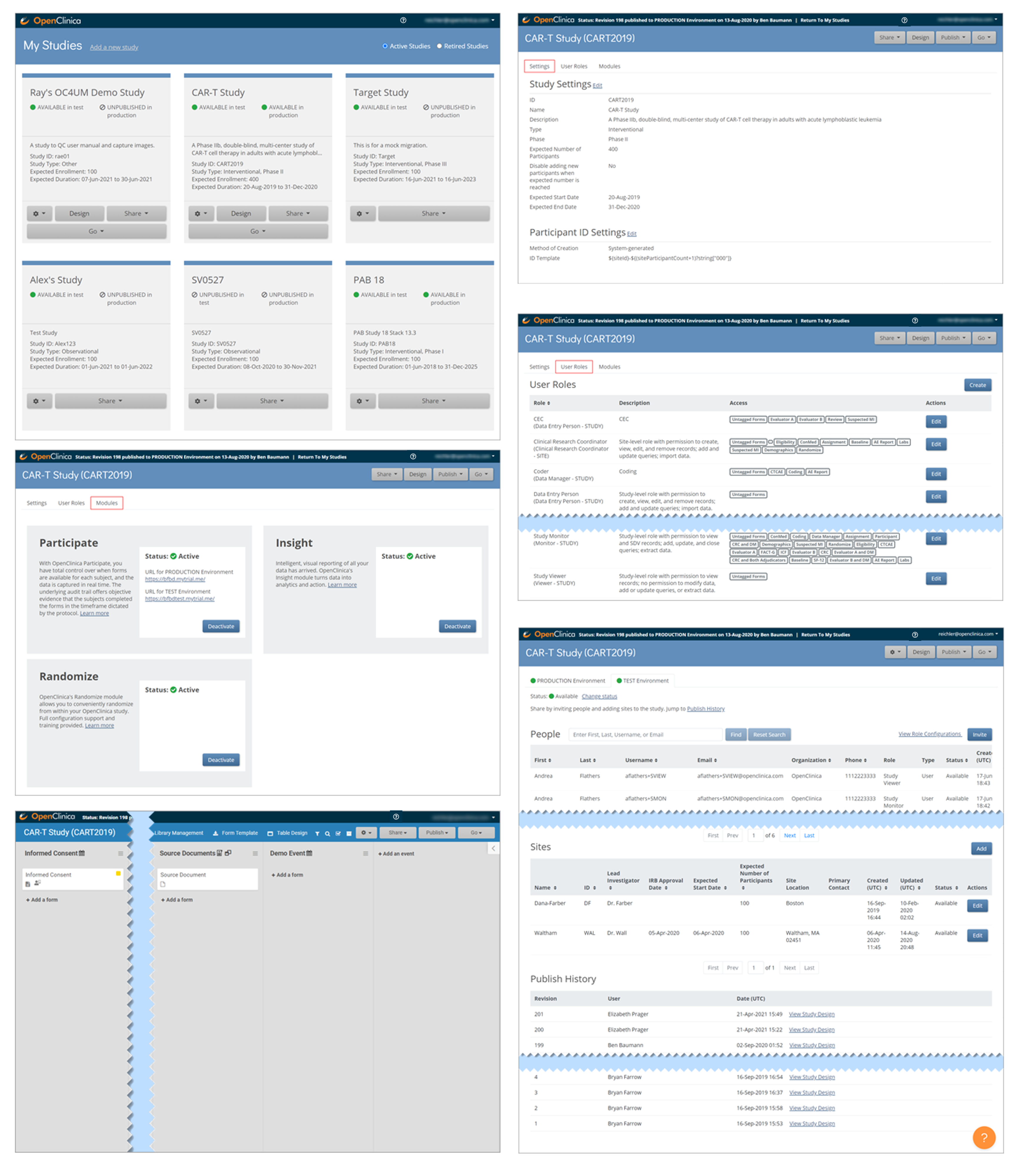
Study Build System:
Only Data Managers and Administrators can access the Study Build System. This includes the following screens, which are presented in detail throughout this guide.
1.4.8 The Participant Matrix
The Participant Matrix displays Participants in the study. This screen is central to the system.
Use the Participant Matrix to:
The Participant Matrix lists Visit-Based Events across the top of the matrix and Participant IDs down the side.
Each icon represents the status of the Participant/Event combination. A legend of the icons is listed on the left side of the screen.
Hover over the icons in the Participant Matrix to see more details about the Event.
Filters
You can filter Events by the data in any column with a gray box under the header.
Use the drop-down menu at the top of the Participant Matrix to view Participants by Event.
Click the gray box in the Status column (which appears only if you click Show More) to view Participants by status, including the independent statuses of Locked and Signed. You can also filter Events with Not Locked and Not Signed.
View and Enter Data
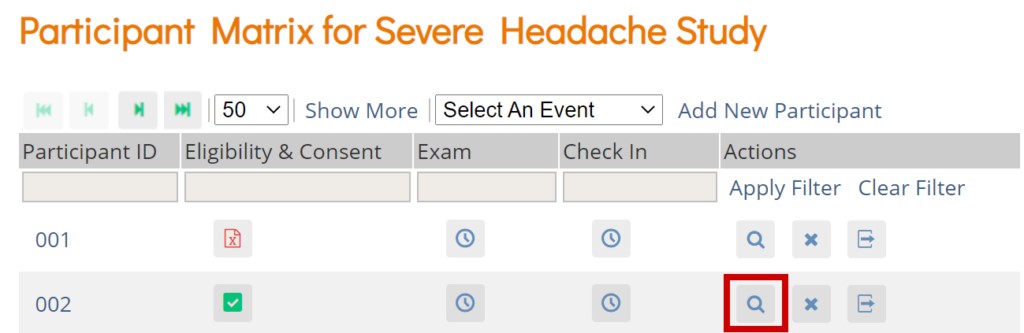
Click the View button in the Actions column that corresponds to the Participant/Event to view the Participant Details screen.
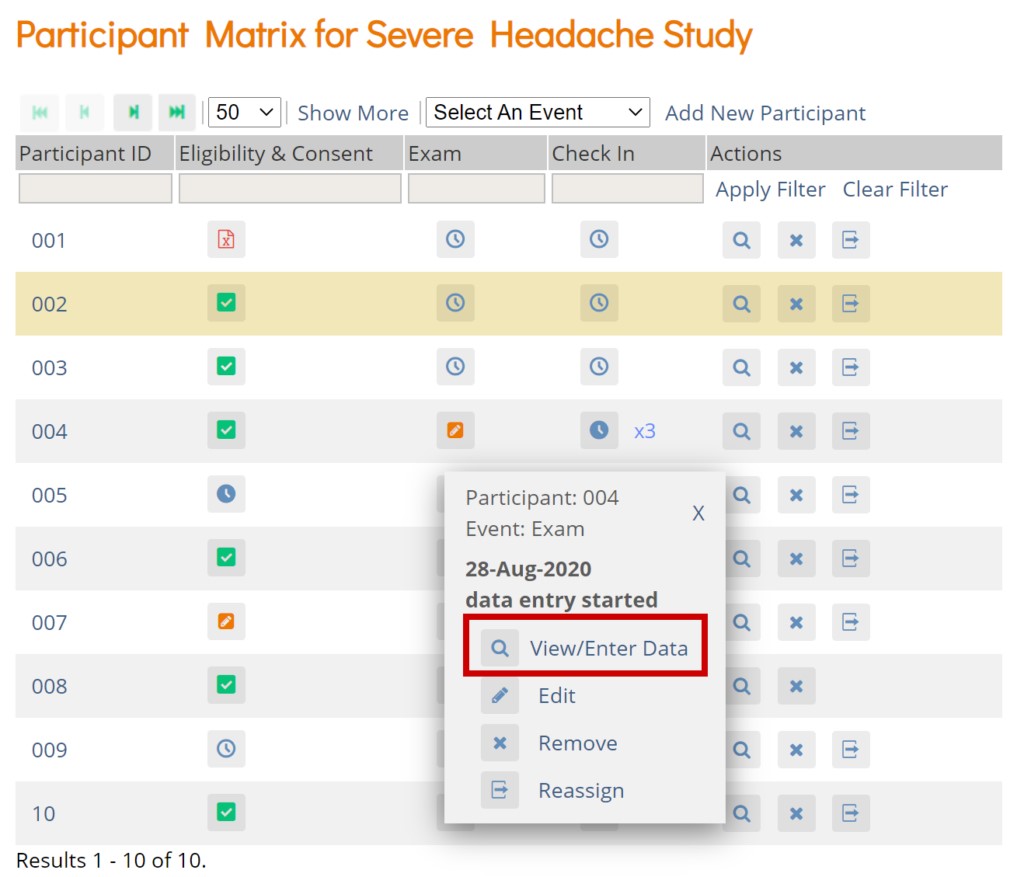
Click the icon for a scheduled, data entry started, or completed Event and select View/Enter to view the Participant Details screen.
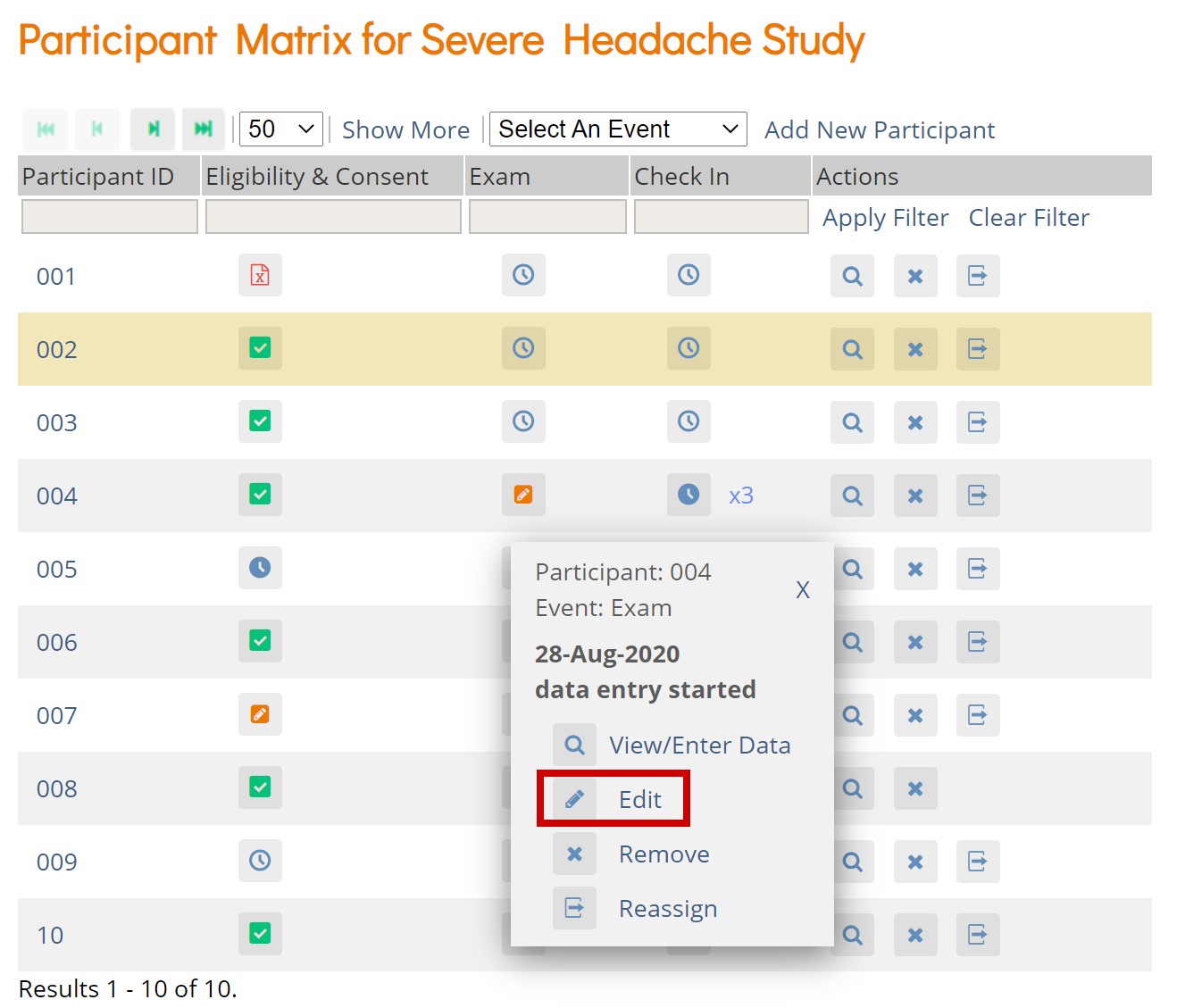
Edit Event
Click the icon for a scheduled or data entry started Event to edit the Event.
1.4.9 Adding a Participant
Great! Now that you've logged in, let's add a participant.
To Add a Participant:
- On the Participant Matrix screen, click the Add New Participant link above the matrix.
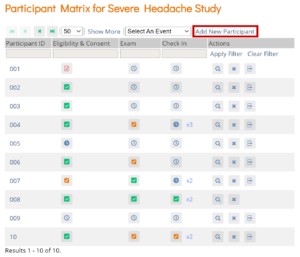
- Enter a Participant ID on the Add New Participant screen. (This should be a unique identifier, e.g. 001). If your study is set to auto-generate, an ID based on a pre-defined template appears.
- Click the Add button.
1.4.10 The Participant Details Screen
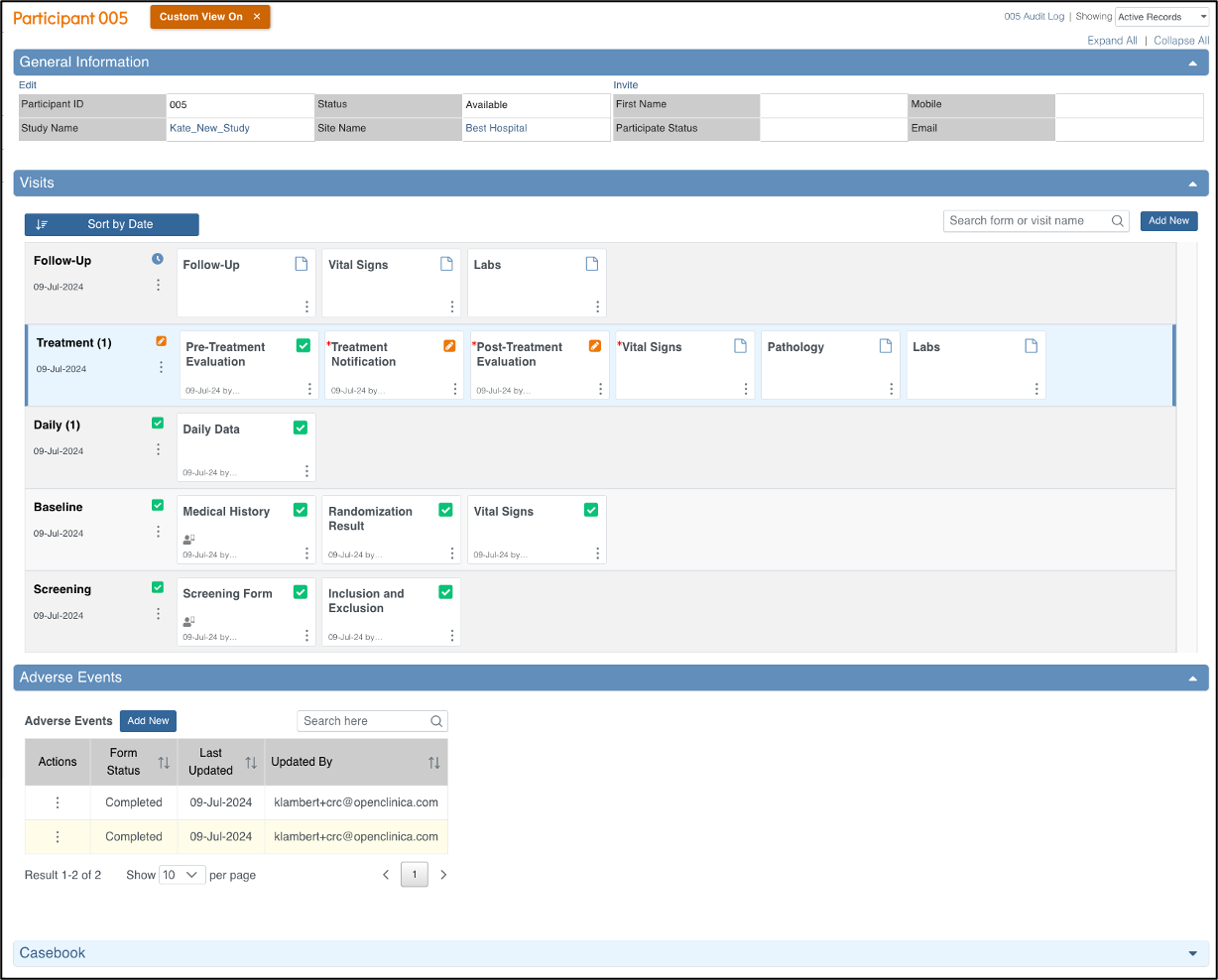
This screen displays the Participant's general information, Events, and Forms, as well as a link to the Participant's Audit Trail.
From this screen, depending on your level of access, you can:
View, Add or Update Participant data
View Forms
Enter/edit Form data
Lock Events
Sign Events
Edit Events
Add or Schedule Events
Remove/Restore Events
Clear Forms
Reassign a Form to another version
To Access the Participant Details Screen:
On the Participant Matrix, click on the Participant ID or the View button that corresponds to the Participant whose information you want to see.
The PDP is Divided Into the Following Sections:
General Information
Visit-Based Events
Common Events
Casebook (Casebook information can be found in the Download Single Participant
Casebooks section of the Generating Participant Casebooks page)
General Information Section
The General Information Section displays information about:
Note: If Participant ID Method of Creation is set to System-generated, only Data Managers can edit the Participant ID. Data Managers can always edit IDs, even ones that are system-generated. If Participant ID Method of Creation is set to Manual Entry, Visit-Based Events Section:
Common Events
Custom Views
The Participant Details screen initially opens with the Visit-Based Events displayed and all Common Events collapsed. Click the Expand All link to expand all Common Events, or click an individual Common Event section to expand only that section.
When you expand sections, the Custom View On button appears. To return the screen to its default state, click the X on the Custom View On button.
The Custom View On button will appear when you expand or collapse any section that is not part of your default view. It will also appear after changing the Showing filter or using the Search feature within Visit and/or Common events. Your custom view will remain on that participant until you update it again or go back to your default view by clicking the X.
1.4.11 Events
An Event is a group of Forms that are used in your Study. An Event might or might not be connected to a real-world visit.
Icon | Event Type | Description | Example(s) |
| Visit | An event that is associated with a visit date. The event can be repeating or non-repeating. | Week 2 Visit (non- repeating); Monthly Follow- Up for Disease-Free Survival (repeating) |
| Common | An event that is not necessarily associated with a visit date. | Early Withdrawal or Termination (non- repeating); Adverse Events (repeating) |
| Repeating | An event that repeats in your study, either a known or unknown, number of times. This icon will appear adjacent to one of the previous two when an event is a repeating event. | Concomitant Medications |


Scheduling an Event
Once a Participant has been added, you can schedule Events.
You can schedule Events from the Participant Matrix, Participant Details screen, or the Tasks menu.
To Schedule a Visit-Based Event from the Participant Matrix:
- Click the Schedule button for the Participant and the Event that you want to schedule.
- Select Schedule.
- Select a Study Event Definition from the drop-down list.
- (Optional) Select a Start Date/Time. The current date is the start date by default, but you can change it.
- (Optional) Select an End Date/Time.
- (Optional) To schedule additional Events, click Schedule Another Event, and enter information for that Event. Repeat as needed.
- To go to the Participant Details screen to enter data, click the Proceed to Enter Data button.
To Schedule a Visit-Based Event from the Participant Details screen:
- Click the Participant ID or View button next to a Participant on the Participant Matrix.
- Under the Visits header on the Participant Details screen, click Add New.
- Select a Visit Name from the drop-down list.
- The current date is the start date by default, but you can change it.
- (Optional) Click Show advanced options to change the Start Time or End Date/Time.
- (Optional) To schedule additional Visits, click + Add another visit, and enter the new visit information. Repeat as needed.
- When you are ready, click Add visits. The recently added visits will be highlighted with a yellow border.
To Schedule a Visit-Based Event from the Tasks Menu:
- Click the Tasks button in the header bar of Study Runner.
- Select Schedule Event.
- Enter a Participant ID in the Participant ID field.
- Select a Study Event Definition from the drop-down list.
- (Optional) Select a Start Date/Time. The current date is the start date by default, but you can change it.
- (Optional) Select an End Date/Time.
- (Optional) To schedule additional Events, click Schedule Another Event, and enter information for that Event. Repeat as needed.
- To go to the Participant Details screen to enter data, click the Proceed to Enter Data button.
To Schedule a Common Event from the Participant Details screen:
- Click the Participant ID or View button next to a Participant.
- Under a header for a common event on the Participant Details screen, click Add New.
Visit-Based Events
In a typical clinical trial, most Events are defined as Visit-Based Events, such as: Week 2, Week 6, and Monthly Follow-up, in which the Week 2 visit occurs two weeks after the baseline visit, the Week 6 visit occurs six weeks after baseline, etc. These visits are associated with a schedule that is outlined in the Study protocol, and each visit has a specific set of Forms that are collected.
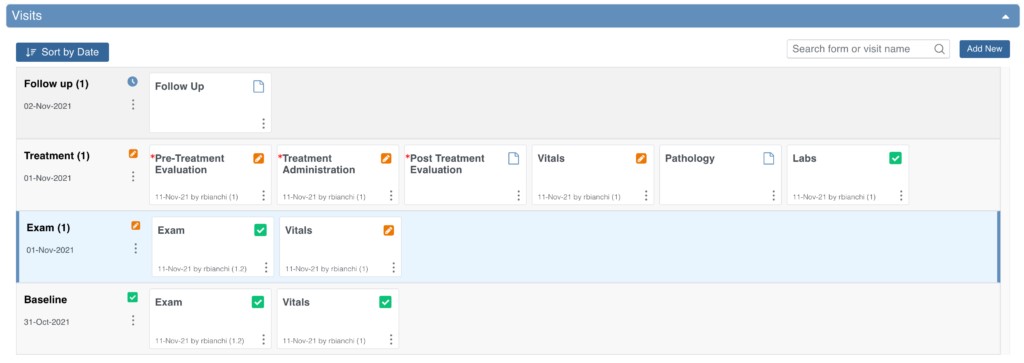
When reviewing the Visits section, you are taken to the earliest visit that is not yet complete (Complete, Skipped, Stopped, Removed, or Archived status), displaying with a blue background.
Common Events
However, some Events, such as Adverse Events, Concomitant Medications, or Early
Termination, do not occur on schedule and might not be associated with a visit date. These Events should be defined as Common.
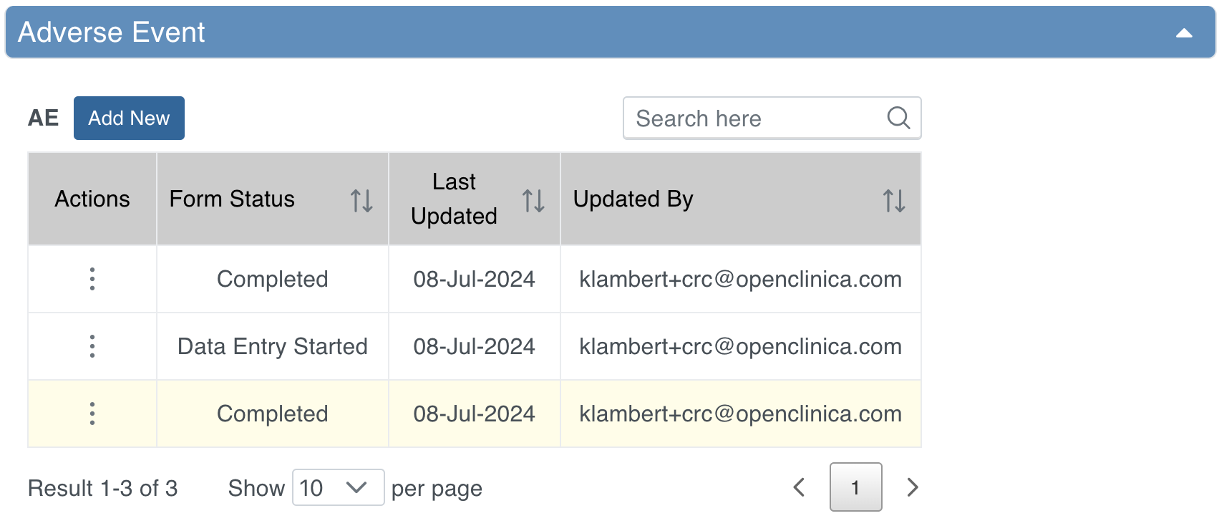
Common Events are used to collect information that is not necessarily related to a scheduled visit date. For example, Adverse Event (AE), Concomitant Medication (ConMed), or Early Termination forms.
Common Events can be defined as either Repeating Events (e.g. AEs and ConMeds, since Participants might have more than one AE or ConMed) or Non-Repeating Events (e.g. Early Termination, since a Participant can only terminate once).
Event Statuses
The table below displays Event statuses:
Icon | Status | Description |
| Not Scheduled | The Event has not been scheduled. Common Events, such as Adverse Events remain in this status throughout the study. |
| Scheduled | The Event has been scheduled, but no data has been entered. |
| Data Entry Started | A user has started to enter data, but not all of the Forms in the Event have a status of completed. |
| Completed | A user has completed data entry for at least one Form in the Event. If further changes are needed in that Form, you are required to provide a reason for change. |
| Skipped | The user has decided not to complete the Event. Any data that has been entered can still be viewed and/or exported. You can select this setting from the dropdown menu on the Update Event screen when the current status is scheduled. |
| Stopped | The Participant has temporarily stopped participating in the study. You can select this status from the dropdown menu on the Update Event screen when the current status is data entry started. |
| Removed | The Event has been removed. Users can still view Forms. This will supersede any of the other statuses. |


Event Attributes
Event Attributes (or Independent Status Attributes) can be used in addition to Event statuses.
Icon Status Description
The Event has been signed. This icon appears in addition to the status. Note: If an Event is signed, changes to an item in a Form in that Event removes the signature. This also occurs if an Event status is changed from completed, stopped, skipped or not scheduled after being signed. In addition, this changes the Participant Status from signed to available and the Event Status to completed. Archiving/unarchiving or
Signed removing a Form will unsign the Event. The exception is that when archiving/unarchiving, a Form with a status of Not Started will not be unsigned. Multiple users can sign an Event, so even if an Event has already been signed, the sign action will still be available. If there are multiple signatures, the most recent one appears on the Form, and the others appear in the Audit Log.
Archived The Event was archived in Study Designer. This icon appears in addition to the status.
Locked A Data Manager locked the Event. No data can be added, and the Event cannot be removed. This icon appears in addition to the status.
Form Actions
Only Data Managers can use the Reassign CRF action, and only Investigators and Data Specialists can use the Sign action.
Icon | Action | Description |
| Enter/Edit | Enter or edit data in the Form. |
| View | View data in the Form. |
| Remove | Remove the Form from the Event. This is not permanent. |
| Restore | Restore a Form that was previously removed. All data is restored. |
| Clear Form | Clear all data in the Form. This resets the Form to Not Started and closes all associated queries, but audit history is retained. |
| Reassign CRF Version | Change the version of the Form if data has already been entered. |


Form Statuses and Icons
The table below displays Form statuses and icons:
Icon | Status | Module | Description |
| SDV Verified | N/A | The form has been SDV Verified. |
| SDV Required, Not Verified | N/A | The form has not yet been SDV Verified, but has at least one SDV Required item. |
| SDV Status Changed Since Verified | N/A | The form was SDV Verified, then something changed so it should be verified again. |
| Query | N/A | There is at least one open query on at least one item on the form. |
| Consent Not Signed | eConsent | The eConsent form has not yet been signed by the participant. The participant may still need the event with the eConsent form to be scheduled for them to see it, but the icon will appear on the form card after the event has been scheduled. |
| Consent Signed | eConsent | The participant has signed the eConsent form, but it has not yet been countersigned by an OpenClinica user (CRC or Investigator). The form will be marked as Completed as well because the participant signed the eConsent form. |


| Consent Countersigned | eConsent | The participant has signed the eConsent form and it has been countersigned by an OpenClinica user (CRC or Investigator). The form will be marked as Completed as well because the participant signed the eConsent form. |
| Requires Reconsent | eConsent | The eConsent form was signed by the participant, but an OpenClinica user (CRC or Investigator) clicked Unconsent for the eConsent form. This update can be made to the form regardless of whether the form was Countersigned. Marking the form as requiring reconsent causes the form to reappear on the participant's dashboard and marks the form as Data Entry Started. |


Was this article helpful?
That’s Great!
Thank you for your feedback
Sorry! We couldn't be helpful
Thank you for your feedback
Feedback sent
We appreciate your effort and will try to fix the article