During Kick Off Call / Study Build Kick Off
Will we be configuring the ePro forms or someone from your team?
SC to go over module activation process:
When in Study Designer, click on the sprocket icon and choose “Modules.”
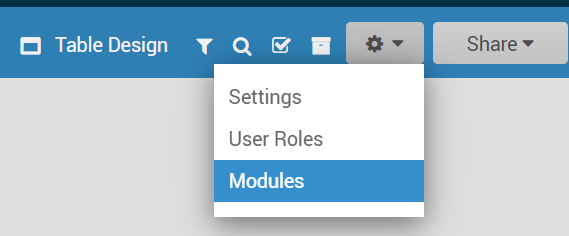
Under “Participate” choose “Request Access”

A ticket will be sent to Support to request access for the study.
OpenClinica Study Build Questions
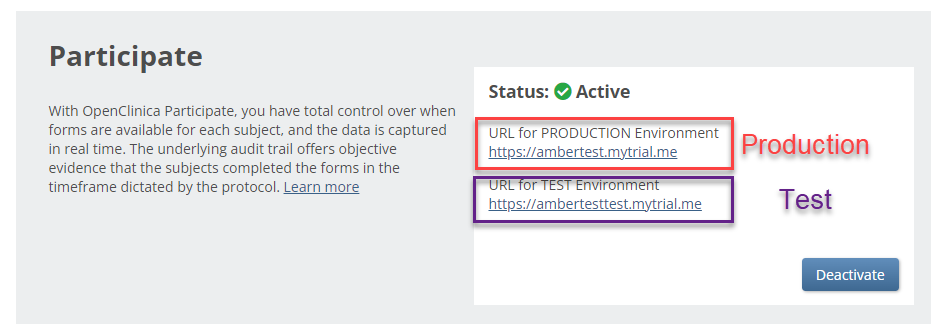
Is there a mytrial URL name the customer would like to use?
Note:This will be displayed for the production environment, the test environment will add the word “test” to the url as seen below.
What forms would the customer like to implement ePro for? As a reminder, these can only be set up for based events not common events.
The setup:
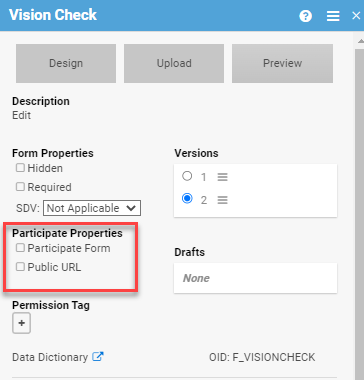
In Study Designer, click the form on the form card that should be added to.
Select the “Participate Form” checkbox under the Participate Properties. This will also give the user the option to select a Public URL (more details on Public URL below)
Will your study use eConsent? See separate work instruction
Will participants use an access code in the clinic or be notified on individual Participant devices?
If notifying on individual participant devices ask the following:
What methods of communication–email, texting, or public url?
If mobile texting is selected:
Please be aware there is a charge for how many messages are sent out (something to be aware of as this will be additional)
For customers outside the US, UK, and Canada- will they be messaging participants outside these countries and if so if they know the countries or country codes they will need to message to. Region/country selections will need to be made in Twilio to accommodate this?
Mobile phone number is stored internally along with country code (for example +123 456789012345). Once a value has been collected, on either the form or from the Participant Details screen, it will be displayed in that format with country code (including +1 before US phone numbers). The form will permit phone number entry in either the +, country code, space, and number format, or as strictly a 10-digit number that is assumed to be for country code +1.
Rules: How often does the customer want to notify participants about forms that are due?
Schedule Events as appropriate for the Participant. Participants only have access to forms that are in events with a status of Scheduled or Data Entry Started which is where rules come into play.
Forms that have been identified as Participate Forms can be completed by Active Participants as well as CRCs and Investigators. When the Participant enters data into a Participate Form, that Form data is immediately available in OpenClinica for review.
What would the customer like the notification message to display to the participant to say?
Would the customer like to have offline capabilities or public URL for your forms?
Public URL- Public Participant Surveys: Allows participants to self-register for a study. Configure forms to allow Public URL within Study Designer and then create the form URL within the Site Configurations page in Study Runner. This URL can be shared in a public forum, such as a subway advertisement, social media post, etc., which can help attract potential participants. Each form submitted through this feature will create a new participant in the study. This feature allows the study to be accessed by a wide audience for easier recruitment.
Offline Data Capture (Offline Capable): Allows research staff to enter form data even if they do not have internet service available. Configure forms by selecting Public URL and Offline Capable in Study Designer and then create the form URL within the Site Configurations page in Study Runner. Form data entered while offline will automatically be uploaded to OpenClinica when the user’s device is back online. The form will need to be cached on the device while online prior to the user going into an offline environment. This allows data to be gathered in remote locations that do not have access to the internet. Offline data capture uses a dedicated form URL that can be configured within the Site Configurations page in Study Runner.
Considerations if using Public URL or Offline Forms: When data is submitted using a Public URL form or an Offline Capable form, the user will display as “PublicURL” on the Audit Log. This user name will appear for Participant creation, Event creation, Form creation, Queries added, Item creation/values set, as well as in the Last Updated By/Created By user on the Participant Details Page
Note: It is not recommended to select Participate Form in addition to Public URL as this would also allow Participants to access the form through the Participate Dashboard.
Does the customer plan on supporting multiple languages?
Advise that OC will need the translations as there is not a current functionality that supports this.
Testing– communicate with the client the testing process of the rules? How they should work and where to record in the UAT log.
Will your team need any training in using ePro/ Participate (i.e. review workflow)?
ePro/ Participate Workflow
Was this article helpful?
That’s Great!
Thank you for your feedback
Sorry! We couldn't be helpful
Thank you for your feedback
Feedback sent
We appreciate your effort and will try to fix the article