Study Designer
Study Designer contains a set of features that allow you to define, configure, and manage Events, Forms, and other components for your study.
To access Study Designer, click Design on the My Studies screen. You must have a User Role of Data Manager with the Manage Study permission to access Study Designer.
Forms appear as Form Cards under the title of the associated event. You can drag-and-drop events and forms to reorganize your study. Dragging a form from one event to another will automatically copy that form into the new event while dragging the entire event will reorder the event (including its associated forms) to its new location.
The header bar displays the status of your study, provides a link to the My Studies screen, and gives you access to the user menu.
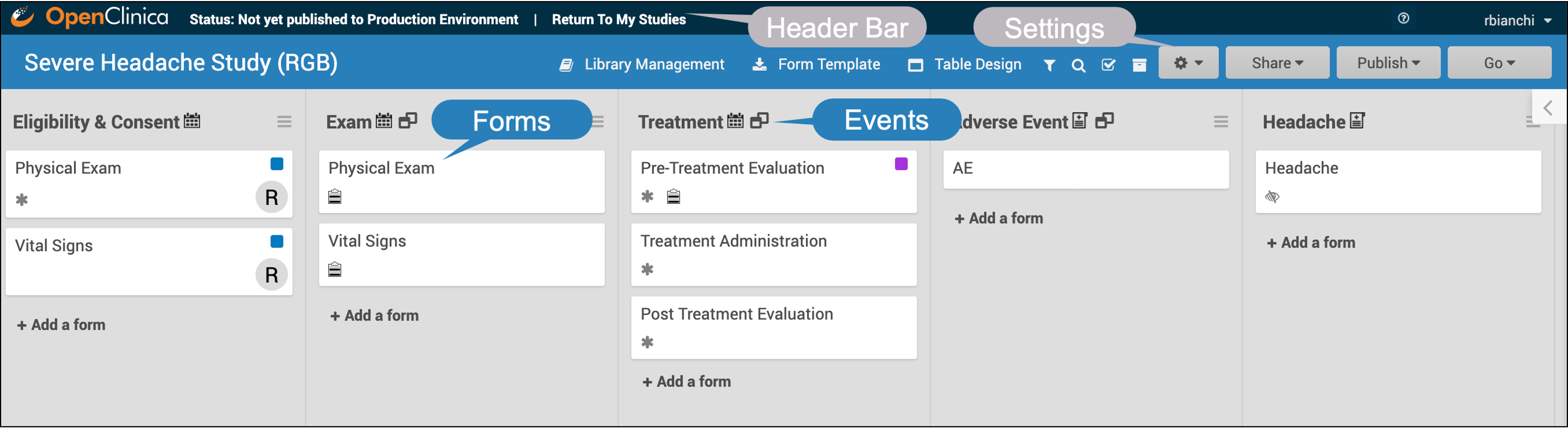
You can use the buttons on the upper right side of the screen to access settings, Share your study, Publish your study, or Go to your study in Test or Production.
Icons
In Study Designer, one or multiple icons appear after the name of the Event.
| Icon | Event Type | Description | Example(s) |
|---|---|---|---|
 | Visit | An event that is associated with a visit date. The event can be repeating or non-repeating. | Week 2 Visit (non-repeating); Monthly Follow-Up for Disease-Free Survival (repeating) |
 | Common | An event that is not necessarily associated with a visit date. | Early Withdrawal or Termination (non-repeating); Adverse Events (repeating) |
 | Repeating | An event that repeats in your study, either a known or unknown, number of times. This icon will appear adjacent to one of the previous two when an event is a repeating event. | Concomitant Medications |
Features Accessible from the Header Navigation:
- Library Management: Data Managers who are Administrators can access the library from here. (See Content Library for more information)
- Form Template: Allows you to download the Form Template.
- Table Design: Allows you to add custom columns to the Participant Matrix and Queries Table or define Data Review Tables.
- Filter: Expands the right sidebar, which allows you to filter Forms by permission tags, labels and members.
- Search: Expands the right sidebar, which allows you to enter text to search for Forms in the current study.
- Multi-Select: Expands the right sidebar, which allows you to select multiple forms by permission tags, labels, and members.
- Archive: Expands the right sidebar, which allows you to select Forms to copy or archive. You can also select by permission tags, labels, and members.
ℹ️ Note: If Code is enabled, a Coding optionwill appear in the header, providing access to Code configuration. For more information on MedDRA Coding, refer to Code Study Design Configuration.
This page covers all of these features (excluding Library Management and Coding) in more detail below.
Events
Events represent groups of Forms that capture specific study activities or data-collection points. An Event may or may not correspond to a real-world visit, and falls into one of two categories: Visit-Based Events or Common Events.
Visit-Based Events are scheduled according to the study protocol and occur at defined time points (e.g., Week 2, Week 6, Monthly Follow-up). Each Visit-Based Event is tied to a visit date relative to a reference point such as Baseline, and includes a specific set of forms that must be collected at that visit.
Common Events capture information that is not tied to a scheduled visit date and may occur at any time during the study. Examples include Adverse Events (AEs), Concomitant Medications (ConMeds), and Early Termination.
Common Events can be configured as:
Repeating Events: Used when Participants may experience the event multiple times (e.g., AEs, ConMeds).
Non-Repeating Events: Used when the event is expected to occur only once (e.g., Early Termination).
Together, these Event types allow studies to manage both protocol-defined visit schedules and unscheduled or ongoing data collection needs.
Events and Forms on the Participant Details Screen
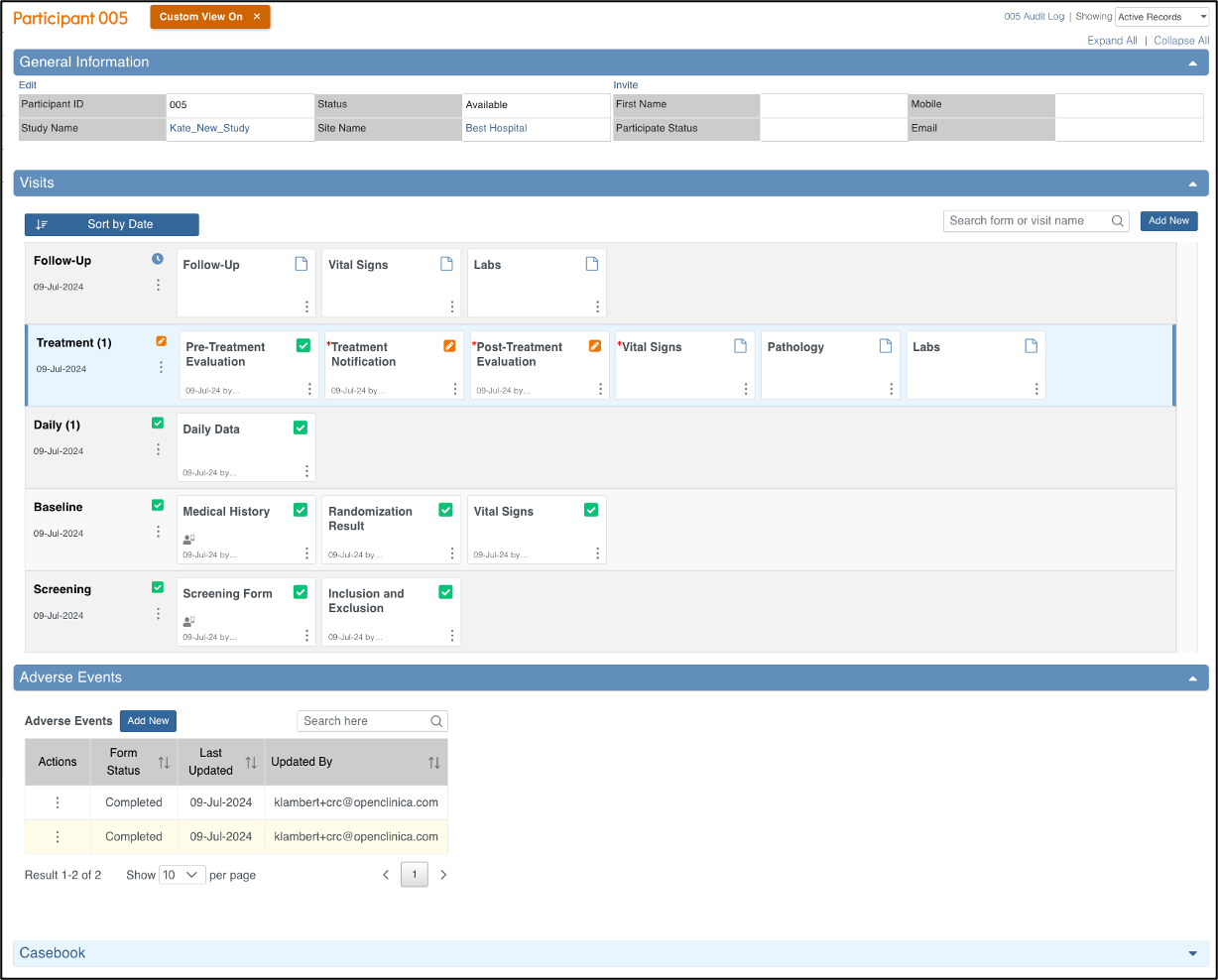
Events appear as horizontal rows on the Participant Details screen, with each Event containing its associated Forms displayed as cards within that row.
Add an Event to a Study
- Click +Add an Event.
- Enter a name for your Event.
- To edit details, click on the name of the Event.
- Enter values into fields, as needed.
- Click the Save button.
Update an Event
- Update Name: Click the Event name to make it editable, enter the updated name and click Save.
ℹ️ Note: Updating the Event name changes how it appears in Study Runner but does not change the Event OID assigned at creation.
- Update Description: Click Edit under Description, add or update the description as needed, and click Save.
ℹ️ Note: Descriptions are optional and may be displayed on the Participant Dashboard for eCOA and eConsent Events.
- Update Settings: Click the name of the Event and change settings as needed.
⚠️ Warning: Once you have published your study to Production, you cannot change the Event to or from Repeating/Non-Repeating or Visit-Based/Common.
Copy an Event
Copy an Event when you need to create a new Event that requires the same structure and set of Forms as an existing one. Copying helps maintain consistency and reduces setup and maintenance time in studies with the same data collected at multiple visits.
Click the Menu button next to the name of the Event.
Select Copy.
ℹ️ Note: When you copy an Event, any changes you make to one Event are automatically applied to its copies.
Archive an Event
Archive an Event when it is no longer needed in the study design—such as when a visit has been removed from the protocol or a Common Event is no longer used. Archiving keeps the study organized without permanently deleting configuration.
Click the Menu button next to the name of the Event.
Select Archive.
ℹ️ Note: Archiving an Event from within Study Designer removes the Event and all associated Forms from the study. If a study was previously published, the Event was archived, and the study was republished, the Event is no longer available to users. However, archived Events can be restored at any time.
Restore an Event
Restore an archived Event when it needs to be reintroduced into the study—such as when a protocol update reinstates a visit or you need to recover an Event that was archived in error.
Click the Archived Items button in the header bar.
Click the Restore button next to the Event you want to restore.
ℹ️ Note: Restoring an Event restores all its Forms. You can restore only a specific Form by clicking Restore next to that Form.
Calendaring
The Event card may contain Calendaring settings that allow you to define automated Event scheduling based on the status of other Events. For information about Calendaring, refer to Basic Calendaring.
Forms
To build a form, you can either use the drag and drop Form Designer or an Excel-based Form Template.
If you use Form Designer, you can create questions manually or select pre-existing questions from the Content Library.
You can also use both Form Designer and the Form Template. For example, you can start building your form in Form Designer, download the form's XLS template and make changes to it in Excel, upload the changed template, and make subsequent changes back in Form Designer.
ℹ️ Note: If you start with a Form Template, edit the Form in Form Designer, then try to download the XLS spreadsheet again, some formatting will be lost (but it will still be fully functional).
For more information on creating Forms, see Using Form Designer or Using the Form Template.
For sample CDISC CDASH-compliant eCRF templates that can be customized or imported as-is to the OpenClinica EDC platform, refer to Form Library (CDASH).
Download the Form Template
In Study Designer, click the Form Template button in the header to download the Form Template.
Best Practice: If you have previously downloaded the Form Template, make sure to download it again to get the most recent version.
Upload a Form
- Click on the name of the Form.
- Click the Upload button to upload a Form.
- (Optional) Click the Preview button to preview a Form.
ℹ️ Note: If you are uploading external media such as images, videos, etc. you must select the form definition spreadsheet and press Ctrl (Windows) or Command (Mac) to select both the spreadsheet and the file(s) to upload at the same time.
Preview a Form
Click the Preview button on the Form card to view and test your Form, including edit checks, conditional fields, and calculations.
ℹ️ Note: Study Designer Preview is intended for reviewing form layout and basic behavior, but it does not provide the full functionality available in Study Runner. Users cannot perform all actions in Preview that they can in the published study.
In Preview mode:
If the eCOA Module has been activated, and you select eCOA Form in the eCOA Properties section, the Preview button appears as Preview (as a Participant).
Copy a Form to another Event
- Click the name of the Form.
- Click on the Menu button in the top right corner of the Form.
- Select Copy To.
ℹ️ Note: When you copy a Form to another Event, any changes you make to one copy are automatically applied to the copies. All of the preselected properties (Hide from site users, SDV, eCOA Properties) also get migrated to the new form card. If the form is just typed in, only the form's definition will match and none of the former card's properties will cross to the new form card.
Archive a Form
- Click the name of the Form.
- Click on the Menu button in the top right corner of the Form.
- Select Archive.
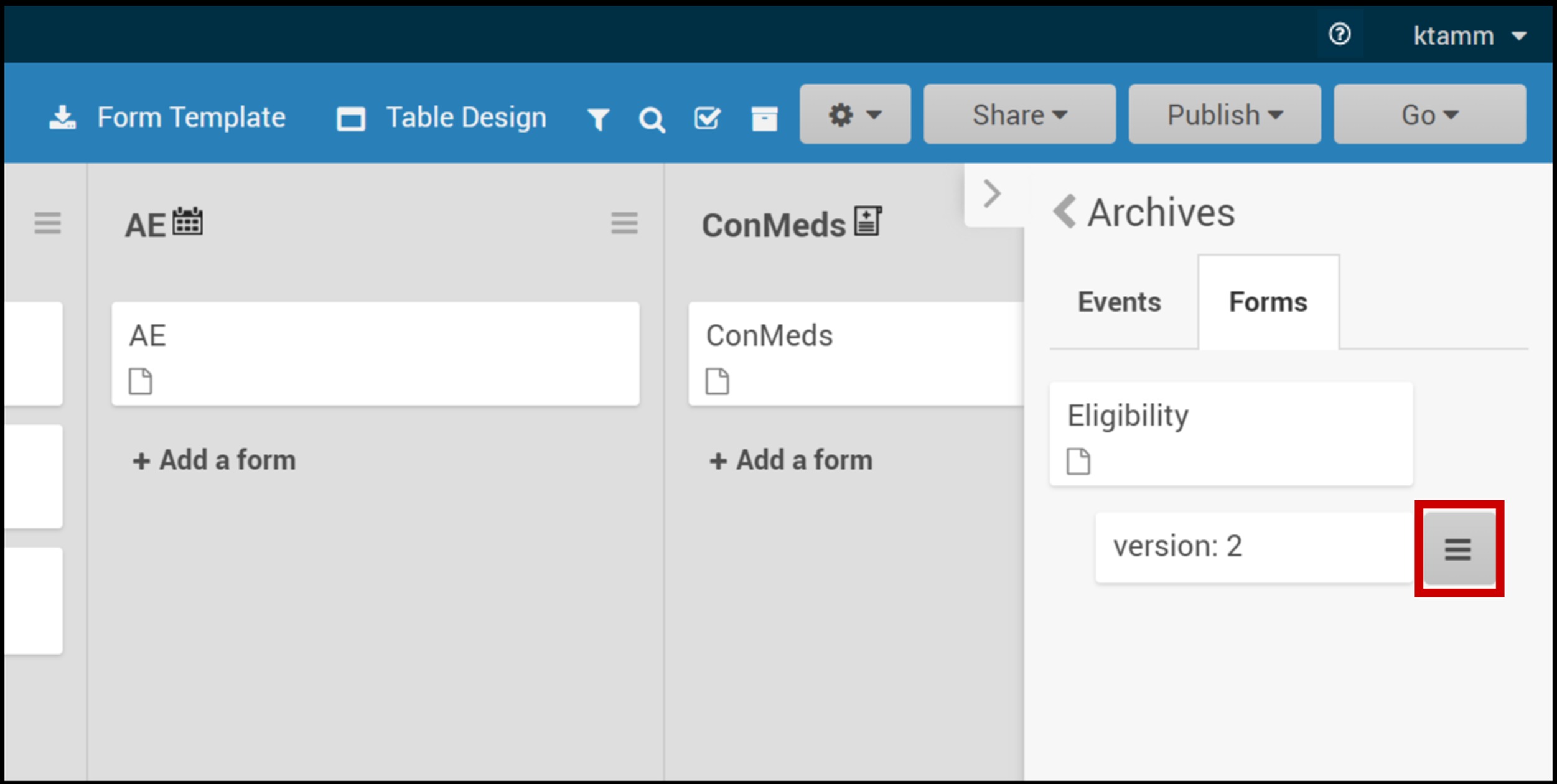
ℹ️ Note: Archiving a Form removes the Form from the associated Event. The data remains in the database, but it is no longer considered part of a Participant's active record and data cannot be extracted. If the event is restored, the data will once again be part of a Participant's active record. Archived forms will only display on a participant if the form has already been started.
The same Form can be used for multiple Events. In this case, archiving the Form in one Event does not have any impact on the Form in another Event.
Restore a Form
- Click the Archived Items button in the header.
- Select Forms.
- Click the Restore button next to the Form you want to restore.
Restore a Form Version
- Click the Archived Items button in the header.
- Select Forms.
- Click the Restore button next to the Form you want to restore.
Form Properties
| Icon | Form Property | Description | Example |
 | Hide from site users | The Form is hidden at the site level but is accessible from the study level. | This is usually used when you want to import data rather than entering it directly in the user interface to prevent site users from viewing or changing data. Best Practice: Use Permission Tags instead of setting the Form to Hide from site users for more flexibility. See Managing Form Access and Permissions for more details. |
 | Required | The Form must be completed in order for the Event to be completed. | A Participant would be required to complete a consent Form to participate in the study. |
(No icon) | Allow Add Another | Allows the user to add a new instance of a Form in a common repeating Event. If the user clicks the Add Another checkbox, when they click Close or Complete, another instance of the Form automatically appears. | |
 | eCOA Form (eCOA Property) | Allows the Participant to enter their own data with the use of OpenClinica eCOA. (This checkbox is not available if the eCOA module has not been activated.) | A Participant might be asked to complete a questionnaire to evaluate potential side effects of a new medication. For more information, refer to Design eCOA Forms. |
 | Public URL (eCOA Property) | Allows participants to self-register for a study. Configure forms to allow Public URL within Study Designer and then create the form URL within the Site Configurations page in Study Runner. (This checkbox is not available if the eCOA module has not been activated.) | This URL can be shared in a public forum, such as a subway advertisement, social media post, etc., which can help attract potential participants. |
 | Offline Capable (eCOA Property) | Allows research staff to enter form data even if they do not have internet service available. Configure forms by selecting Public URL and Offline Capable in Study Designer and then create the form URL within the Site Configurations page in Study Runner. (This checkbox is not available if the module has not been activated. Additionally, the Public URL checkbox needs to be selected in order for the Offline Capable checkbox to appear.) | This allows data to be gathered in remote locations that do not have access to the internet. |
To Set Form Properties:
Click the checkboxes on the Form Card.
SDV Requirements
Forms may or may not require Source Data Verification (SDV), depending on the study protocol. Data Managers and Administrators can specify the level of SDV requirement for each item on a form in Study Designer. Below is a table that displays basic definitions of each SDV Requirement.
| Icon | SDV Requirement | Description |
(No Icon) | Not Applicable (Default) | SDV is not applicable for this form. |
 | Not Required | SDV is not required for the form, but you can still perform SDV if you want. This is often used when 10% of Forms need to be SDVed. Each form record is verified or unverified all together, rather than item-by-item |
 | Partial Required | Some fields on the form must be verified. Each form record is verified or unverified all together, rather than item-by-item |
 | 100% Required | Every field in the form must be verified. Each form record is verified or unverified all together, rather than item-by-item |
 | Item-Level | Item-Level SDV allows you to choose which items will be part of SDV by selecting Required, Optional, or Not Applicable for each individual item on a form. Item records will then be marked as Verified or Not Verified independently and will become unverified independently if their data changes on the form. |
 | Item-Level (To be configured) | This indicates Item-Level SDV was selected, but is not configured validly since all items are set to Not Applicable. Use the Configure SDV link on the Form card in Study Designer to set each item to Required, Optional, or Not Applicable. At least one item needs to be Required or Optional, otherwise change the form’s SDV Requirement to Not Applicable. |
To Set SDV Requirements
Click the drop-down menu next to SDV on the Form Card and select the requirement level you want to apply to the Form.
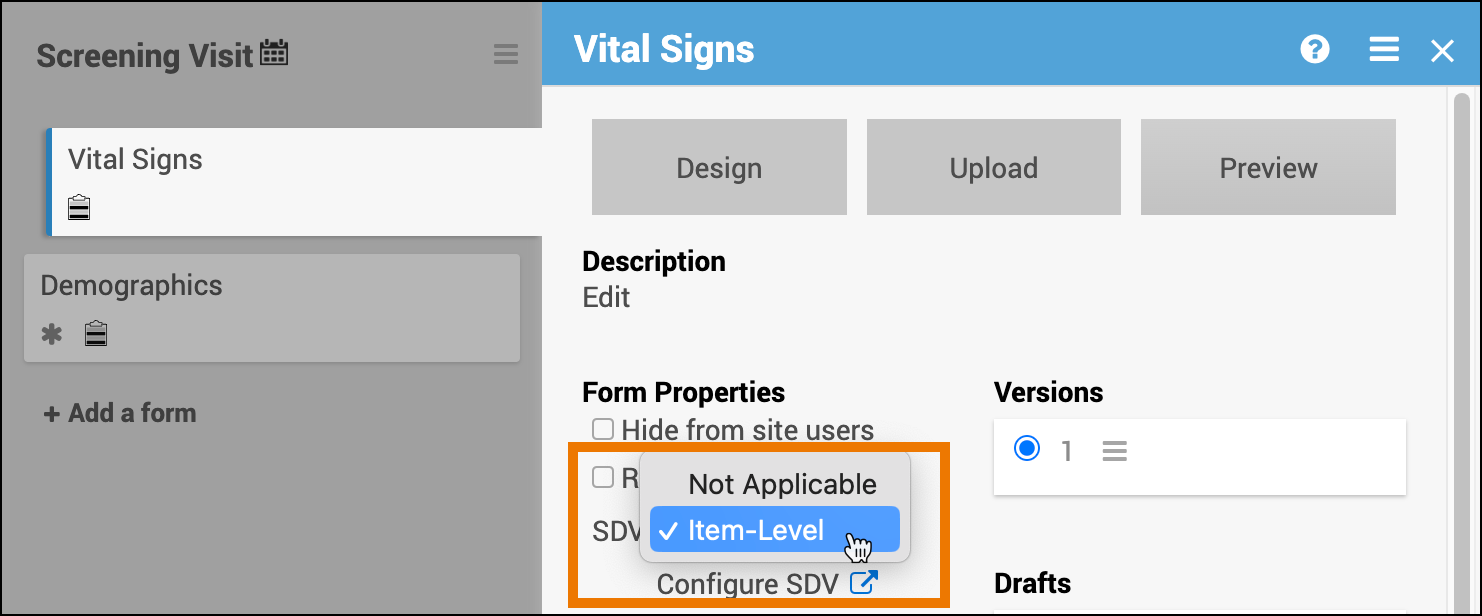
Item-Level SDV allows you to specify which items on a form should be verified by setting each item as Required, Optional, or Not Applicable for SDV.
Not all forms will have all SDV Requirement options available. The SDV options are related to when the form was created and when it was published to Production in relation to the Stack 15 release (December 20th, 2021). The SDV options on forms are as follows:
- Form first published to Production prior to Stack 15 release: Not Applicable, Not Required, Partial Required, 100% Required
- Form created prior to Stack 15 release, but not yet published to Production: Not Applicable, Not Required, Partial Required, 100% Required, Item-Level
- Form first published to Production after Stack 15 release with one of the following statuses – Not Required, Partial Required, 100% Required: Not Applicable, Not Required, Partial Required, 100% Required
- Form first published to Production after Stack 15 release with one of the following statuses – Not Applicable, Item-Level: Not Applicable, Item-Level
- Form created after Stack 15 release: Not Applicable, Item-Level
- Individual items have the following SDV Requirement options: Required, Optional, or Not Applicable
- When first selecting Item-Level on a form, the item is set to Optional by default. Additional items that are added will default to Not Applicable.
- Individual items have the following SDV Requirement options: Required, Optional, or Not Applicable
Item-Level SDV Requirements
- Not Applicable: items cannot be verified
- Optional: items can be verified
- Required: items must be verified for the form to be fully verified and get Verified status
After choosing Item-Level SDV on a form, click the Configure SDV link to set each item to Required, Optional, or Not Applicable for SDV.
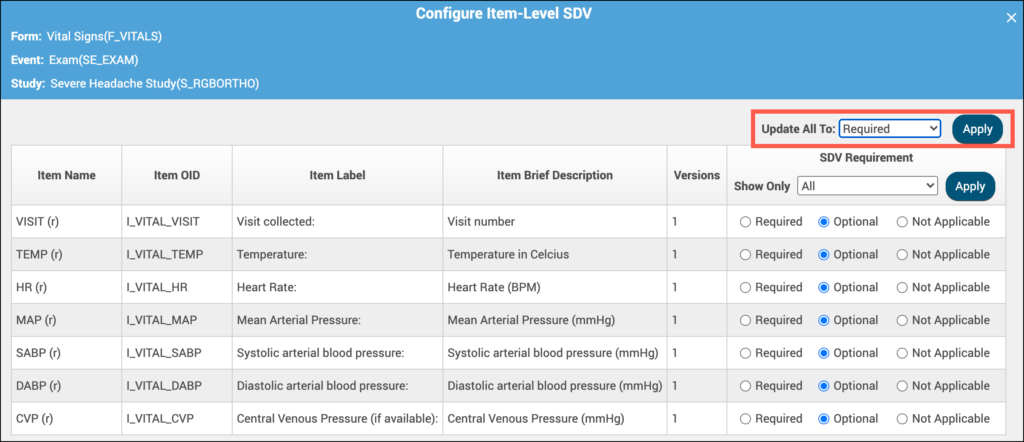
After selecting the appropriate SDV Requirement in the Update All To dropdown menu, click Apply to make the changes to all items on the form. You can also use the radio button next to each item to individually update the SDV Requirement.
ℹ️ Note: If you change a form's SDV Requirement after it has been published, you will need to confirm that the SDV Requirement is correct for each site. Changing the SDV Requirement for a form to something other than "Item-Level" will change the requirement at the study level, but it will not change a site's SDV Requirement if it is set to Item-Level.
For more information on SDV, refer to Source Data Verification.
Drafts and Versions
When you initially upload a Form Template, your Form automatically becomes a version. This appears under Versions on the Form Card.
You can make changes to the Form Template and upload new versions or overwrite the existing version.
When you create a Form in Form Designer and save it, it becomes a draft and appears under Drafts on the Form Card. You can make changes as needed, and if you have multiple drafts, the most recent draft is moved to the top of the list with the label, (latest).
When You Create a Draft, it Does Not:
- Create a new version
- Appear when you publish your study
- Appear on the Audit Log
You can promote the draft to a version to include it in your study when you publish it.
⚠️ Warning: If you do not want the new Form to overwrite an existing Form, make sure to change the number in the Version number field on the Layout & Settings panel in Form Designer.
Once a Form has been published to Production, it cannot be overwritten. You must create a new version, or an error appears.
Drafts
To Access the Drafts Menu
Click the Menu button under Drafts to access a list of Version Options.
To Add a Draft to Your Study/Make the Draft a Version:
- Click the Menu button next to the draft you want to add to your study/promote to a version.
- Select Add to Study.
To Edit the Draft in Form Designer:
- Click the Menu button next to the draft you want to edit in Form Designer.
- Select Design.
To Upload Media & External Lists:
- Click the Menu button next to the draft you want to upload media and/or external lists to.
- Select Upload.
To Download the Draft:
- Click the Menu button next to the draft you want to download.
- Select Download.
⚠️ Warning: If you upload the Form Template, edit it in Form Designer, and then download the form, the downloaded spreadsheet will be formatted differently from the original.
To Permanently Delete the Draft:
- Click the Menu button next to the draft you want to permanently delete.
- Select Discard.
Versions
To Access the Versions Menu:
Click the Menu button under Versions to access a list of Version Options.
To Edit the Version in Form Designer:
- Click the Menu button next to the version you want to edit in Form Designer.
- Select Design.
To Preview the Version:
- Click the Menu button next to the version you want to preview.
- Select Preview.
To Download the Version:
- Click the Menu button next to the version you want to download.
- Select Download.
Permission Tags
Data Managers can create and assign Permission Tags to Forms in Study Designer. These Permission Tags determine which User Roles can access data from specific Forms in Study Runner.
If a User Does Not Have Access to a Specific Form, They Cannot:
- Extract data for that Form.
- View queries associated with the specific Form.
- View or edit that specific Form.
- The user cannot view details associated with the specific Form in the Audit Log. Details from the Form appear as <Masked>.
ℹ️ Note: Manual permission tags take precedence over contact data tags. This allows administrators to more precisely control which user roles can access forms that contain contact data by assigning specific permission levels as needed.
For more information about how Manual Permission Tags work, refer to Managing Form Access and Permissions.
To Create a Permission Tag:
- Click on the name of the Form for which you want to create a Permission Tag, or click < on the right side of the screen to open the panel.
- Click the + button under Permission Tag.
- Select Create Permission Tag.
- Enter a name for the tag. This is most likely the name of the Event, Form, or User Role.
- Leave the default Permission Tag color as is, or select a color for it.
- Click the Create button. This creates the Permission Tag but does not attach it to anything.
To Add a Permission Tag to a Form:
- After you have created the Permission Tag, click on the name of the Form for which you want to add the Permission Tag.
- Click the + button under Create Permission Tag.
- Click the Permission Tag you want to add to this Form.
A check appears next to the name of the Permission Tag, and the tag appears under Permission Tag.
To Remove the Permission Tag From this Form:
Click the Permission Tag in the dropdown list again.
ℹ️ Note: If you copy a Form to another Event, the associated Permission Tag is also copied but can easily be removed. You must publish your study after creating a Permission Tag for it to take effect.
To Assign Permission Tags to User Roles:
Refer to User Access & Sharing for details on how to assign Permission Tags to User Roles.
When Assigning Tags to User Roles, Keep the Following in Mind:
- All user roles have access to untagged Forms.
- If you add a tag to a Form, only User Roles that have been assigned the Permission Tag can access the Form.
- Users who could previously access the Form (because it was untagged) can no longer access that Form.
Data Dictionary
The Data Dictionary gives you form-specific information including form metadata, form properties, and item metadata (such as Item OID, Item Group Name, Item Group OID, Item Type, and Insight Table). The Data Dictionary is available via a link on each form card in Study Designer and can be downloaded as a CSV file to view outside of Study Designer.
For more information, refer to Locating Object Identifiers in a Study.
Displaying Common Event Fields on the Participant Details Screen
If you are using a Common Event, you can select items from Forms within that Event to appear on the Participant Details screen.
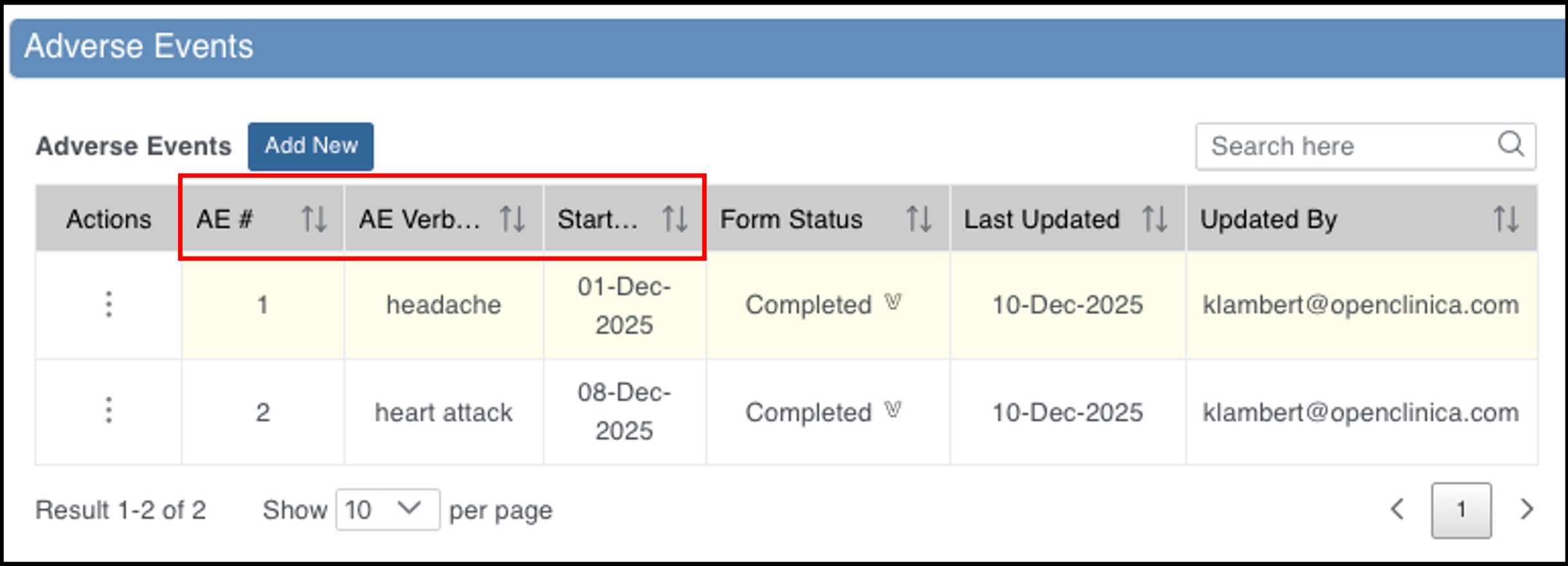
Best Practice: Selecting items to appear on the Participant Details screen is optional, but it can be helpful because it allows you to see the selected item values without opening the Form.
For example, you might have an Adverse Event Form in a Repeating Common Event. You could select items from this form to create a well-organized list of all AEs. Users could then easily scan this list in order to identify AEs that need to be updated, reviewed, locked, etc.
Prerequisites
- The Event must be a Common Event.
- You must have uploaded a Form.
- The Form must include at least one field that is not in a Repeating Group.
If Those Prerequisites Have Been Met:
- In Study Designer, click the name of the Form to open the Form card.
- In the fields to display on participant details page (optional) field, select items that you want to appear on the Participant Details screen from the list.
- Click and drag the fields to specify the order of the columns.
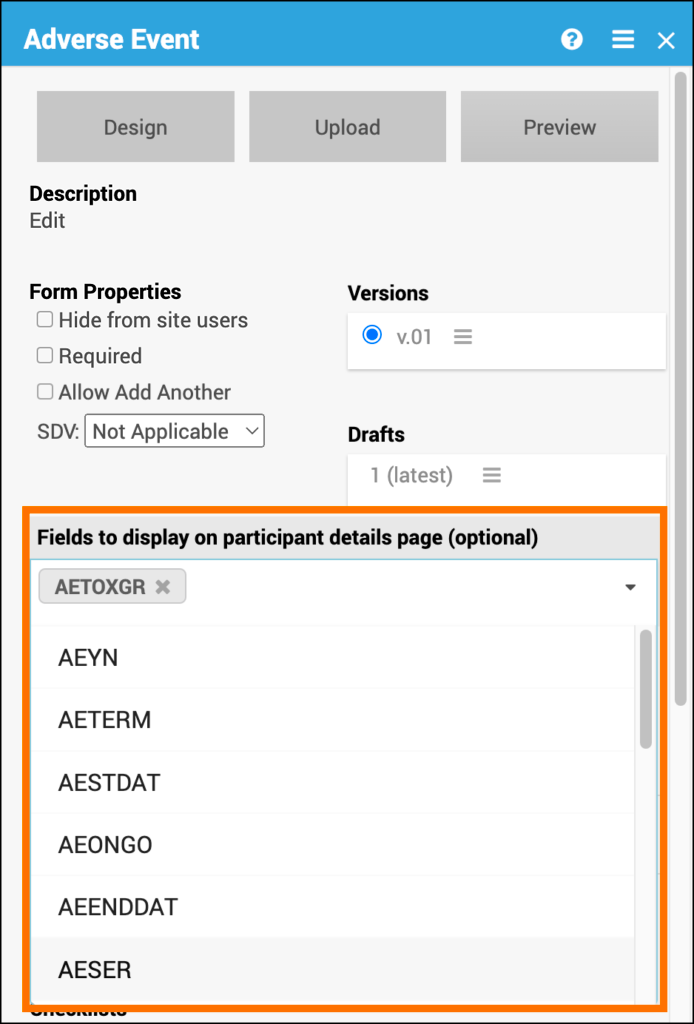
- Click the X to close the Form card.
- Click the Publish header button and select Test or Production.
⚠️ Warning: Once you publish a study, you cannot:
- Change a Common Event to a Visit Based Event.
- Change a Visit Based Event to a Common Event.
- Change a Repeating Event to a Non-Repeating Event.
You can control the column headers displayed in your custom columns on the Participant Details screen. If you include an item brief description for the selected Item in the Form spreadsheet or in Form Designer, that description appears as the column header for the custom column. Otherwise, the column header displays the item label.
Defining Custom Column Headers on the Participant Matrix and Queries Table
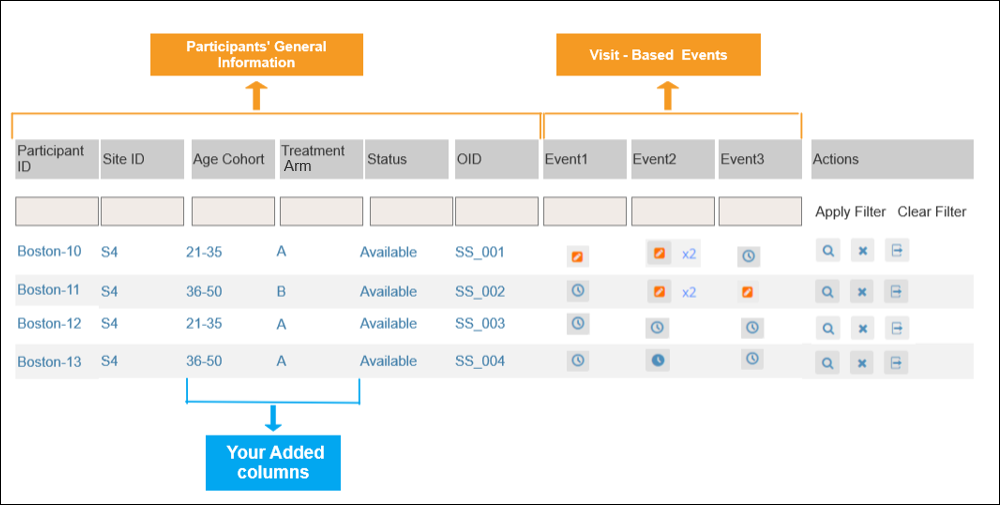
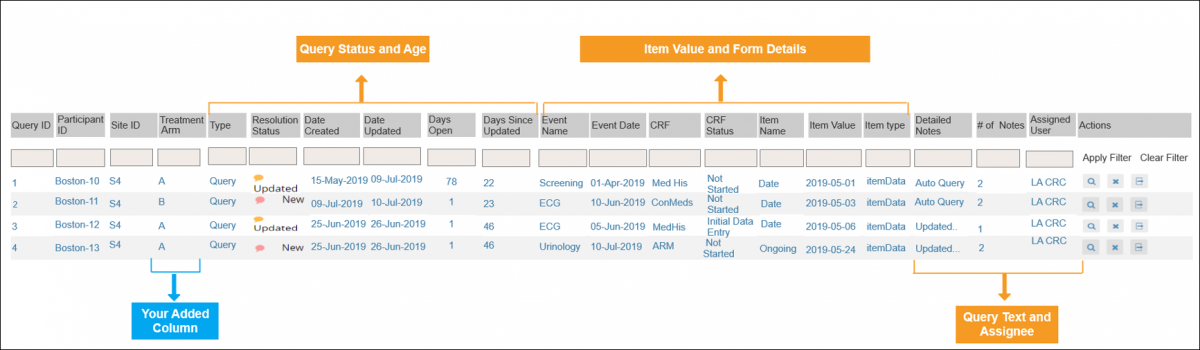
Custom columns allow you to display selected study data directly in tables such as the Participant Matrix and Queries Table. These columns help users quickly identify key information—such as Study Arm, Screening Status, or other participant-level attributes—without opening individual forms.
Custom columns can be used to support workflows such as:
Distinguishing Participants by Study Arm or cohort
Displaying Screening Status to filter out participants who were not enrolled
Highlighting other participant attributes important for monitoring or data review
In Study Runner, custom columns appear alongside standard columns in each table. To control how custom columns appear in Study Runner, configure the Item’s metadata in Study Designer:
If you add an item brief description (in the Form spreadsheet or Form Designer), this becomes the column header.
If no brief description is provided, the Item label is used as the column header.
Participant Matrix With Custom Columns
Queries Table With Custom Columns
Adding Custom Columns to the Participant Matrix, Queries Table, and Data Review Table
To configure which custom columns appear in these Study Runner tables:
Click the Table Design button.
Select the data Item(s) you want to display as custom columns.
Only non-repeating Items from non-repeating Events can be selected.
Apply your selections to the Participant Matrix, Queries Table, and/or Data Review Table.
Custom Column Visibility and Form Access
The visibility of custom columns in the Participant Matrix and Query Table is controlled by the user’s access to the form from which the selected data item originates.
- If a user has access to the form containing the data item used in a custom column, the column is visible.
- If a user does not have access to the form, the column is not displayed.
This visibility logic applies equally to:
- Participant Matrix
- Query Table
ℹ️ Note: Contact data items cannot be selected for use as custom columns in the Participant Matrix or Query Table.
Filters
To view all filter options, click the Filter  icon in the header bar. Then, click the item or items you want to filter by. These include:
- Labels
- Members
- Permission tags
Click the X to the right of the Filter is on button in the header of the screen.
Search
You can enter a search phrase to search for Forms in the study based on their title and/or description. Searching finds both active and archived Forms drafts and versions.
To search Form titles and descriptions, Click the Search  button in the header of the screen.
Multi-Selection Mode
Multi-Selection mode allows you to work with multiple Forms. For example you can copy them, archive them, assign permission tags, add labels, etc.
To Select all Forms:
- Click the Multi-selection
 button in the header in Study Designer.
 - Click the Select All button on the right-hand sidebar.
The Select All button changes to the Unselect All button after selecting Forms.
To Unselect all Forms:
Click the Unselect All button on the right-hand sidebar.
To Copy the Selected Forms:
- Click the Multi-selection button in the header in Study Designer.
- Click the Select All button on the right-hand sidebar.
- Click the Copy Selection button.
To Archive the Selected Forms:
- Click the Multi-selection button in the header in Study Designer.
- Click the Select All button on the right-hand sidebar.
- Click the Archive selection button.
To Add Members to All Selected Forms:
- Click the Multi-selection button in the header in Study Designer.
- Click the Select All button on the right-hand sidebar.
- Click a label or labels to add to all selected Forms.
Copy & Archive Selection Mode:
The Copy Selection and Archive Selection buttons are located in the right-hand panel when the multi-selection mode is active.
Click the Archived Items header button to restore archived Events or Forms.
Collaboration Features
OpenClinica has built-in features to facilitate collaboration with colleagues while you build your Study. These include:
- Design Activity
- Labels
- Checklists
- Comments
- Members
Activity Log
The Activity Log displays design-related actions that have been taken. It also displays the user who performed the action and when the action was performed.
Example: A user might check the Activity Log to see what recent actions have occurred.
The Activity Log displays a log of design-related actions on the expandable right-side panel. This makes it easy to see the changes that were made, the user who made the changes, and when the change occurred.
Actions that are logged include:
- Adding/Removing Forms and Events
- Updating Form and Event Properties
- Moving/reordering Forms and Events
- Modifying table design
- Assigning labels and permissions
- Posting comments
- Publishing the study
Labels
A Label is a color or color with text that can be used to represent groups of Events or Forms. Labels can be used to help facilitate building your study but have no functional implications.
Example: You might use a label to distinguish Forms that apply to the Treatment group from those that apply to the Placebo group. You can add labels to Forms in order to organize them.
Labels can be created/updated from within the expandable right-side panel, any Form Card, or any Event Card.
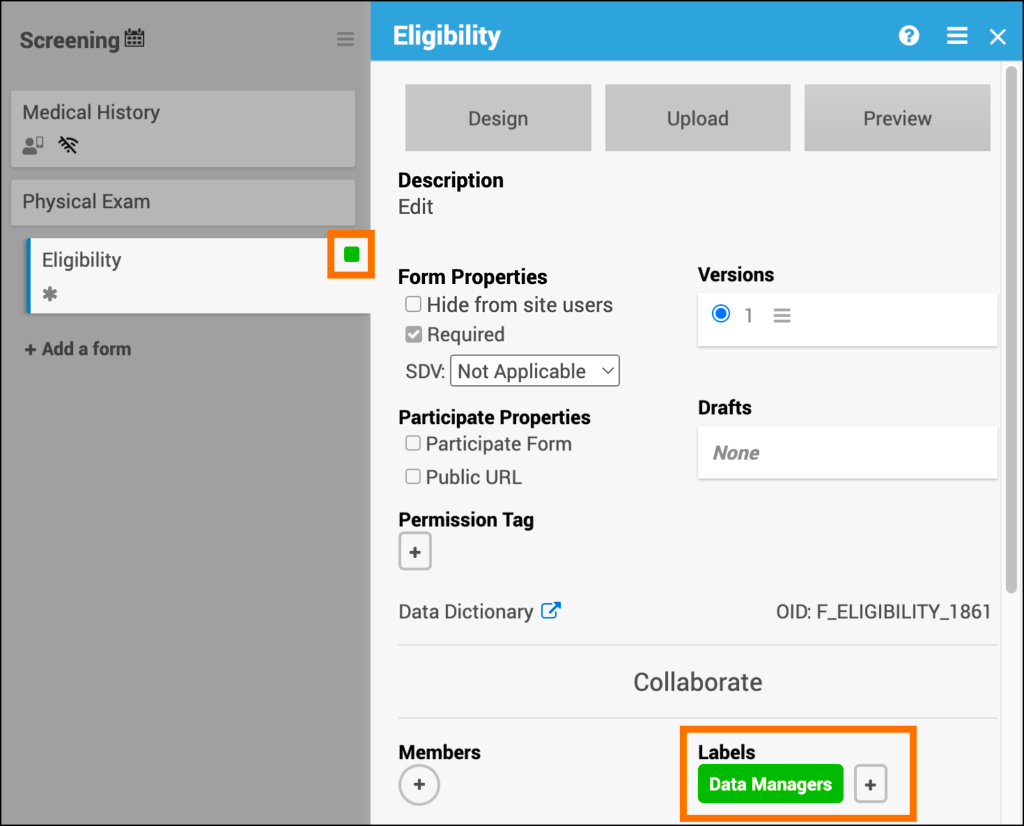
To Create a Label from the Side Panel For a Form or Event:
- In Study Designer, click < on the right of the screen.
- Select a color or click the +button.
- (Optional) If you selected a color, enter a name for the label in the Name field.
- If you clicked the + button, enter a name for the label in the Name field, and select a color.
- Click the Create button.
To Create a Label from the Study Card for a Form or Event:
- Click the name of the Form you want to add the label to.
- Click the + button under Labels.
- Select a color, click the Edit icon next to a color, or click the Create Label link.
- (Optional) If you selected a color, click the Edit button next to the color, enter a name for the label in the Name field, and click the Save button.
- If you clicked the Create Label link, enter a name for the label in the Name field, select a color, and click the Create button.
To Remove a Label from a Form or Event:
- Click the name of the Form you want to remove the label from.
- Click the label or the + button.
- Click the label you want to remove from the Form.
To Delete a Label from a Form or Event:
- Click the name of the Form you want to add the label to.
- Click the + button under Labels.
- Select a color, and click the Edit button next to a color.
- Click the Delete button.
Checklists
A Checklist is a list of Form-specific tasks.
Example: You might use a checklist to keep track of tasks related to completing the appropriate review/approval process to use a Form in your study. You can add a checklist to your Form to keep track of tasks.
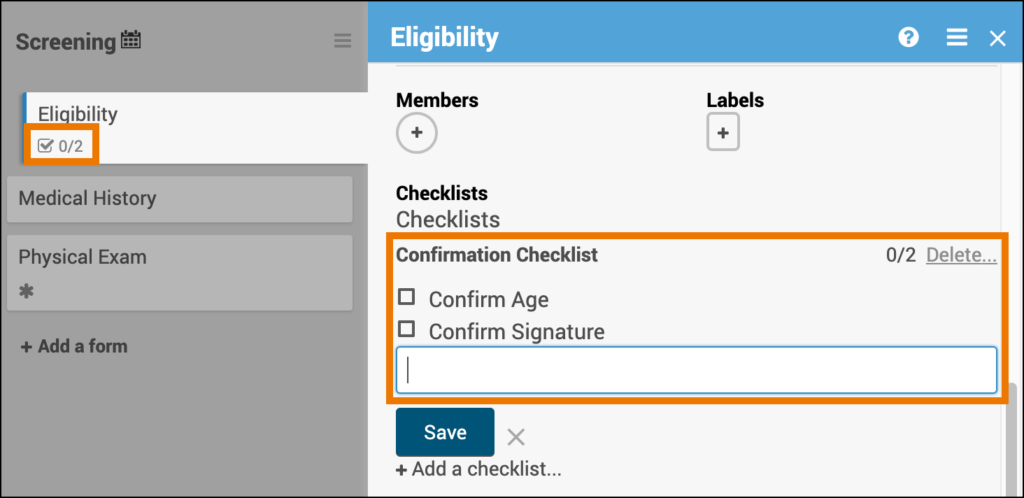
To Create a Checklist for a Form:
- Click the name of the Form you want to create a checklist for.
- Click +Add a checklist.
- Enter a name for the checklist.
- Click the Save button.
To Add Items to a Checklist on a Form:
- Click the name of the Form with a checklist you want to add items to.
- Click +Add an item to checklist.
- Enter text to describe the list item.
- Click the Save button.
- The item appears automatically after you click Save. Repeat steps 1-4, as needed.
To Delete a Checklist from a Form:
- Click the name of the Form with a checklist you want to delete.
- Click the Delete button.
ℹ️ Note: This deletes the entire checklist. You cannot delete an individual checklist item. Instead, edit the item.
To Check or Uncheck an Item on the Checklist:
Click the checkbox next to the item.
Comments
A Comment is text that allows users in Study Designer to communicate with collaborators.
Example: You might add a comment to communicate a change you made to a Form in Study Designer. Comments appear in the Activity section of Events and Forms as well as Design Activity located in the side panel.
To Enter a Comment on a Form:
- Click the name of the Form or Event you want to comment on.
- Enter text in the Activity field.
- Click the Comment button.
Members
A Member is a user involved in designing the study who can be associated with specific Events and Forms. Adding or removing a member does not determine access to Forms; it is a list of users associated with the study.
Example: You might add a member to request that they review/update a Form in Study Designer. You can add members to a Form within a study if the user has previously accessed Study Designer.
To Add a Member to a Form:
- Click the name of a Form you want to add a member to.
- Click the + button.
- Select a name or multiple names from the dropdown list.
To Remove a Member from a Form:
- Click the name of a Form you want to remove the member on.
- Click the + button.
- Select the name or multiple names from the dropdown list.
Was this article helpful?
That’s Great!
Thank you for your feedback
Sorry! We couldn't be helpful
Thank you for your feedback
Feedback sent
We appreciate your effort and will try to fix the article