Guidance for 21 CFR Part 11 Compliance with OpenClinica Consent
This section describes how OpenClinica supports 21 CFR Part 11 compliance for electronic signatures in eConsent forms.
Key Requirements
- An electronic signature must include the participant’s first and last name.
- To achieve compliance, your study must be designed to collect this information before the participant signs the eConsent form.
You can meet this requirement by
- Include first and last name fields in the eConsent form and require these fields to be completed before the participant can submit the form.
- Creating a separate contact form (completed by either the CRC or the participant via eCOA) that must be filled out prior to eConsent.
For more information on configuring forms to capture first and last name in a secure manner for use in participant eConsent signatures, refer to Designing Forms Including PII Data.
Once OpenClinica Consent has been activated, Data Managers can designate Forms within non-repeating Visit Events as eConsent Forms Using the Form Template
Configure an eConsent Form:
- Use the latest Form Template
- In the Survey tab, configure a multi-select checkbox item as follows:
- type column: “select_multiple EC”
- bind::oc:external column: “signature”
- bind::oc:itemgroup column: (must be blank)
- readonly column: (must be blank)
- required column: Invalid for eConsent signature items; any value is discarded when you save the draft.
- item name/label: Any name or label may be used
- In the Choices Tab:
- Use the list_name that matches the Survey Tab type (“EC” in the example above).
- Add only one choice (to display a single checkbox).
- The choice name must be “1” (without the quotation marks)
- The choice label can be any text prompt (this is what the participant sees).
- Make any additional changes needed in the form definition.
- Upload the form to a non-repeating visit event.
- After upload, the Form Card automatically indicates that the form is an eConsent form
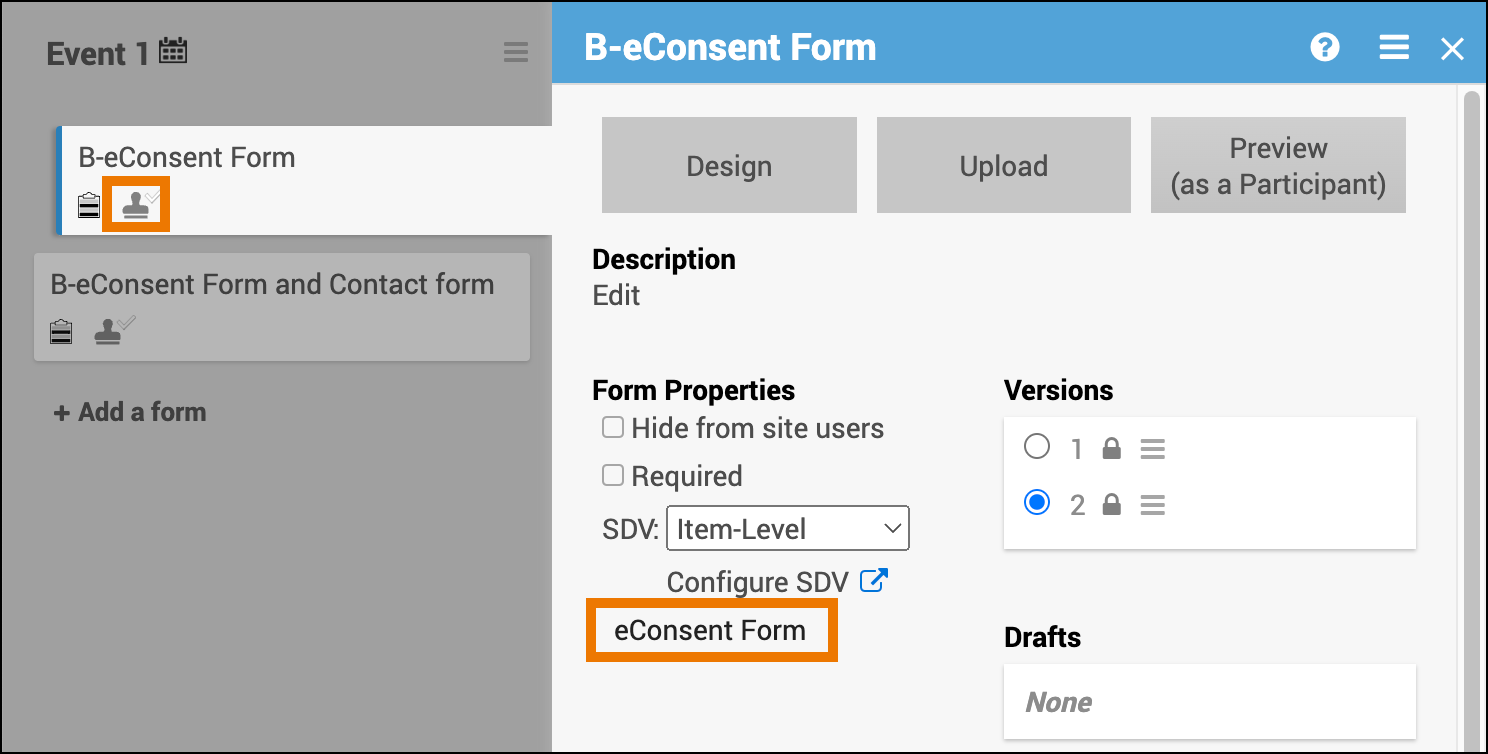
Behavior and Limitations
The following behaviors and limitations apply specifically to eConsent forms within OpenClinica:
- Contact data items and permission tags work as usual.
- All users can view eConsent status on the Participant Matrix.
- Queries cannot be added to signature checkbox items.
Replacing a Form Definition (eConsent ↔ Non-eConsent)
In limited cases, you can replace a form with another that has a different eConsent designation. This is only allowed when all conditions are met
- The form has exactly one version (active or archived).
- The form has not been published to production (draft or test environments only).
- The replacement form uses the same version number as the existing form.
Outcomes
- From eConsent → non-eConsent: All eConsent-specific features (icons, consent statuses) are removed from the Participant Details Page (PDP), Participant Matrix, and form cards
- From non-eConsent → eConsent: The eConsent features are added to those areas
Was this article helpful?
That’s Great!
Thank you for your feedback
Sorry! We couldn't be helpful
Thank you for your feedback
Feedback sent
We appreciate your effort and will try to fix the article