The Manage All Sites screen allows Data Managers to configure form behavior and event settings at the site level. This is essential in multi-center studies where site-specific variations—such as form versions, source data verification (SDV) rules, or form visibility—may be required. Using this screen, you can tailor settings per site without affecting the global study design.
For more information about how to add or edit sites, refer to Adding Sites.
Access the Manage All Sites Screen
- Ensure the site has been created and status set to Available, and that the study is published and set to Available.
- Go to Tasks > Sites.
- The Manage All Sites in Study screen opens.
Click the Edit icon ( ) for the site you want to configure. This opens the Update Site Details page.
Update Site Details Page
The Update Site Details page shows all study events. You can expand an event to view its associated CRFs. In each CRF row, you can configure site-specific settings such as default form version, which form versions are available for the site, and visibility. Some settings are editable at the site level, while others are non-editable and must be configured in Study Designer.
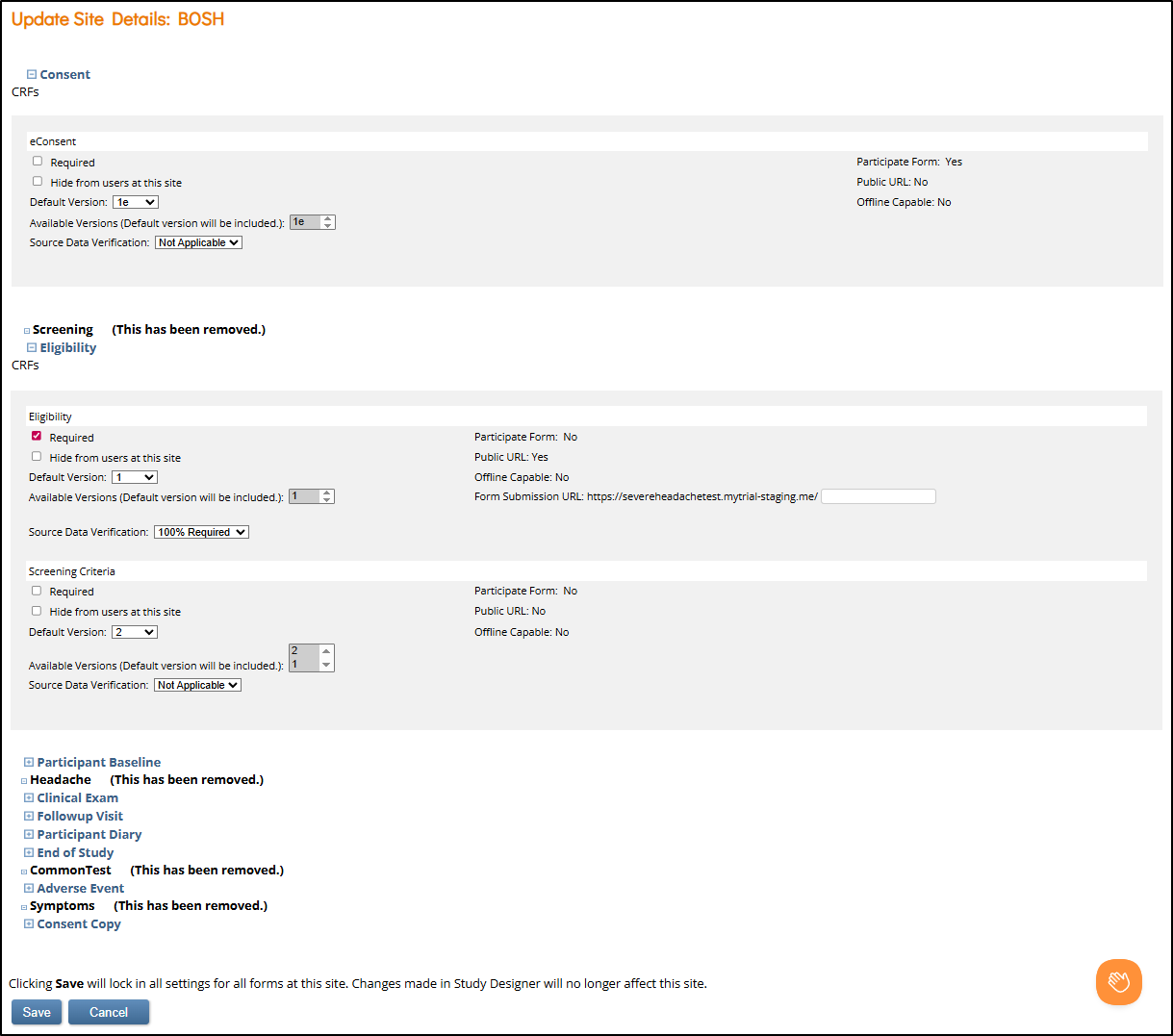
Each CRF row allows configuration of the following site-level settings:
- Required: Marks the form as required for completion at this site.
- Hide from users at this site: Hides the form from site users while keeping it visible for study-level users.
- Default Version: Selects the default form version shown when an event is scheduled.
- Available Versions: Specifies which version(s) are available for data entry. For example, during a protocol amendment rollout, some sites may have IRB approval for a new version while others do not.
- Source Data Verification (SDV): SDV settings define how forms are monitored for source data verification. Available options depend on the type of SDV used on the form.
For more information on SDV, refer to SDV for Data Manager.- Item-Level SDV: Applies the item-level SDV settings defined in Study Designer to the site, or opts the site out from item-SDV on the given form. The following options will appear only if the form has Item-Level SDV defined:
- Item-Level SDV: SDV is applied based on item-level settings. Items can be marked as Required, Optional, or Not Applicable
- Not Applicable: SDV is not used for this form.
- When all Required items are verified, the form is automatically marked as verified.
 Use item-level SDV settings at the site level to align with your monitoring plan. For example, configure a form as Not Applicable (N/A) at sites that do not require additional quality checks.
- Form-Level SDV: Only applicable to forms created prior to the release of Stack 15 on 20-Dec-2021. Applies verification to the entire form. The form is either marked as verified or not.
- 100% Required: All items must be verified.
- Partial Required: Intended for selected items but functions the same as 100% Required.
- Not Required: No items need verification, but the form can still be marked as verified.
- Not Applicable: SDV is not used for this form; it is excluded from SDV reports and views.
 Use form-level SDV settings at the site level to reflect your monitoring plan. While the options (100% Required, Partial Required, Not Required) behave the same within OpenClinica, you can still configure them to document site-specific monitoring intentions (e.g., stricter oversight for sites with data quality concerns, or reduced requirements for high-performing sites).
- Item-Level SDV: Applies the item-level SDV settings defined in Study Designer to the site, or opts the site out from item-SDV on the given form. The following options will appear only if the form has Item-Level SDV defined:
- Public URL: If a form is configured for Public URL access (used in the eCOA module), a Form Submission URL field appears. Each site must be assigned a unique URL suffix. The prefix is standardized across the study and is based on the URL configured in the eCOAmodule settings.
 Public URL forms allow participants to self-enroll or submit contact/pre-screening information without site staff intervention.
 - Additionally, there are three settings that are visible but not configurable within the Managing Sites interface:
- eCOA Form: Indicates whether it is an electronic Patient Reported Outcomes (ePRO) Form for Participant data entry. For more information, refer to OpenClinica eCOA.
- Public URL: Indicates whether it is a form designed to allow Participants to self-register for the study.
- Offline Capable: Indicates whether the form has been configured for Offline Mode capability.
For more information and setup instructions for Offline Capable or Public URL, refer to Configure Forms for Offline Mode and Public URL.
Archived Events and Forms
If an event or form is labeled (This has been removed.), it was archived in Study Designer. These events:
- Remain visible for reference
- Cannot be configured further
- Are excluded from new data entry
- Retain existing data for reporting and review
⚠️ Save Locks in Site Settings
Clicking Save on the Update Site Details page saves all settings for all forms for the site, regardless of whether any changes were actually made. After saving:
- The site stops inheriting updates from Study Designer.
- Future changes (e.g., SDV adjustments, new form versions) will not apply automatically.
- To apply study-level changes, you must reconfigure the site manually.
- If a new form is created after site settings are saved, the form will automatically inherit its configuration and any subsequent settings changes from Study Designer.
Was this article helpful?
That’s Great!
Thank you for your feedback
Sorry! We couldn't be helpful
Thank you for your feedback
Feedback sent
We appreciate your effort and will try to fix the article