Once Participate is activated, Data Managers can designate specific forms within visit-based events as Participate Forms.
Make a Form a Participate Form
To designate a form as a Participate Form:
- In Study Designer, click the form you want a Participant to complete.
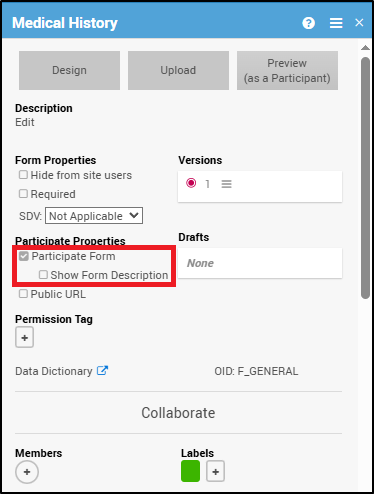
- Select the Participate Form checkbox.
When you check the Participate Form box, an additional option appears below it:
Show Form Description – Displays the form’s description (as defined in the Study Designer form card) beneath the form title on the Participant’s Participate dashboard.
To display a form description:
- In Study Designer, check Participate Form.
- Check the Show Form Description box.
- (Optional) Hover over the checkbox to view the tooltip:
“Will display the form’s description on the Participate dashboard.”
Tip: If the form has no description, the option can still be selected, but nothing will appear on the Participant dashboard.
ℹ️ Note: If you uncheck Participate Form, the Show Form Description box will automatically be unchecked and hidden.
Tip: Participate Forms cannot be used in Common Events.
ℹ️ Note:
Event-level descriptions can also be displayed on the Participant dashboard.
Data Managers can enable this by checking “Show Event Description to Participants” in the Event Card → Properties section (available for events that include Participate Forms).
Track Changes to Participate Settings
All manual and system-generated changes to Participate Form and SDV settings related to Participate Forms appear in the Activities section of the right-hand panel.
To view these changes, click the expand icon ( < ).
Changes to the Show Form Description setting appear in the Activities section:
- “USERNAME marked this form to show the description to participants.”
- “USERNAME unmarked this form to show the description to participants.”
Participate Forms and Permission Tags
Permission Tags do not apply to Participants.
If a form is designated as a Participate Form, Participants will be able to view and complete it regardless of any associated Permission Tags.
However:
If a Participate Form has a Permission Tag, only OpenClinica user roles with access to that Permission Tag — and Participants — can access the form.
Using Participate Forms
Once Participate is active and the Participant Forms have been published, the forms are ready for Participant use.
Participants can access their forms on a:
- Computer
- Tablet (iPad)
- Smartphone (iPhone)
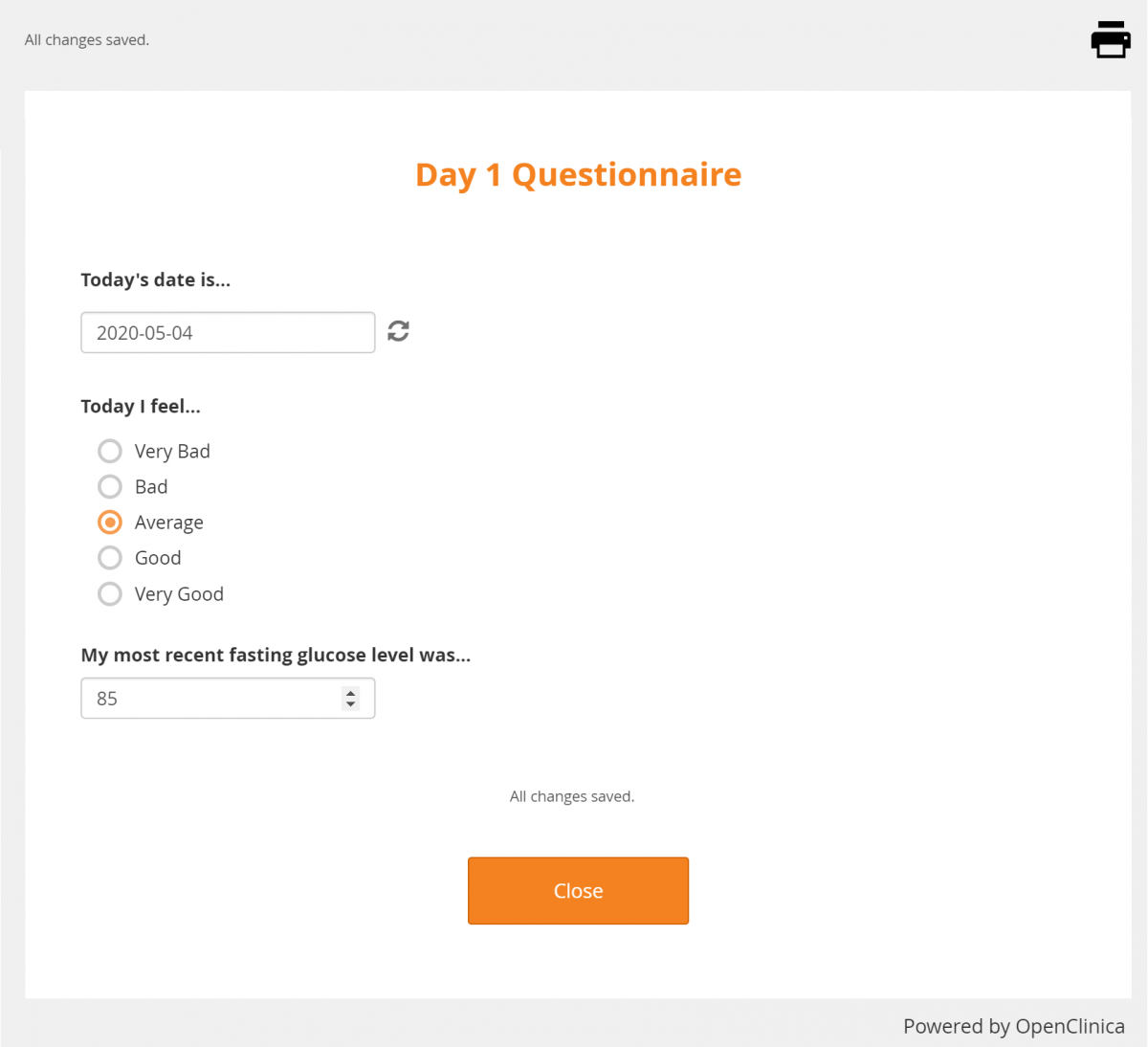
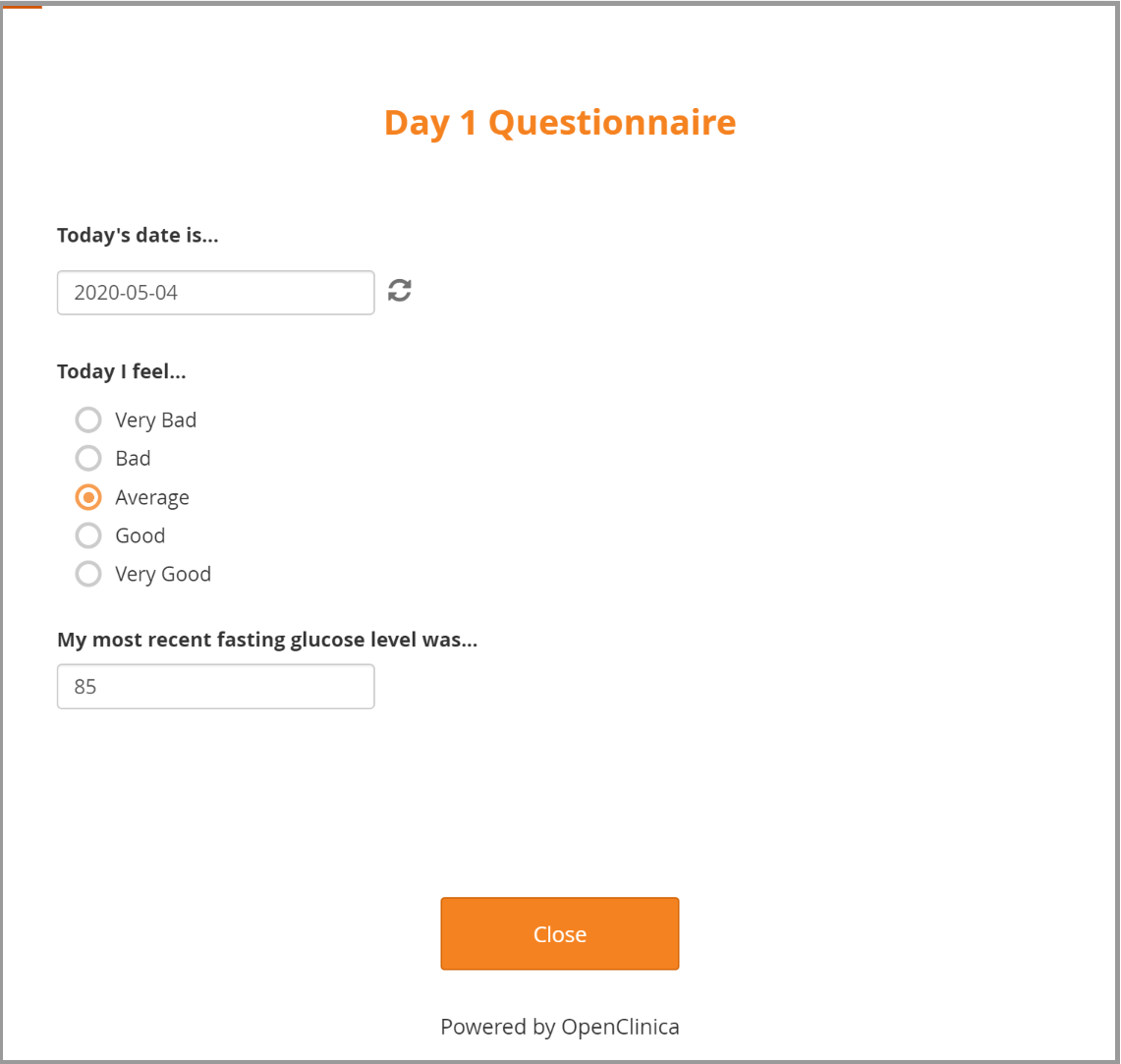
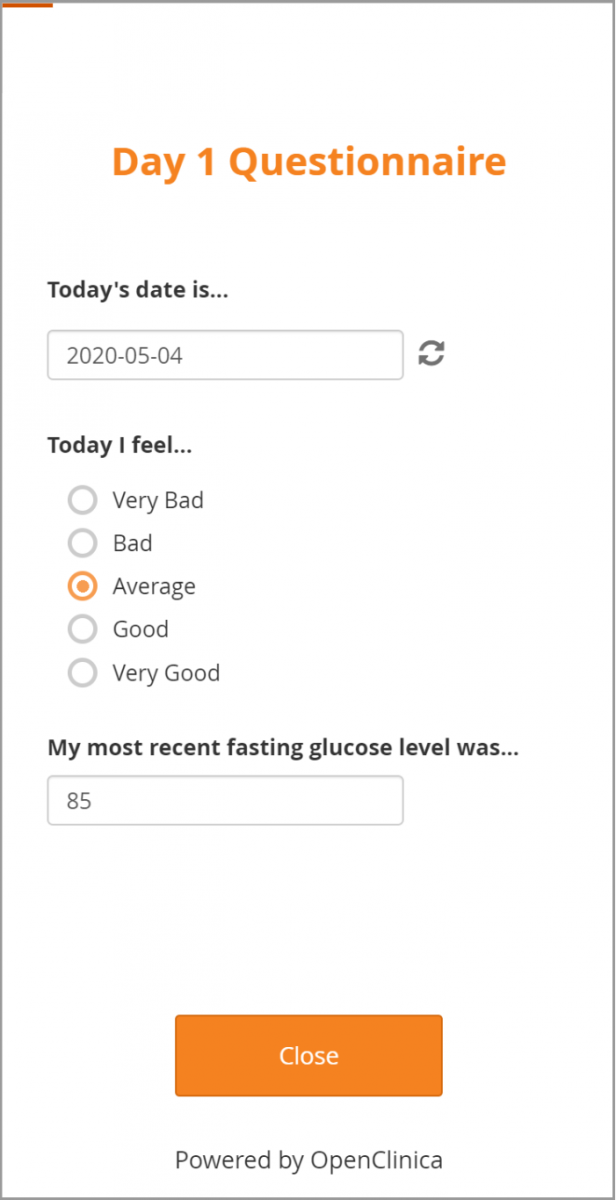
Figures below illustrate the Participant Form layout on each device.
- Participate Form on computer
- Participate Form on iPad
- Participate Form on iPhone
If Show Form Description is enabled, the form’s description appears in smaller text below the form title on the Participant’s Participate dashboard.
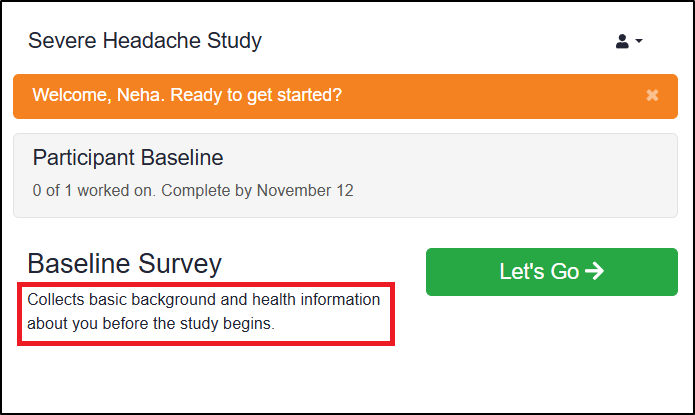
ℹ️ Note: If an event’s Show Event Description to Participants option is enabled, the event’s description appears in smaller text below the event title on the Participant dashboard.
Add Participant Contact Information to a Form
You can include contact information fields directly within a form. This feature supplements the Participant Details screen and allows collection, display, and updates of contact information within a form.
These data are stored separately from other form data to enforce role-based access controls.
For more information on contact data and external values, refer to Understanding Contact Data.
Was this article helpful?
That’s Great!
Thank you for your feedback
Sorry! We couldn't be helpful
Thank you for your feedback
Feedback sent
We appreciate your effort and will try to fix the article