Before inviting users to your study, ensure that at least one site is added. This applies even if your study collects data from only a single site.
Add a Site
Follow these steps to add a site:
- On the Share screen, scroll down to the Sites section and click Add.

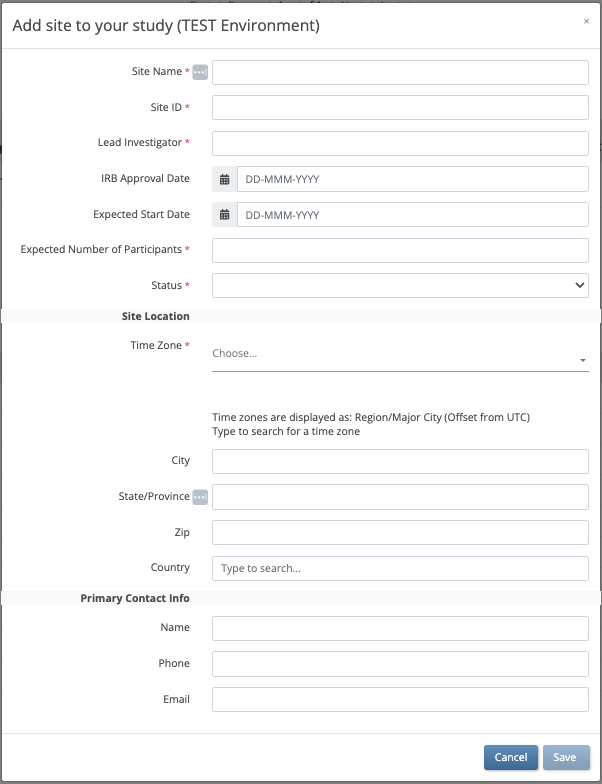
- On the Add Sites screen, begin typing the site name.
- If the site already exists in another environment, select that site from the list. Fields are prefilled with site information.
- If you are creating a new site, enter the Site Name and enter information in the appropriate fields.ℹ️ Note: The Expected Number of Participants field is required, but it does not limit the number of participants at the site. Participant limits can only be configured at the study level. For more information on limiting participants in a study, refer to Create a Study.
- After entering all site details, click Save.
Global Site Fields
Sites are global, meaning that if you use a site in Study A, you do not need to recreate it for Study B. When adding an existing site to a study, the following fields automatically populate:
- Site Name
- Time Zone
- City
- State/Province
- Zip
- Country
⚠️ Warning:
- Only users with the Admin or OpenClinica Team role can edit global site fields (Name, City, State/Province, Zip, Country, and Time Zone).
- If you are on the Launch plan, users with Edit access in the Site table (Share page) can edit these fields, despite not having Admin privileges.
- Other users can view but not modify these values.
Configure Site-Specific Settings
Once your study is published, you can configure site-specific CRF settings for individual forms on the Site Details page within Study Runner.
For more details on managing sites, refer to Managing Sites.
Was this article helpful?
That’s Great!
Thank you for your feedback
Sorry! We couldn't be helpful
Thank you for your feedback
Feedback sent
We appreciate your effort and will try to fix the article