The Participant Audit Log tracks all changes made to a participant’s data. Each row in the log records an audited event, detailing what changed and which user made the change.
You can access the Participant Audit Log in two ways:
From the Study Audit Log:
- Click Study Audit Log from the navigation menu or the Tasks menu.
- Click the icon in the Actions column for the desired participant.
From the Participant Details Page (PDP):
Navigate to the PDP for the participant you wish to review.
Study Audit Log
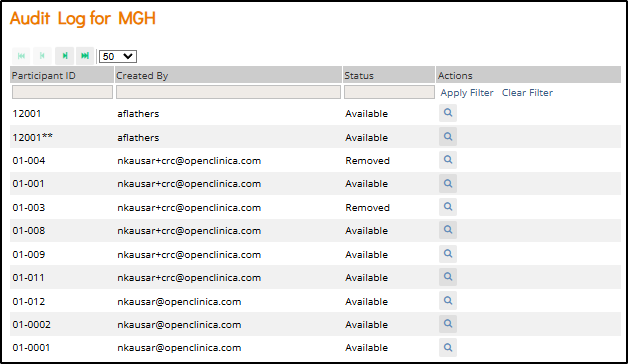
The Study Audit Log page provides high-level information about each participant, offering a central point of access for all participants’ audit logs. The table includes the following elements:
Participant Data
- Participant ID: Unique identifier for each participant. Each row represents a participant in the study.
- Created By: Username of the user who added the participant.
- Status: Current status of the participant (e.g. Available, Removed and Signed).
- Actions: Click the View icon to access the detailed audit history for the selected participant.
- Table Controls
- Pagination Controls: Located at the top of the table, these allow you to navigate through the list of participants. Use the buttons for first/previous/next/last page, and the page-size selector to adjust the number of rows shown per page.
- Filters: Text boxes or filter links appear in the header row, allowing you to enter criteria and click Apply Filter to narrow the list by Participant ID or other values. The Clear Filter link resets the filtering.
Participant Audit Log
The Participant Audit Log details what data was added, modified, or removed at the participant, event, and form levels, when it was changed, and who made each change. The combination of timestamp, event type, and old/new values provides a complete history of the participant record, including changes made to participant-level data, event data, and form data.
Participant-Level Data
Participant-level data includes updates to status and contact information. The first two tables within the Participant Audit Log show this information.
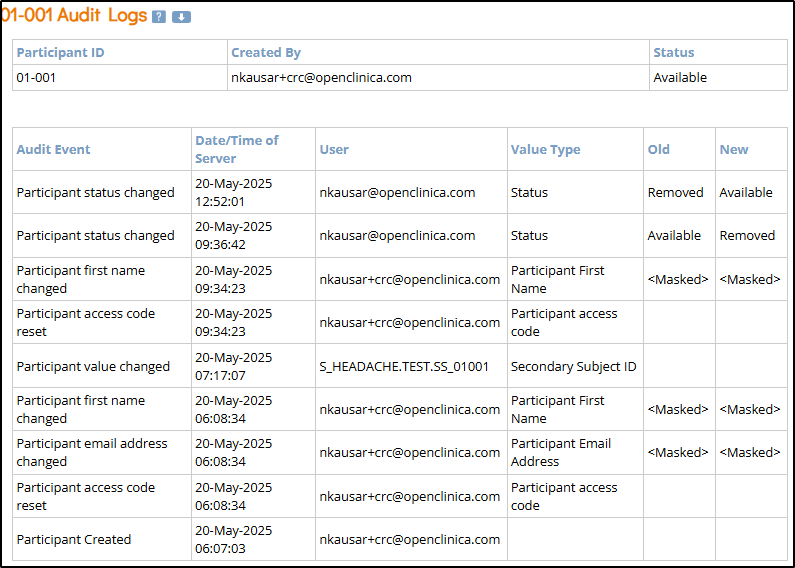
- Participant ID: Unique identifier for each participant in the study.
- Created By: Username of the person who created the participant record.
- Status: Current status of the participant (e.g., Available, Removed).
- Audit Event: Type of action recorded (e.g., Participant Created, Participant [contact data type] changed).
- Date/Time of Server: Server timestamp when the audit event occurred.
- User: Username of the person who performed the logged action.
- Value Type: Field that was modified (e.g., Participant First Name, Status).
- Old: The value before the change was made (blank if newly created).
- New: The updated value after the change (blank if the value was removed).
ℹ️ Note: Protected data, such as a participant’s name, email, or other contact information, is masked in the audit logs for all roles except CRC and Investigator, even if the user has access to view the form containing that data. For more information about contact data, refer to Understanding Contact Data.
Event-Level Data
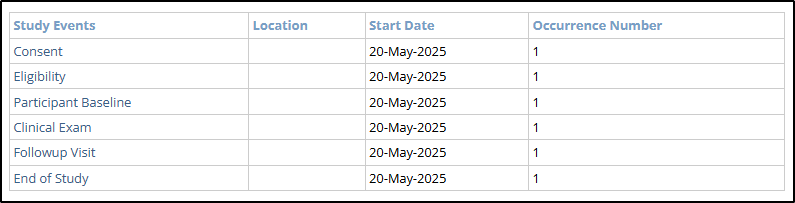
Event-level data includes updates to a participant’s events. This section contains a Table of Contents with links to the various events and the associated event-specific audit log.
- Event Table of Contents
- Study Events: The defined visits or common events for a study participant (e.g., Consent, Follow-up).
- Start Date: The start date of a specific study event.
- Occurrence Number: Displays the sequence number for a repeating study event (e.g., “1” indicates the first occurrence). The highest number indicates how many times the event has occurred.
- Event Audit Log
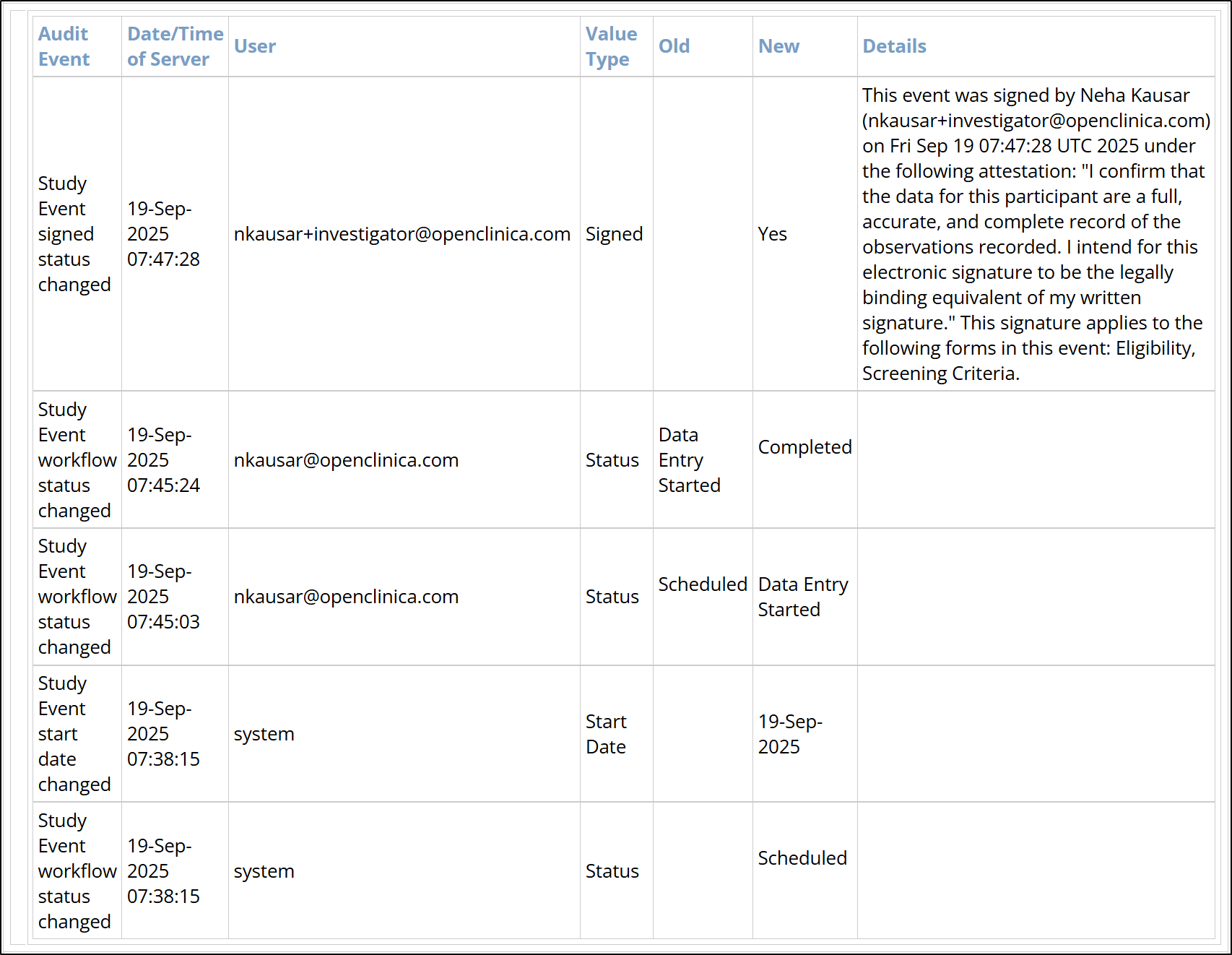
- Audit Event: The type of action recorded (e.g., Study Event workflow status changed, Study Event start date changed, etc.)
- Date/Time of Server: The server timestamp when the audit event occurred.
- User: The username of the person who performed the logged action, or System for actions triggered automatically, such as Calendaring or Randomization.
- Value Type: The field that was modified (e.g., Status, Start Date).
- Old: The value before the change was made. Blank if newly created.
- New: The updated value after the change. Blank if the value was removed.
- Details: Populated with the signature attestation when an Investigator or Data Specialist signs the participant’s event.
Form-Level Data
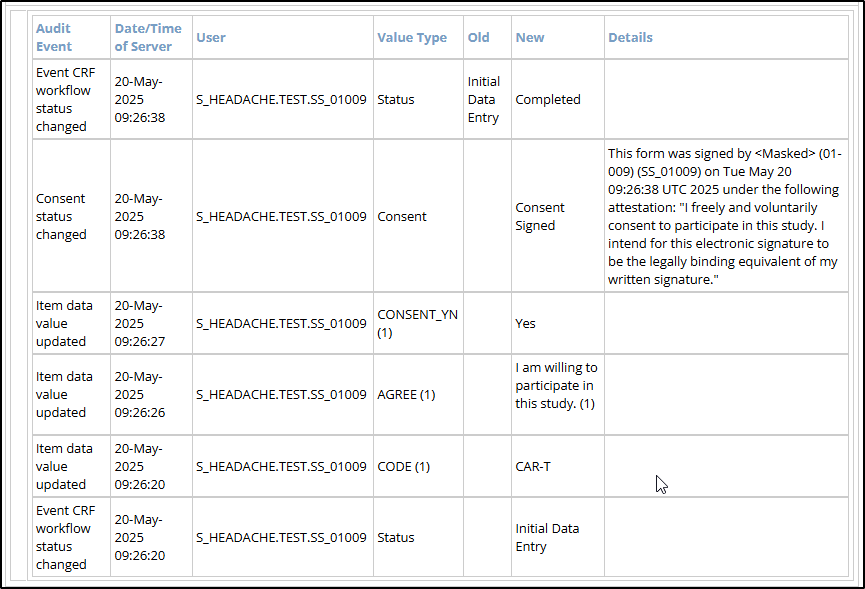
Form-level data includes information about form status as well as all data entry / updates made to form data.
- High Level Form Information
- Name: The name of the form.
- Version: The current version of the form.
- Owner: These are the options for the owner:
- Form entered or modified by the study user in Study Runner: The owner is shown as the user’s email address.

- Form entered or completed by the Participant in eCOA: The owner is shown as the participant’s unique ID.

- PublicURL: Displays “PublicURL” when the form is submitted through the PublicURL feature (no authenticated participant is associated with the submission).
- Form entered or modified by the study user in Study Runner: The owner is shown as the user’s email address.
- Form Data Changes
- Audit Event:The type of action recorded (e.g., Event CRF workflow status changed, Item data value updated, etc.)
- For data pulled via EHR-to-EDC module from an Electronic Health Record (EHR), this column also includes:
- Source: The system type where the data originated (e.g., Electronic Health Record).
- Data Originator: The site or healthcare organization from which the data was retrieved (e.g., hospital or clinic).
- Data Element Identifier: The unique identifier of the specific data element imported from that site’s EHR system.
- For data pulled via EHR-to-EDC module from an Electronic Health Record (EHR), this column also includes:
- Date/Time of Server: The server timestamp when the audit event occurred.
- User: The username of the person who performed the logged action.
- Value Type: The field that was modified (e.g., Status, [form item OID], etc.).
- Old: The value before the change was made. Blank if newly created.
- New: The updated value after the change. Blank if the value was removed.
- Details: Populated with the signature attestation when an eConsent form is signed.
- Audit Event:The type of action recorded (e.g., Event CRF workflow status changed, Item data value updated, etc.)
ℹ️ Note: Form data for which the user lacks access permissions is masked in the Participant Audit Log. For more information about form data access, refer to Managing Form Access and Permissions.
Was this article helpful?
That’s Great!
Thank you for your feedback
Sorry! We couldn't be helpful
Thank you for your feedback
Feedback sent
We appreciate your effort and will try to fix the article