Before reviewing this section, make sure that you have read Getting Started. In addition, please review the Using OpenClinica as a CRC section, as the document applies to Investigators as well as CRCs.
For Information on Using Information as an Investigator, See the Following Sections:
5.1 Signing Participant Records
Investigators (a site-level role) and Data Specialists (a study-level role) can sign Participant records.
Participant records can be signed at three levels:
- Study Event level
- Participant level
- Bulk (multiple Participants at a time)
Events are eligible for signature once the following conditions are met:
- All required forms within an event are marked Complete
- All non-required forms within an event are either marked Complete or Not Started
- The Study Events in question are in a “final” state (Not Scheduled, Complete, Stopped, or Skipped). It is not possible to sign Archived or Removed records.
Additionally, Participants are eligible to be signed, individually or in bulk, if all of their events meet the event criteria above.
Sign a Study Event
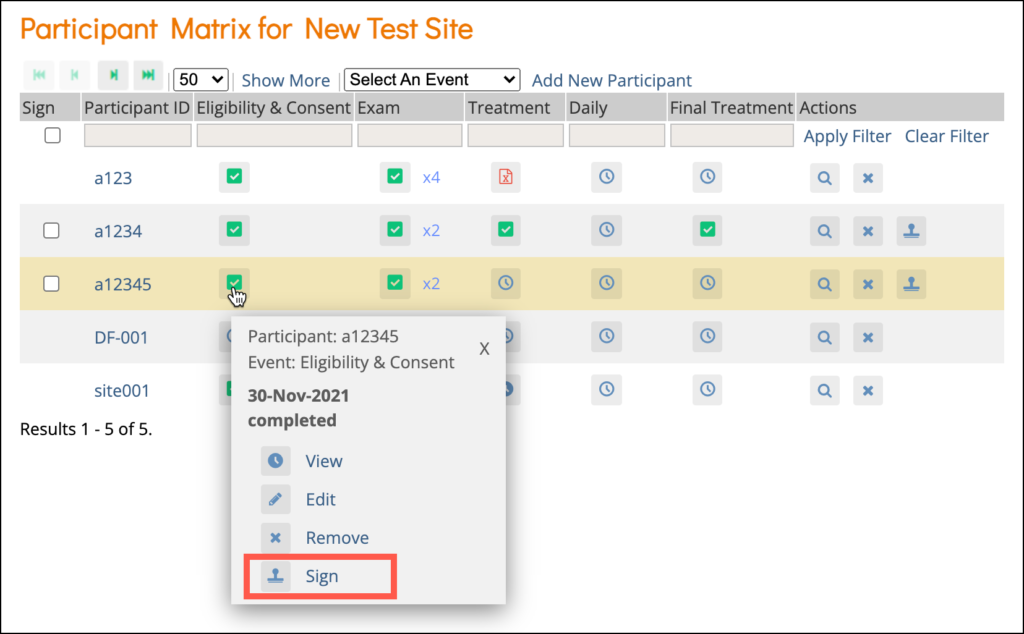
- On the Participant Matrix, click the Event you want to sign.
- Select Sign from the drop-down list (Sign only appears if the event is in a final state).
Or
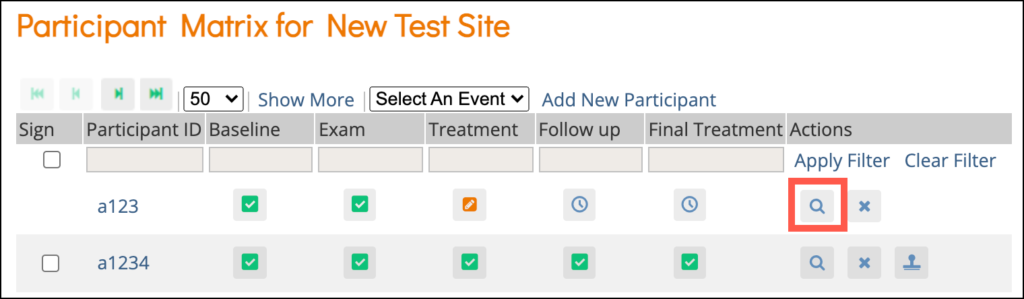
- Click the View icon for the participant with an event you want to sign.
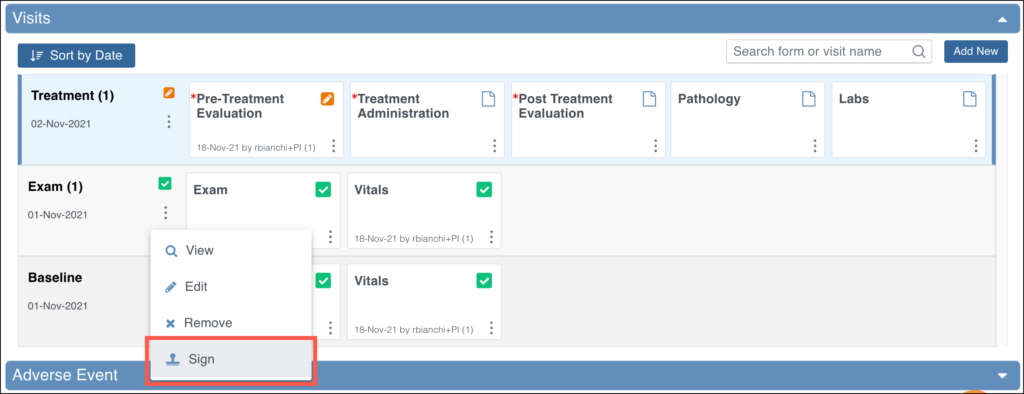
- Locate the Event you want to sign, and select Sign in the Actions drop-down list.
Or
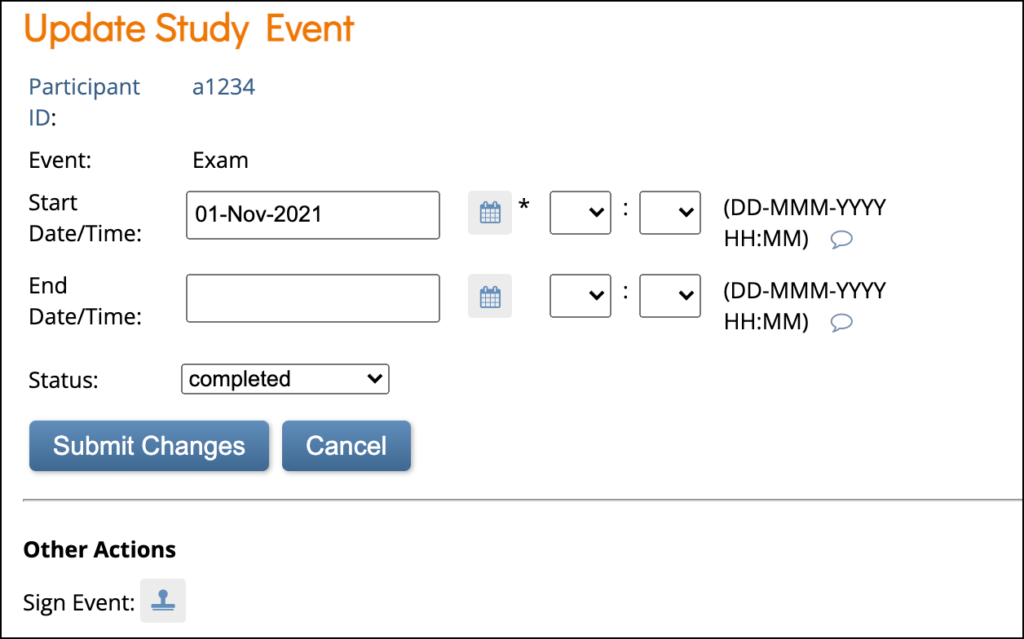
- Click Edit in the Event Actions menu to go to the Update Study Event screen.
- Then, click Sign Event at the bottom.
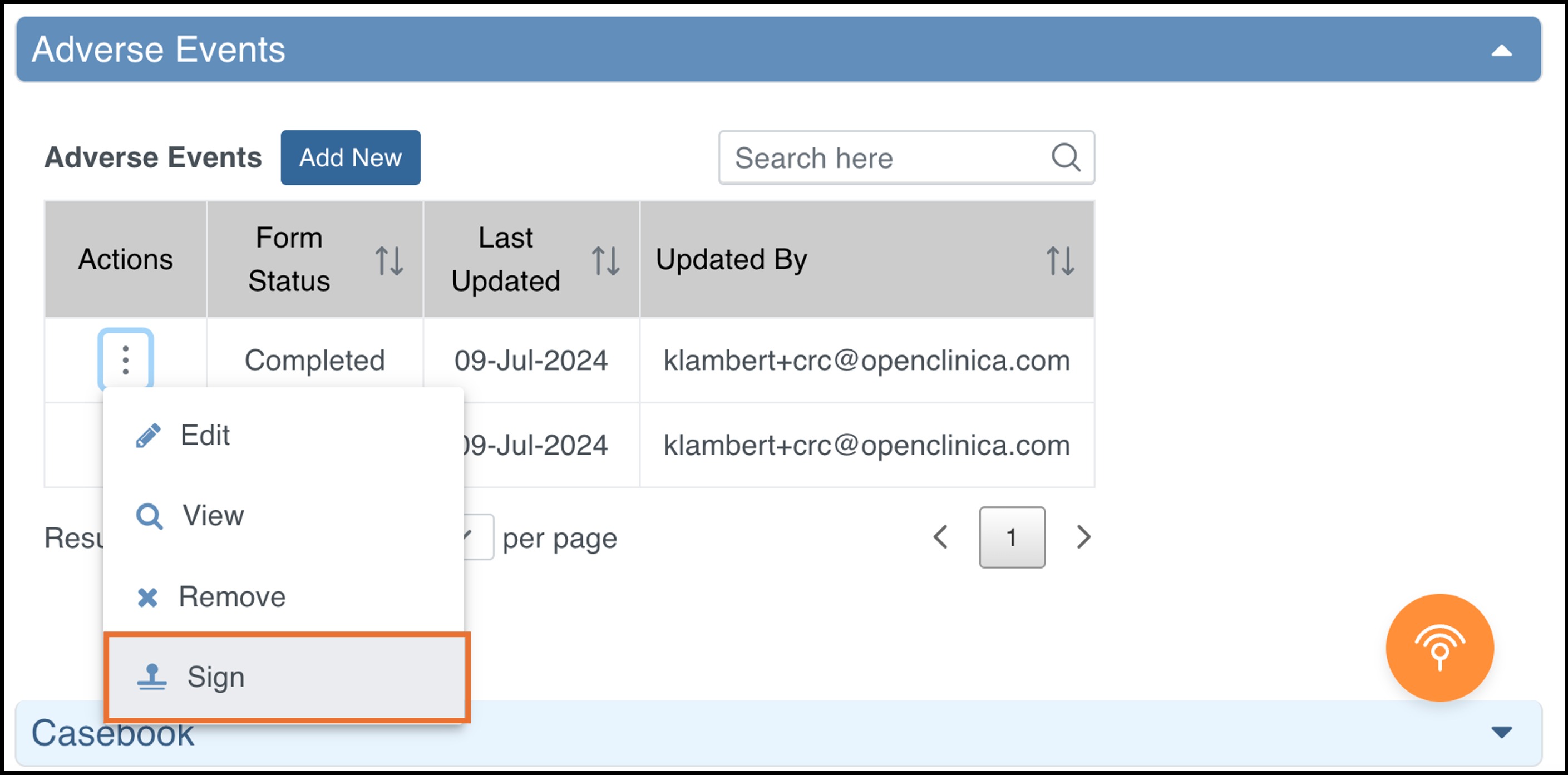
For Common Events, click the Sign icon in the menu of the Actions column on the Participant Details screen.
- The Electronic Signature screen includes an attestation, your full name, a listing of the records you are signing, and a prompt to enter your username and password.
- Scroll to the bottom of the page to see a list of Forms in the Event and the status of queries for each of those Forms:
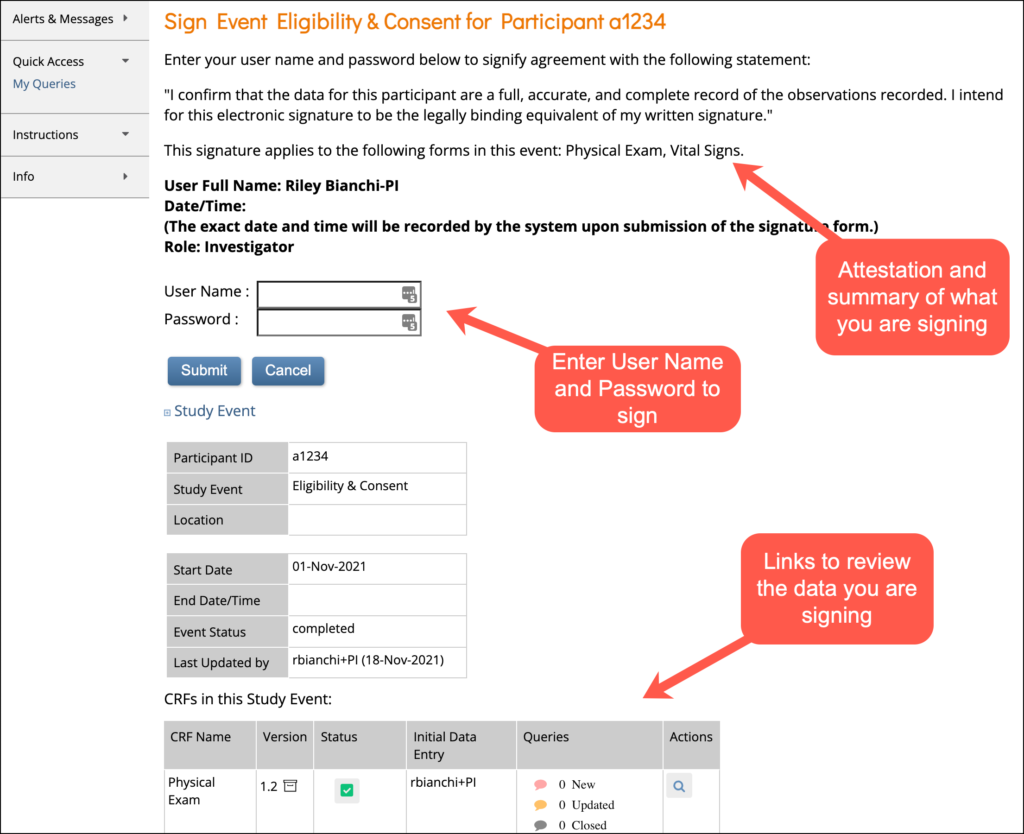
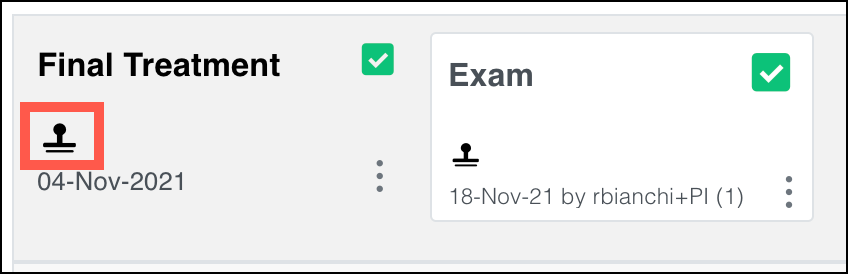
- Enter your username and password and click Submit to complete the electronic signature process. You return to the Participant Details screen to view the Signed icon on the event.
Note: The attestation that appears when signing the Participant Event includes the forms listed above the User’s Full Name on the Sign Event screen. The forms available to sign include all forms for the event, except the following:
- Forms the signing user cannot access due to permission tags or the Hidden attribute of the form
- Forms that were started in the event occurrence but are currently Archived or Removed
- Forms in the event occurrence that were never started or have Not Started status
Sign Participant Records for All Events for a Participant
If all Events for a Participant are in a final state (Not Scheduled, Completed, Stopped, or Skipped), then the entire Participant record can be signed.
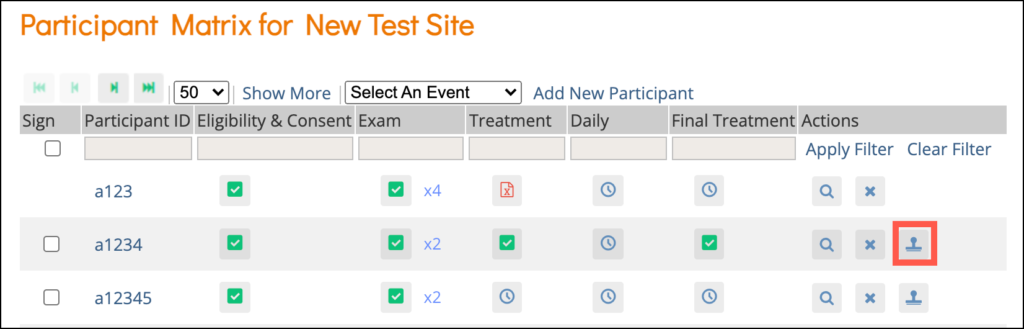
To sign for multiple Events for that Participant, click the Sign button on the Participant Matrix.
Bulk Sign Multiple Participant Records for All Events
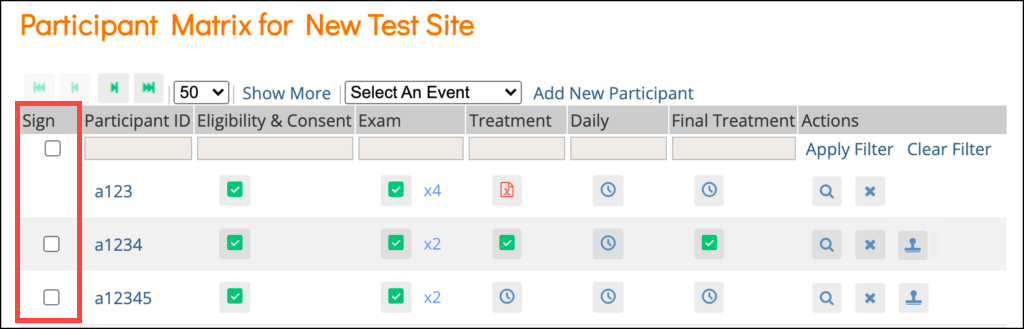
When multiple Participants are ready to be signed (all Events for the Participant are in a final state), a checkbox appears in the Sign column in addition to the Sign button which is available in the Actions column. This checkbox allows you to select multiple Participants to sign in bulk.
Multiple User Signatures
Multiple users can sign an Event, so even if an Event has already been signed, the Sign action will still be available. If there are multiple signatures, all active signatures that have been added since the Event last became signed will display on the Form as well as in the Audit Log.
Unsigned Events
Events are unsigned if:
- A user makes changes to an item on a Form after the Form was signed.
- The Event status was changed from Completed, Stopped, Skipped or Not Scheduled after being signed. (This also changes the Participant status from Signed to Available and the Event Status to Completed.)
- A user archives/unarchives the Form, unless the Form had a status of Not Started.
- A user removes/restores the Form.
Note: Changing the version of a Form will only unsign the Form if a user changes data.
Functional approval by Kate Lambert. Signed on 2024-07-09 12:55PM
Approved for publication by Paul Bowen. Signed on 2024-07-09 1:17PM
Not valid unless obtained from the OpenClinica document management system on the day of use.
Export PDFRevision History
| Revision | Published | Approved By |
|---|---|---|
| Updated for Stack 19 | 2024-07-09 13:17PM | Paul Bowen |
| Updated criteria for what makes a record eligible for signature. Indicated in red. | 2023-07-19 12:22PM | Paul Bowen |
| S17.3 - updated screenshot for signing common events. | 2023-01-19 00:49AM | Paul Bowen |
| Updated to add bulk signatures. | 2022-08-10 15:42PM | Riley Bianchi |
| S17 - Updated multiple signatures section. | 2022-07-27 19:27PM | Paul Bowen |
| Updated screenshots and added the note about which forms are signed. | 2021-12-21 22:31PM | Paul Bowen |
| Updated for PDP | 2021-12-20 23:37PM | Paul Bowen |
| 2021-01-22 10:48AM | Kerry Tamm | |
| 2020-11-17 11:27AM | Kerry Tamm | |
| 2020-11-17 11:22AM | Kerry Tamm | |
| 2020-11-16 09:43AM | Kerry Tamm | |
| 2020-11-13 08:46AM | Kerry Tamm | |
| 2020-11-10 14:51PM | Kerry Tamm | |
| 2020-11-10 14:49PM | Kerry Tamm | |
| 2020-09-11 13:29PM | Kerry Tamm | |
| Updated | 2020-07-31 12:54PM | Kerry Tamm |
| Added screenshots and updated functionality | 2020-07-31 12:50PM | Kerry Tamm |
| publish | 2018-09-14 08:27AM | Ben Baumann |
| publish | 2018-06-28 21:39PM | Ben Baumann |
| test | 2017-06-09 16:13PM | Laura Keita |
| 2017-06-09 16:05PM | Laura Keita |
Was this article helpful?
That’s Great!
Thank you for your feedback
Sorry! We couldn't be helpful
Thank you for your feedback
Feedback sent
We appreciate your effort and will try to fix the article