Before reviewing this section, make sure that you have read Getting Started.
For Information on Using OpenClinica as a Monitor, See the Following Sections:
6.1 Source Data Verification
| Definition: Source Data Verification (SDV) is the process of reviewing and verifying data against source records to ensure accuracy. |
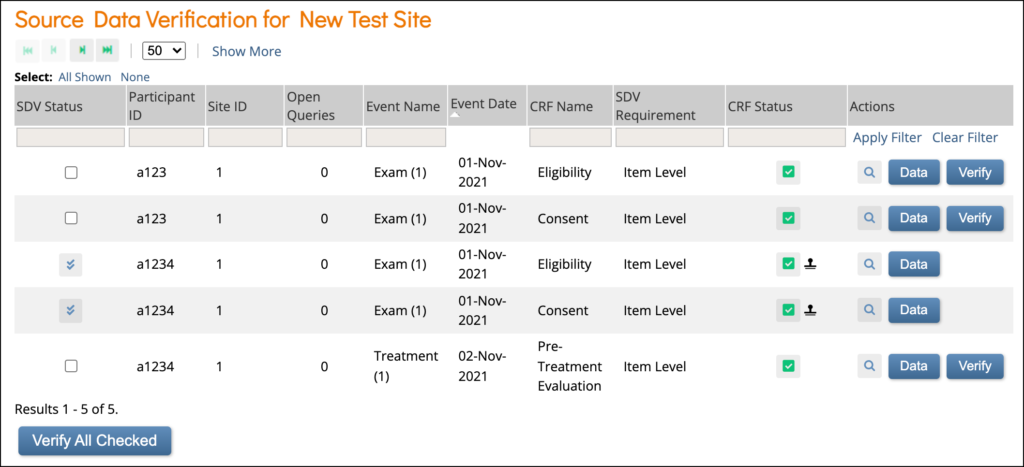
The Source Data Verification screen is the Monitor’s Home screen where they perform Source Data Verification (SDV).
To Access the Source Data Verification screen:
Click Tasks in the header bar of Study Runner, and select Source Data Verification.
The SDV Table
The Source Data Verification table displays the SDV Status, Open Queries, SDV Requirements, CRF Status, etc.
SDV Requirements
SDV requirements are defined by your study protocol. Data Managers and Administrators can specify the level of SDV requirement for each item on a form in Study Designer. Below is a table that displays basic definitions of each SDV Requirement.
| Icon | SDV Requirement | Description |
| (No Icon) | Not Applicable (Default) | SDV is not applicable for this form. |
 | Not Required | SDV is not required for the form, but you can still perform SDV if you want. This is often used when 10% of Forms need to be SDVed. Each form record is verified or unverified all together, rather than item-by-item |
 | Partial Required | Some fields on the form must be verified. Each form record is verified or unverified all together, rather than item-by-item |
 | 100% Required | Every field in the form must be verified. Each form record is verified or unverified all together, rather than item-by-item |
 | Item-Level | Item-Level SDV allows you to choose which items will be part of SDV by selecting Required, Optional, or Not Applicable for each individual item on a form. Item records will then be marked as Verified or Not Verified independently and will become unverified independently if their data changes on the form. |
 | Item-Level (To be configured) | This indicates Item-Level SDV was selected, but is not configured validly since all items are set to Not Applicable. Use the Configure SDV link on the Form card in Study Designer to set each item to Required, Optional, or Not Applicable. At least one item needs to be Required or Optional, otherwise change the form’s SDV Requirement to Not Applicable. |
Not all forms will have all SDV Requirement options available. The SDV options are related to when the form was created and when it was published to Production in relation to the Stack 15 release (December 20th, 2021). The SDV options on forms are as follows:
- Form first published to Production prior to Stack 15 release: Not Applicable, Not Required, Partial Required, 100% Required
- Form created prior to Stack 15 release, but not yet published to Production: Not Applicable, Not Required, Partial Required, 100% Required, Item-Level
- Form first published to Production after Stack 15 release with one of the following statuses – Not Required, Partial Required, 100% Required: Not Applicable, Not Required, Partial Required, 100% Required
- Form first published to Production after Stack 15 release with one of the following statuses – Not Applicable, Item-Level: Not Applicable, Item-Level
- Form created after Stack 15 release: Not Applicable, Item-Level
- Individual items have the following SDV Requirement options: Required, Optional, or Not Applicable
- When first selecting Item-Level on a form, the item is set to Optional by default. Additional items that are added will default to Not Applicable.
- Individual items have the following SDV Requirement options: Required, Optional, or Not Applicable
Item-Level SDV Requirements:
- Not Applicable: Items cannot be verified.
- Optional: Items can be verified but they do not need to be verified in order to mark the form as Verified. Verifying at the form level does not change the status of unverified SDV Optional items.
- Required: Items must be verified for the form to be fully verified and get Verified status. Verifying at the form level changes the status of unverified SDV Required items to Verified.
The Source Data Verification table only displays completed forms with an SDV requirement other than Not Applicable.
You can click Show More to show more rows or filter a column by clicking the gray box below the column header.
Forms can have a status of Ready to verify, Changed since verified, or Verified.
Items can have a status of Not Verified or Verified.
SDV Form Statuses are as follows:
| Icon | Status |
 | Ready to verify |
 | Changed since verified |
 | Verified |
You can sort the columns, such as Event Date by clicking the column header.
The Open Queries column displays the number of queries that are open (New or Updated) for a specific CRF. This is a good way to keep track of which CRFs are likely to change due to outstanding queries.
If the number of queries is 0, the number appears as plain text. If the number of queries is greater than 0, it appears as a link. If you click the link, it takes you to the Queries screen, which is filtered to the Participant, Form, and Event that the row in the SDV table corresponds to.
The CRF Status column displays the status of the form as well as whether it is Locked, Signed, etc.
Click the View CRF (magnifying glass) button in the Actions column to open the form in Review-Only mode (unless the form is in a status of Locked, in which case, the form opens in Read-Only mode).
Click Data to view form information and review the items individually. Use the radio buttons in the upper-right corner to view only the specific data you want to review on the form:
Form Level:
- Show all items: displays all items on the form
- Show only changed since last Verified: displays items that have had a value changed since the form was verified
Item-Level:
- Show all items: Shows all items on the form regardless of SDV requirement or status
- Show all SDV items: Shows all SDV Required or SDV Optional items regardless of status
- Show items needing verification: Shows all SDV Required items with unverified status
Verifying Data
Use Case(s):
- The information on the form has been changed to address a query.
- A response clarifies why the existing information is accurate.
- The SDV Plan requires Source Data Verification regardless of whether or not there is a query.
To Perform Source Data Verification:
- Click the View icon in the Actions column to view the completed form.
- Compare the data entered in the form against the source record. If there are any discrepancies between the source record and the data on the form, click the Query Bubble for the item in question and create a query for the site to address.
- Complete the review of the data and close the form.
- Click Verify to verify all items on that form, or
- Check off each form on the SDV Forms Table and then click Verify All Checked to verify multiple forms at once.
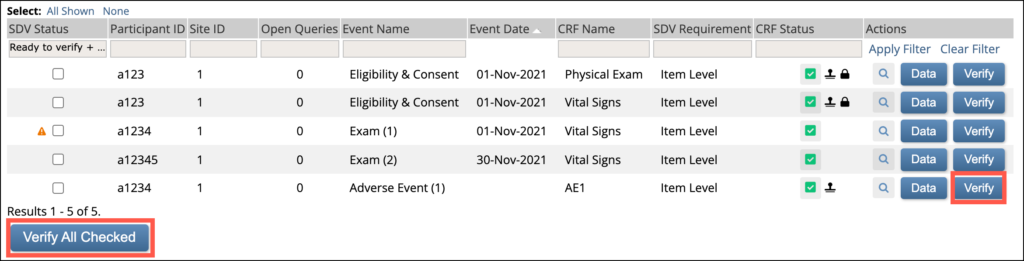
Alternatively, you can click the Data button and review the data. Then select items to verify and click Verify All Checked.
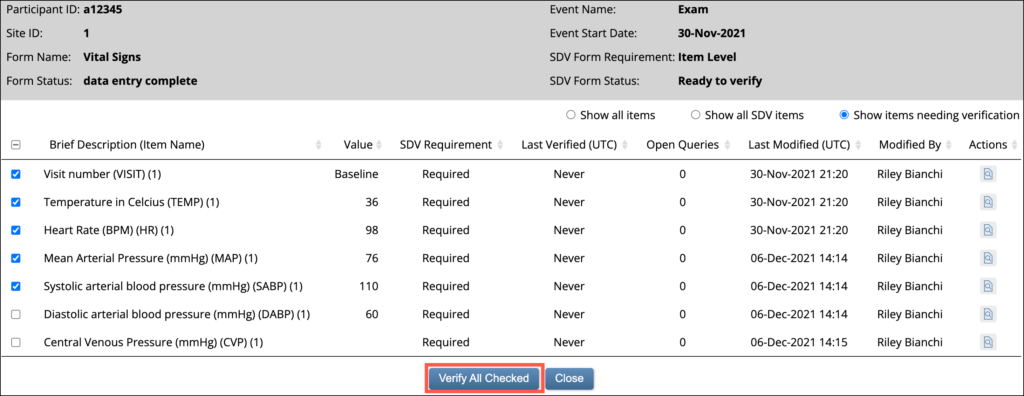
When the final unverified SDV Required item on a form becomes Verified, the form will become Verified. If there are no SDV Required items configured on a form, verifying the final unverified SDV Optional item on a form will verify the form.
Clicking Verify for a form will mark all SDV Required items on that form as verified. Clicking Verify for a form will not mark SDV Optional items as verified.
Note: If you inadvertently marked a record as Verified, you can reset its status by clicking the double-check icon in the SDV Status column. You are prompted to confirm resetting the status. If a form is marked as not verified after it was verified, this does not reset the status for all items on the form. Use the Data button to update the SDV status for individual forms as needed.
Changes Made After Verification
Form-Level:
If a value on a verified form was changed, the status of the form will become Changed since verified, and the form must be verified again.
Item-Level:
If the value of a verified item (whether the item is configured as SDV Required or SDV Optional) was changed:
- If the form was verified, the form becomes Changed since verified and the item becomes Not Verified
- If the form was not verified, the status of the form does not change, and the item becomes Not Verified
If the value of an unverified SDV Optional item changed after the form was Verified, the form status will remain Verified.
If an additional repeating group occurrence containing SDV Required items was added to the form:
- If the form was verified, the form becomes Changed since verified and the Required item remains Not Verified.
- If the form was not verified, the status of the form does not change and the Required item remains Not Verified.
Approved for publication by Paul Bowen. Signed on 2024-11-25 2:57PM
Not valid unless obtained from the OpenClinica document management system on the day of use.
Export PDFRevision History
| Revision | Published | Approved By |
|---|---|---|
| Updated contents to make functionality around SDV Optional items clearer. | 2024-11-25 14:57PM | Paul Bowen |
| S17 - updated per feedback on other SDV page. | 2022-06-28 15:18PM | Paul Bowen |
| Updated per comments | 2021-12-20 18:27PM | Paul Bowen |
| 2021-01-20 14:55PM | Kerry Tamm | |
| 2020-11-30 14:32PM | Kerry Tamm | |
| 2020-11-30 10:32AM | Kerry Tamm | |
| 2020-11-16 14:16PM | Kerry Tamm | |
| 2020-11-11 11:13AM | Kerry Tamm | |
| 2020-11-11 11:12AM | Kerry Tamm | |
| 2020-11-11 11:11AM | Kerry Tamm |
6.2 Queries (Monitor)
Definitions:
|
The system creates queries automatically if you close a Form that has unaddressed errors or you can manually create a query.
Another user can respond to it and/or change the response in the field. Only Data Managers and Monitors can close queries.
The Queries Table
A table displays queries, annotations, and reasons for change. Details about each query, annotation, or reason for change are listed in the Detailed Notes column.
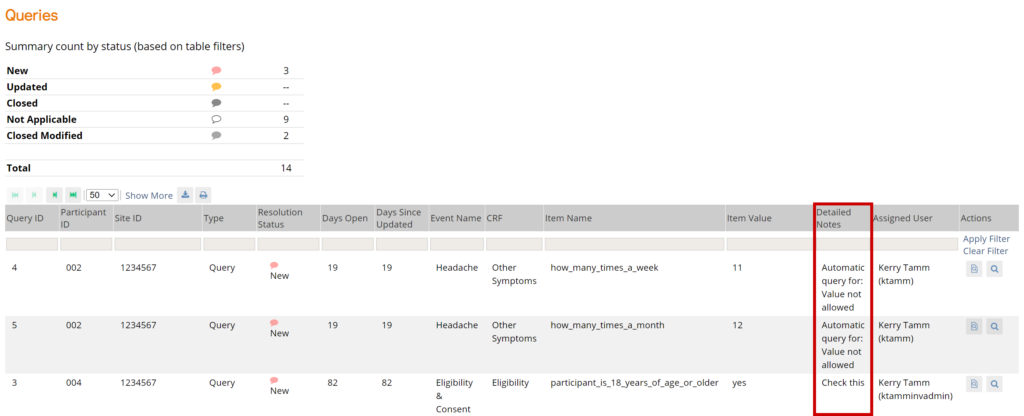
You can click Show More at the top of the table to show more columns.
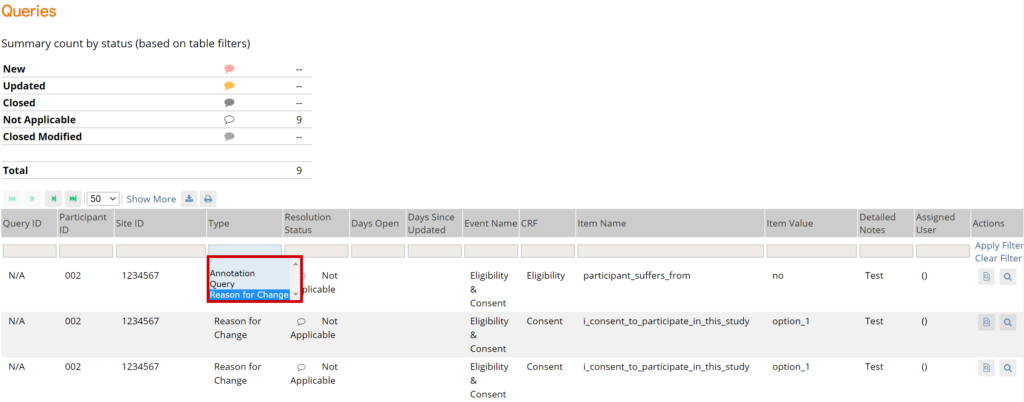
To filter by reason for change, click the gray filter box under the Type column, and select Reason for Change. You can change the view of the Queries screen to filter any column that includes a gray filter box.
The Table Below Displays Statuses for Queries and Annotations:
| Icon | Status | Description |
|---|---|---|
 | No Query | Click this bubble to create a query. |
 | New | A query has been added by either a site user (e.g., a comment/annotation), data manager, or monitor, or was auto-generated by OpenClinica based on built-in edit checks. |
 | Updated | Either a site user, data manager, or monitor has added information to the query. |
 | Closed | The query is considered resolved by the data manager or monitor. |
 | Closed Modified | Slightly paler than Closed, this means the data was changed after the query was closed. |
 | Multiple New Queries | You can select each query from the sidebar. |
 | Multiple Updated Queries | You can select each query from the sidebar. |
 | One or Multiple Annotations | You can select each annotation from the sidebar. |
To Review Data Associated with a Query, You Have Two Options:
| Icon | View | Description |
|---|---|---|
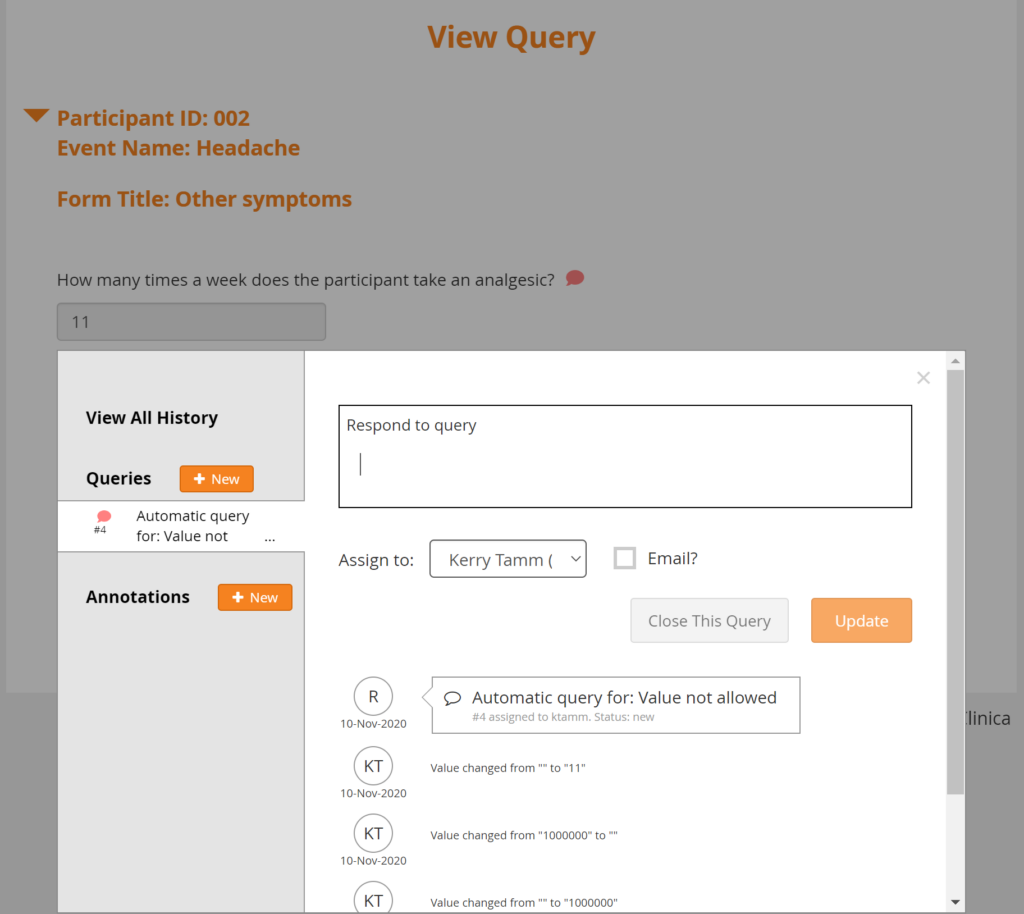
 | View Query Only | This option displays a shaded background showing the item value in question, with the query and item history in the foreground. You can add a query comment, assign the query, and you have the option of emailing the assigned user. All users with access to queries can update the query; only Data Managers and Monitors have access to close a query. |
 | View Query Within Record | This option displays a shaded background of all the item values on the form for that query. You have access to update the query and update and/or review all the data on the form. This provides reviewers with more context when reviewing specific item data issues. |
You can access these options from the Actions column of the Queries table.
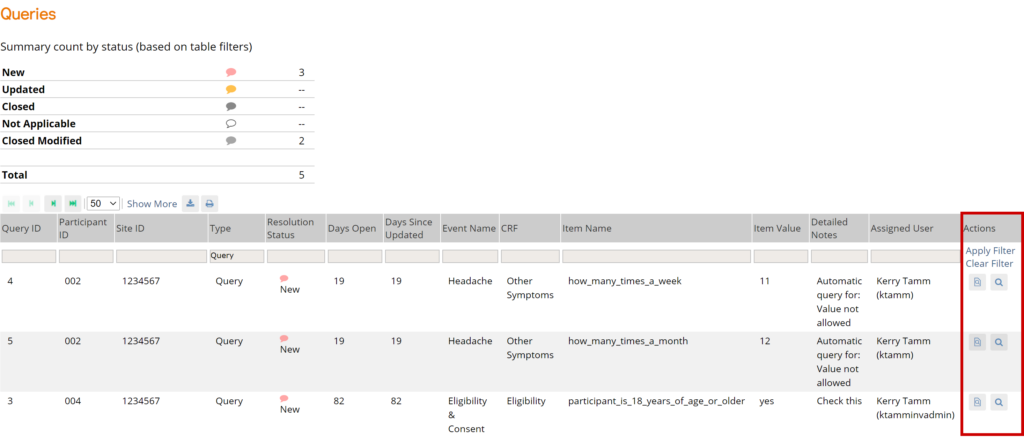
View Query Only:
View Query Within Record:
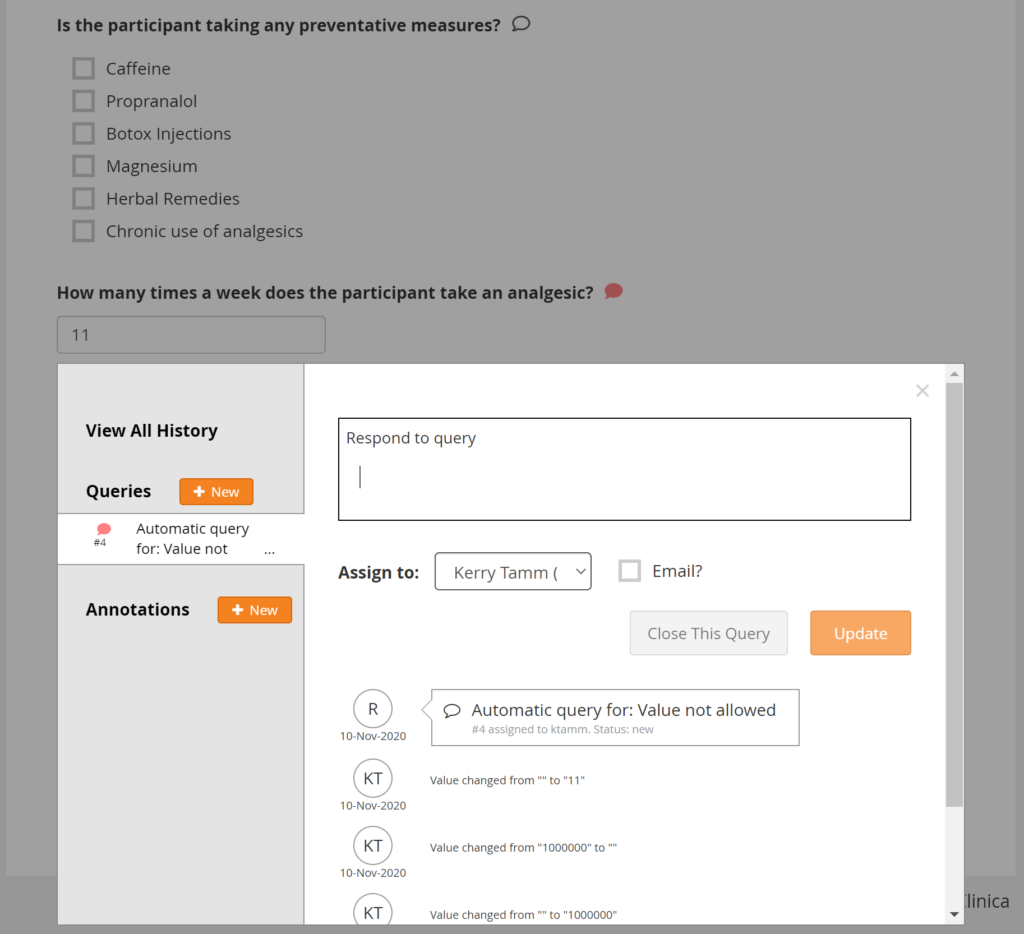
You can then update the query comment, use the x to close the query details, and review the entire form in question. Data Managers and Monitors have the additional option of closing the query.
If an item only displays based on the response to another question, there may be instances where an item was conditionally displayed, a query was added to that item, and then the response to the lead-in question was changed, so that item is no longer displayed. That query still exists, however, and needs to be addressed.
Similarly, if there is a form that has repeating records and a query was added to a row, but that row has since been deleted, the query still exists, but is no longer displayed on the form. OpenClinica informs you of these hidden items and provides an option for resolving the associated queries.
For example, when the item in question is a response that has since been hidden, or is on a repeating record that has since been deleted, the following message displays:
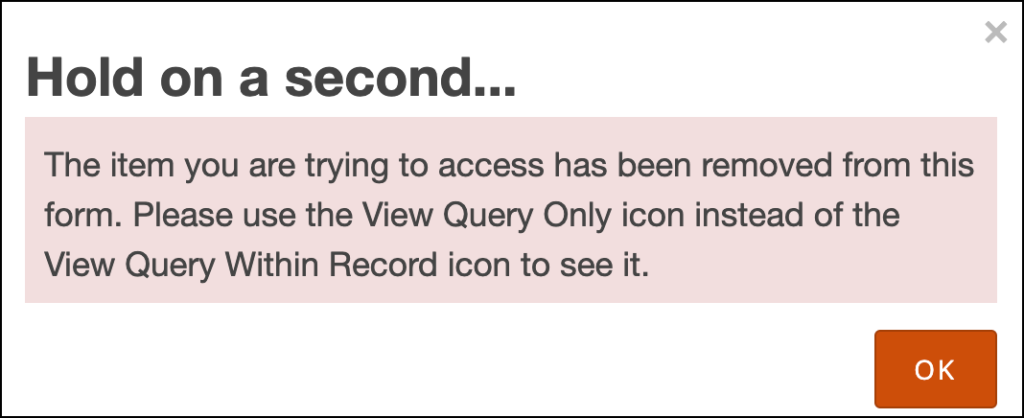
To review the remaining data on that form, click OK and review the data. To review the data for the item in question, return to the Queries screen and use the View Query Only icon for that query (as instructed in the message).
Creating Queries
Use Case(s):
- Participant data does not match the source record.
- Participant data is clinically inaccurate.
- Participant data contains a typographical error.
- A form needs to be marked complete but an edit check prevents it.
- Information is missing from a form.
- A form in an Event was not started on time.
Users can create queries to inquire about participant data.
Note: Each query is automatically assigned an ID that is unique to the study environment (i.e. Test or Production). The ID appears in the Queries widget but is not visible until you close and reopen the Form. It also appears on the Queries table.
You can add multiple queries regardless of any existing ones.
You can only add/respond to queries and annotations in Edit Mode or Review-Only Mode, as determined by your User Role. You cannot do so in Read-Only Mode.
You can view the history for all queries and annotations on a single item by selecting View All History, or you can view the history of each query or annotation individually by selecting that query or annotation from the left panel. If you check the Show value changes checkbox, each value change is included in the history.
Best Practice:
- If a form has not been started when it should have been, a Data Manager can add a query to the events start date.
- When a query is created, it should be assigned to the correct recipient. If action is required excluding if the query needs to be closed, the Email checkbox should be checked off.
- A new query should be created for a single issue, instead of combining multiple issues.
- A new query should be created rather than reopening a query that has already been closed.
To Create a Query:
- Open a Form.
- Click the Query Bubble in the field you want to create a query for.
- Click the +New button next to Queries.
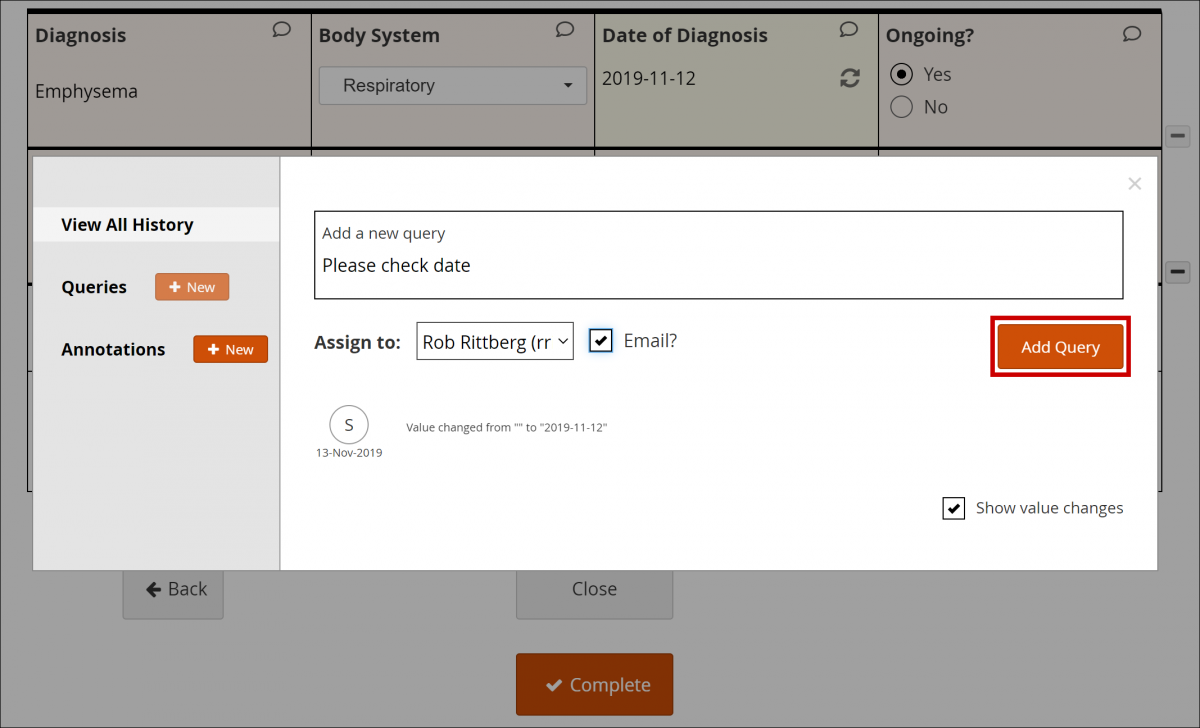
- In the Add a new query field, enter text explaining the possible error or question.
- (Optional) Select a user from the drop-down list next to Assign to. If you want to email that user to notify them about the query, check the box next to Email. When a query notification email is sent, it includes the Query ID for easy access.
- Click the Add Query button.
Responding To/Updating Queries
Use Case(s):
- A response is required for the query to be resolved.
- Participant data must be changed for the query to be resolved.
Users can update queries by responding to a query and/or changing data in the form. If data is changed, they will be prompted to enter a reason for change.
Note: You can only add/respond to queries and annotations in Edit Mode or Review-Only Mode, as determined by your User Role. You cannot do so in Read-Only Mode.
You can view the history for all queries and annotations on a single item by selecting View All History, or you can view the history of each query or annotation individually by selecting that query or annotation from the left panel. If you check the Show value changes checkbox, each value change is included in the history.
Best Practice:
- All users can view a list of queries that have been assigned to them by expanding the Quick Links header in the left-hand sidebar and clicking Queries Assigned to Me.
- Data Managers can view a list of queries that have been assigned to them by clicking Queries Assigned to Me on the Home screen.
- When a query is responded to/updated, it should be assigned to the correct recipient. If action is required, the Email checkbox should be checked off.
- Data Managers and Monitors should review the entire queries list regularly to check for unassigned queries.
- If a conditional field (a field that appears based on the response to another field) has a query on it but a user has changed the response to the main field so that the conditional field no longer appears, the query still exists and needs to be addressed, but the field no longer appears on the Form. To review the remaining data on that Form, click OK, and review the data.
- If there is a form that has repeating records, and a query was added to a row, but that row has since been deleted, the query still exists, but no longer appears on the Form. A message appears to inform you of these hidden items and provides an option for resolving the associated queries. To review the remaining data on that Form, click OK, and review the data.
To Respond to or Update In a Form:
- Open a Form.
- Click the Query Bubble in the field you want to create a query for.
- Select the query you want to respond to and/or update.
- (Optional) If you need to change information in a form, close the Query widget, and make changes to the Form manually. You must provide a Reason for Change before completing the Form.
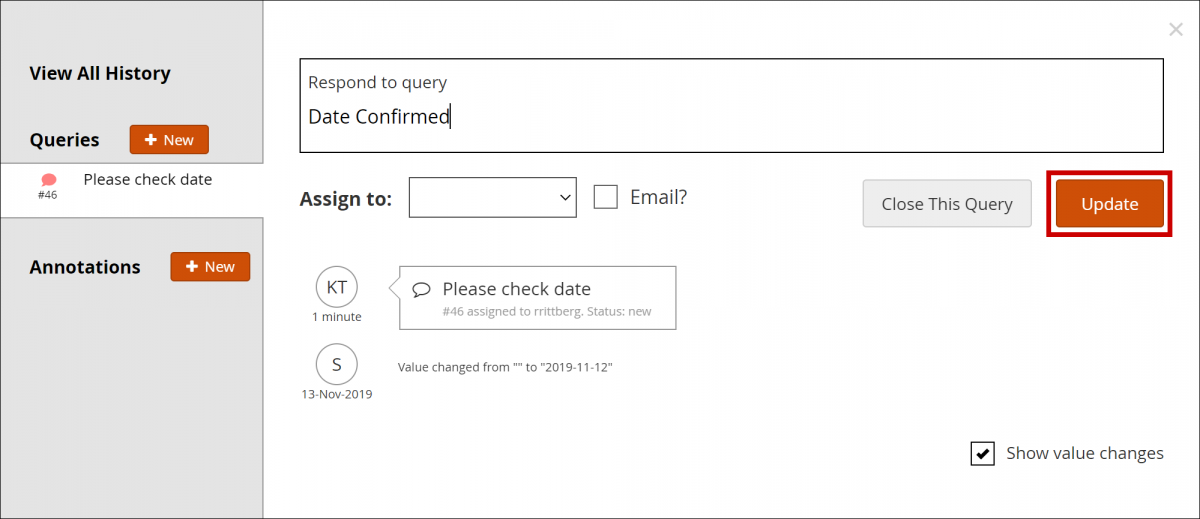
- In the Respond to query field, enter text explaining the query response.
- (Optional) Select a user from the drop-down list next to Assign to. If you want to email that user to notify them about the query, check the box next to Email. When a query notification email is sent, it includes the Query ID for easy access.
- Click the Update button to add the response and leave the query open.
To Respond to or Update a Query from the Queries Table:
- Click View Query Only or View Query within record in the Actions column of the Queries table.
- (Optional) If you need to change information in a form, close the Query widget, and make changes to the form manually. You must provide a Reason for Change before completing the form.
- In the Respond to query field, enter text explaining the query response.
- (Optional) Select a user from the drop-down list next to Assign to. If you want to email that user to notify them about the query, check the box next to Email. When a query notification email is sent, it includes the Query ID for easy access.
- Click the Update button to add the response and leave the query open.
Closing Queries
Use Case(s):
- The information on the form has been changed to address the query.
- A response clarifies why the existing information is accurate.
Data Managers and Monitors can close queries when the issue has been resolved. Data Managers and Monitors are also the only user roles with the ability to reopen a closed query.
Best Practice:
- A new query should be created rather than reopening a query that has already been closed.
- If a conditional field (a field that appears based on the response to another field) has a query on it but a user has changed the response to the main field so that the conditional field no longer appears, the query still exists and needs to be addressed, but the field no longer appears on the Form. To review the remaining data on that Form, click OK, and review the data.
- If there is a form that has repeating records, and a query was added to a row, but that row has since been deleted, the query still exists, but no longer appears on the Form. A message appears to inform you of these hidden items and provides an option for resolving the associated queries. To review the remaining data on that Form, click OK, and review the data.
To Close a Query In a Form:
- Open a Form.
- Click the Query Bubble in the field you want to create a query for.
- Select the query you want to close.
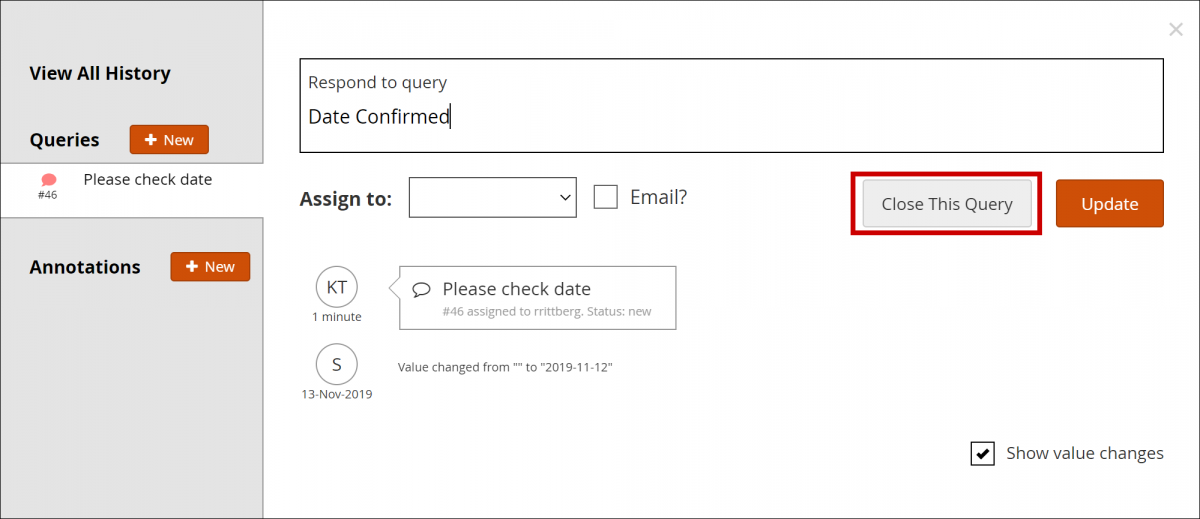
- Click the Close button.
To Close a Query from the Queries Table:
- Click View Query Only or View Query within record in the Actions column of the Queries table.
- Click the Close button.
Annotations
Use Case(s):
A user adds an annotation to keep track of workflow
You can add an annotation to a field to make a note. Annotations cannot be assigned, responded to or closed.
Best Practice: Annotations should not contain clinical information.
Note: You can view the history for all queries and annotations on a single item by selecting View All History, or you can view the history of each query or annotation individually by selecting that query or annotation from the left panel. If you check the Show value changes checkbox, each value change is included in the history.
To Enter an Annotation:
- Open a Form.
- Click the Query Bubble in the field for which you want to create an annotation.
- Click the +New button next to Annotations.
- In the Add a new annotation field, enter text for the annotation.
- Click the Add Annotation button.
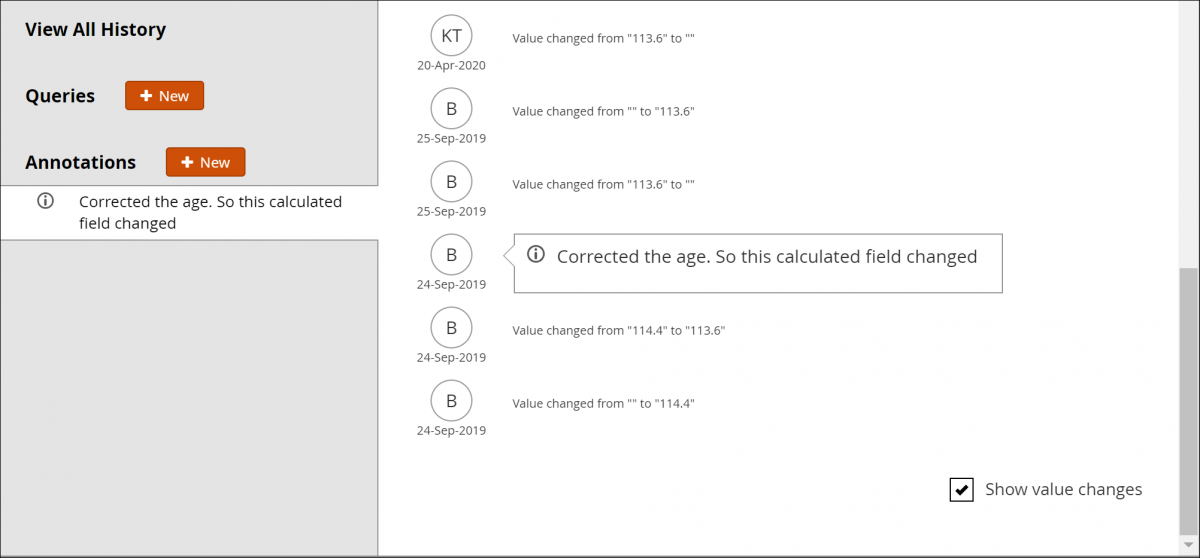
Note: Annotations are indicated with an i icon. They appear as N/A in the Query ID column and Not Applicable in the Resolution Status column.
Downloading Queries, Annotations, and Reasons for Change
To Download Queries, Annotations, and Reasons for Change:
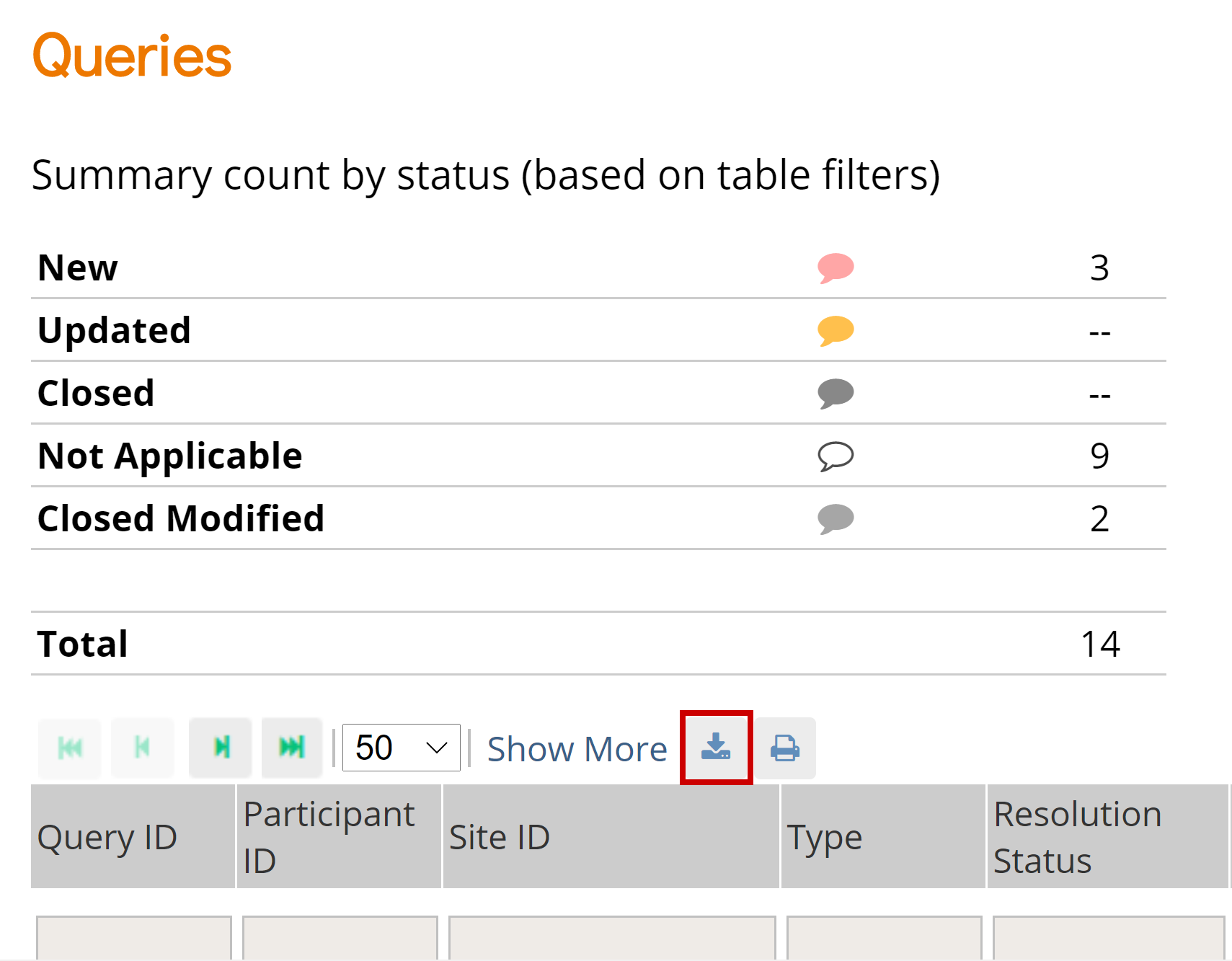
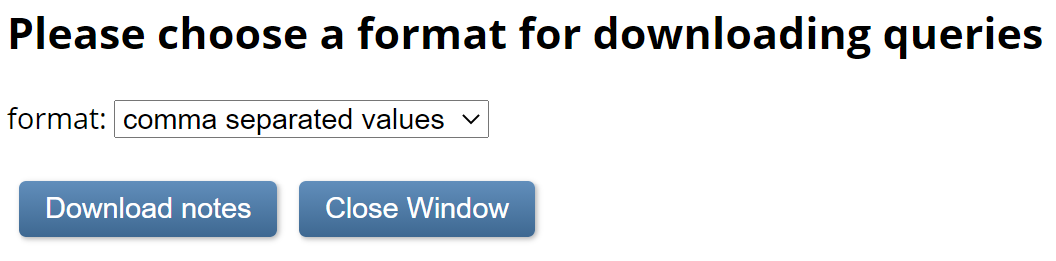
- Click the Download button at the top of the table. A Download window appears.
- Select comma-separated values or portable document format in the format field.
- Click the Download notes button.
Printing Queries, Annotations, and Reasons for Change
To Print Queries, Annotations, and Reasons for Change:
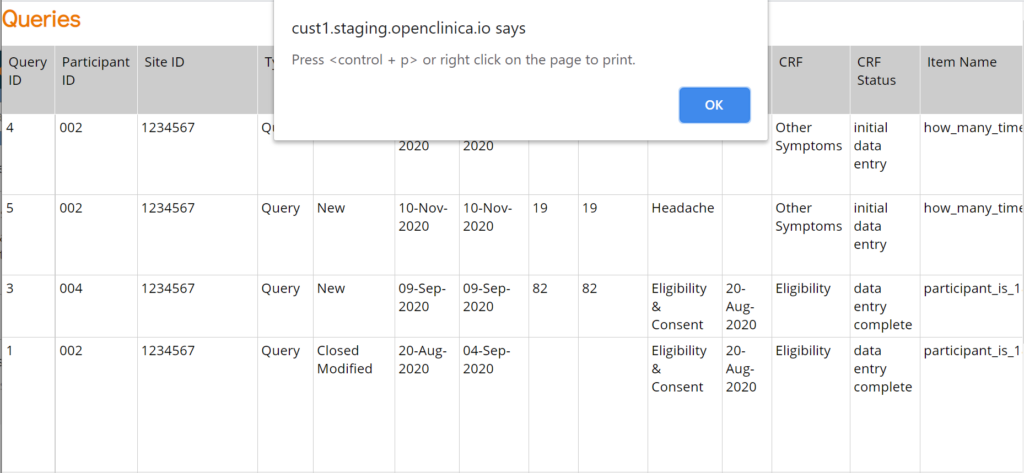
- Click the Print button at the top of the table. A Print window appears.
- Click ctrl + p (Windows) or command + p (Mac) or click Ok, right click the window, and select Print.

Functional approval by Riley Bianchi. Signed on 2022-03-21 12:07PM
Approved for publication by Paul Bowen. Signed on 2022-04-13 12:19AM
Not valid unless obtained from the OpenClinica document management system on the day of use.
Revision History
| Revision | Published | Approved By |
|---|---|---|
| Updated page name to include Monitor (to differentiate from other queries pages) | 2022-04-13 00:19AM | Paul Bowen |
| 2021-01-19 11:49AM | Kerry Tamm | |
| 2020-11-30 14:31PM | Kerry Tamm | |
| 2020-11-30 10:36AM | Kerry Tamm | |
| 2020-11-17 13:43PM | Kerry Tamm | |
| 2020-11-17 13:42PM | Kerry Tamm | |
| 2020-11-16 09:45AM | Kerry Tamm | |
| 2020-11-11 11:04AM | Kerry Tamm |
Was this article helpful?
That’s Great!
Thank you for your feedback
Sorry! We couldn't be helpful
Thank you for your feedback
Feedback sent
We appreciate your effort and will try to fix the article